
Troubleshooting Help
Unfortunately, sometimes something within bol's systems doesn't work right away. On this page, you'll find extra guidance to resolve potential issues without the help of Partnerservice. If you notice something isn't working, please follow the steps below.
How to solve common problems yourself
Check if there is an active malfunction
An overview of current malfunctions can be found here.
If an alternative solution is known, it will be shared in the message. In this case, there's no need to contact Partnerservice, unless otherwise stated in the malfunction notification.
If the malfunction is not listed, you can proceed to step 2.
Check if the situation also occurs in an incognito window
You can open an incognito window via the options in your browser, or the internet program you are using.
Click 'More' in the top right corner > New incognito window. It varies slightly per browser, but in Google Chrome (preferred browser), it looks like this:
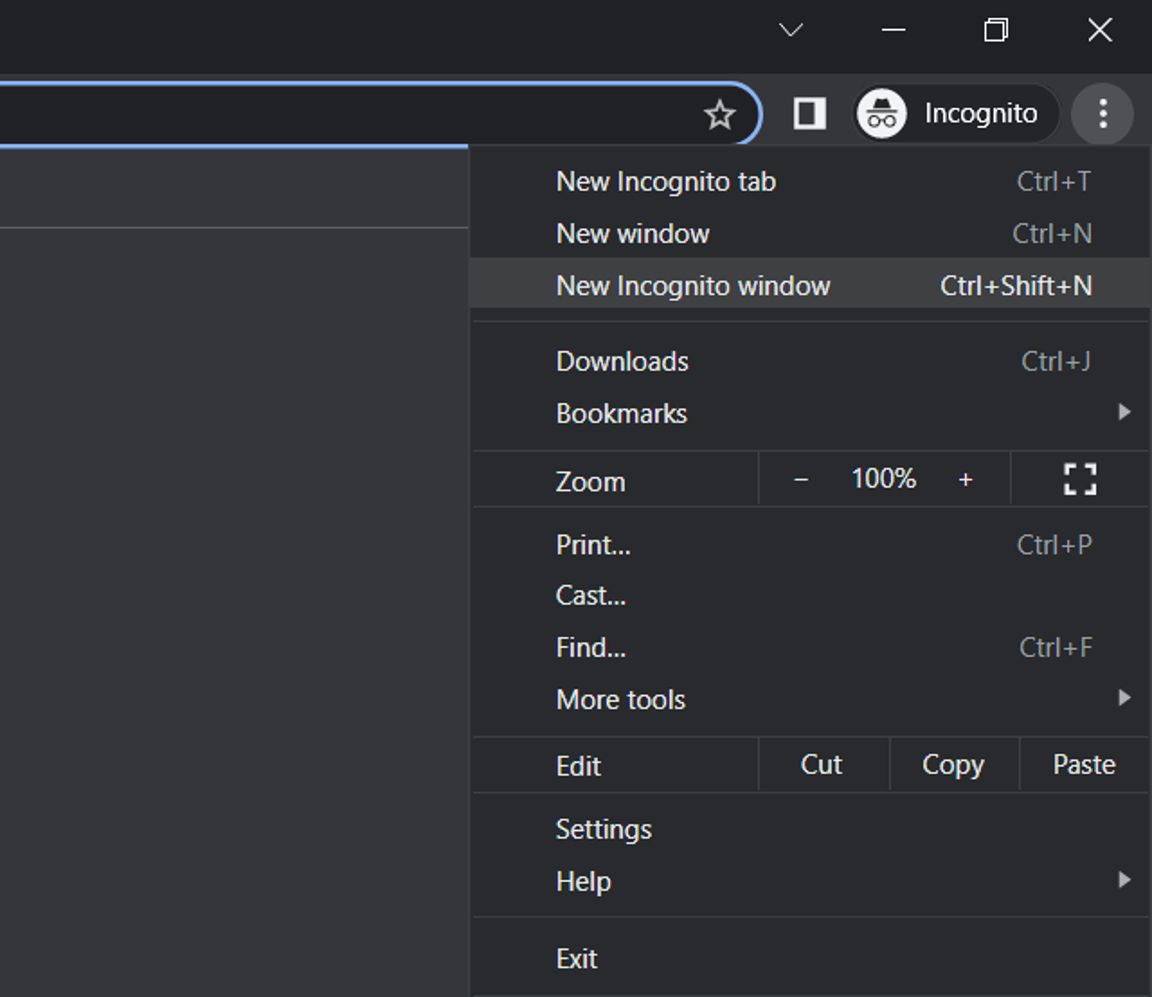
You can also use the following shortcuts:
- Windows shortcut: Ctrl + Shift + N (when the browser is open)
- Mac shortcut: Command + Shift + N (when the browser is open)
An incognito window ensures that…
Activities that might still be active in the background of your browser are no longer active. Since web pages are constantly updated, there's a chance you might be stuck on an outdated version. Using an incognito window prevents this from happening.
Check if re-saving data resolves the problem
Unfortunately, it sometimes happens that data isn't processed immediately and a change might need an extra push. We ask you to save the necessary information again if you notice it's not coming through correctly.
Example: Do you notice that a shipping label isn't downloading immediately? Sometimes it helps to re-save the shipping label or change it to a letterbox label and back again (or vice versa).
Take a screenshot of the problem
If the previous steps haven't resolved the issue, we ask you to take a screenshot of the entire screen in an incognito window. Please ensure that the URL and the date + time are clearly visible in the screenshot.
Contact us with the relevant information
We ask you to contact us and describe the problem as clearly as possible, share the screenshot you took, and provide current examples, such as affected order numbers and EAN numbers.
Since a screenshot cannot be shared by phone, we advise you to contact us via chat. You can find this option in your seller account.