
Getting access with API Client credentials
To get access to the API, you need Client credentials. On this page, you'll find more information about Client credentials and how to create them. Some of our gold, silver, and bronze partners are connected to our simplified authentication process. At the bottom of this page, you can read more about how the authentication process works for these third parties.
Creating Client credentials
With Client credentials, you can authenticate yourself with the bol Retailer API. Client credentials are a type of username and password for the API. Below you will find the steps to create Client credentials:
Open API settings
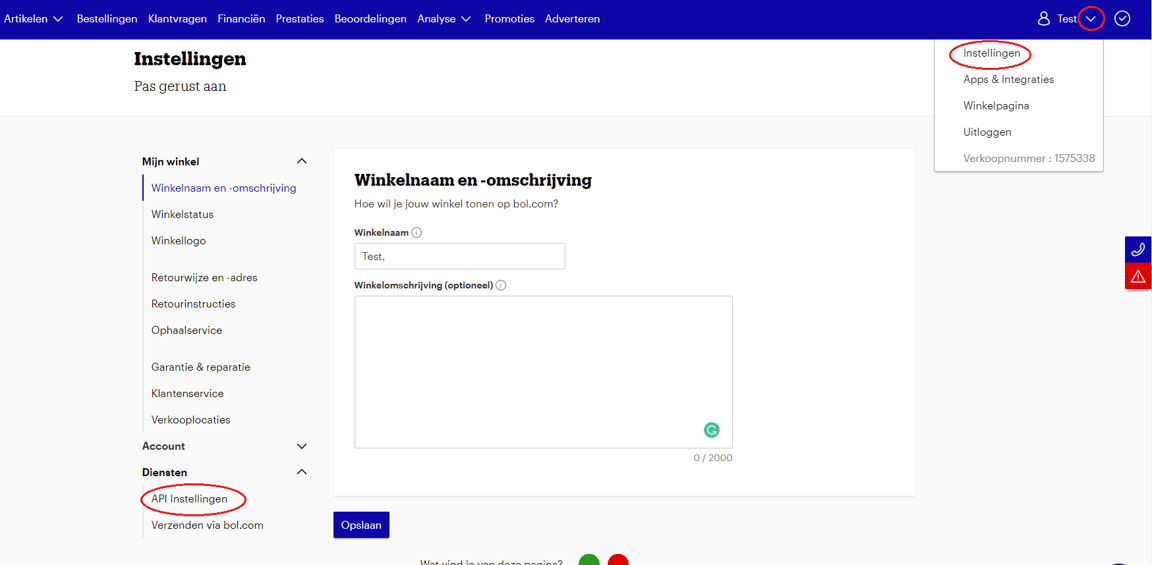
Log in to your bol seller account, open the settings page, and under the heading 'Services', go to 'API Settings'.
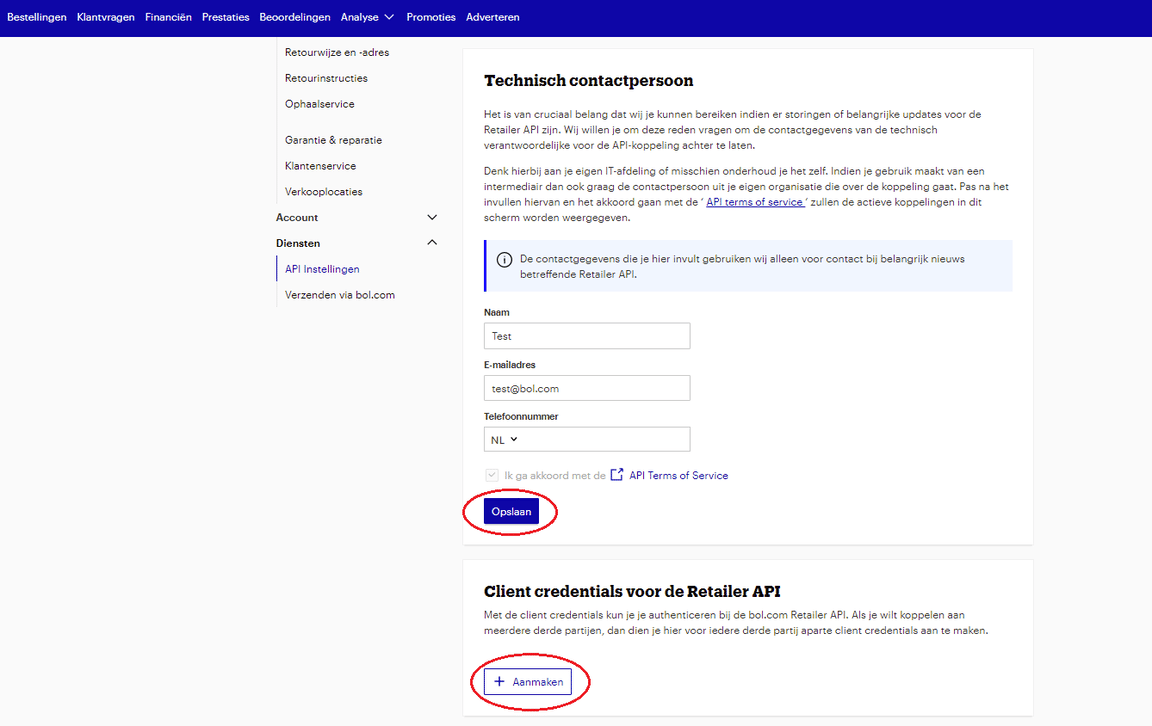
Enter the contact details of your technical contact person and click 'Save'.
These contact details are used to inform you about important updates and news regarding the API. Therefore, make sure to enter the contact details of the person who is technically responsible for your API integration.
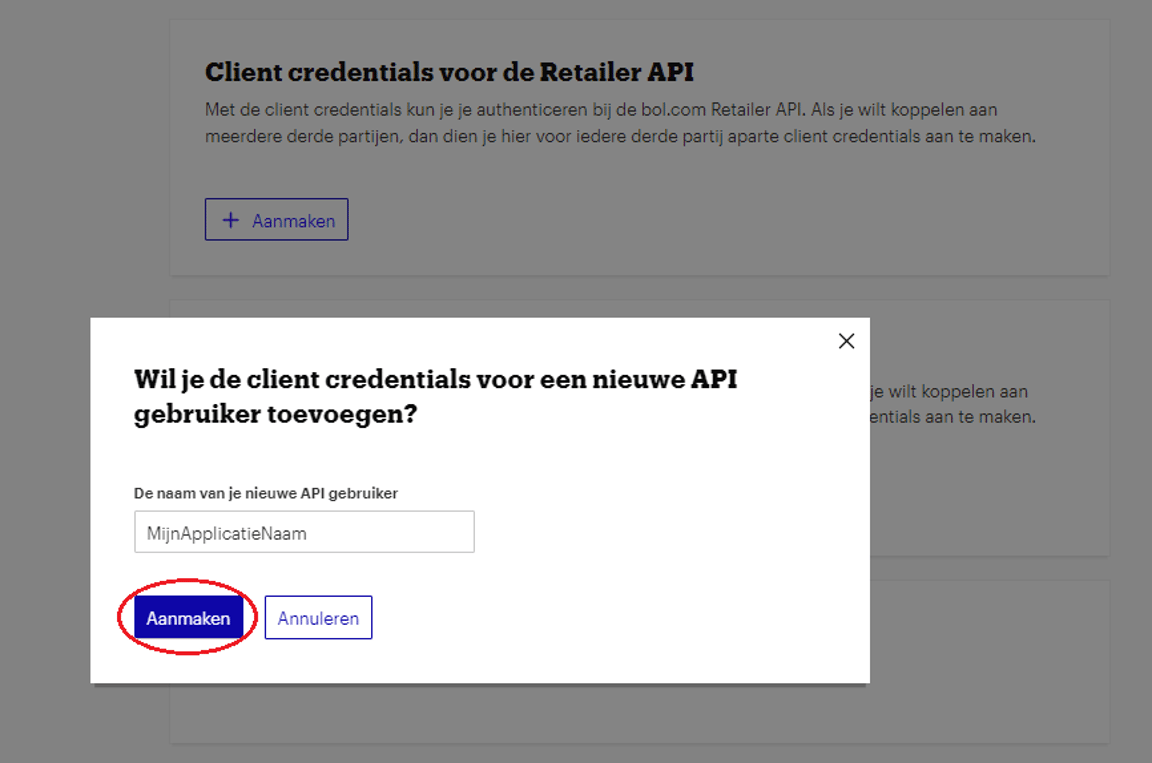
Under the heading 'Client credentials for the Retailer API', click 'Create'.
In the text field, enter a name for the credentials. Preferably use the name of your internal or external software. If you are using a third party for the API (an integration partner, fulfillment party, etc.), enter the name of this party. After entering the name, click 'Create'.
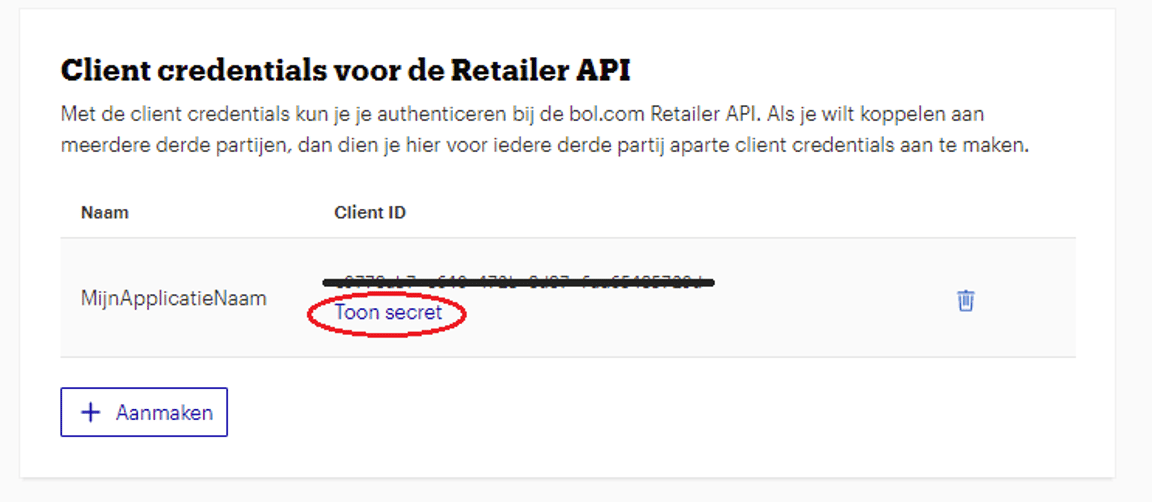
The Client credentials have now been created.
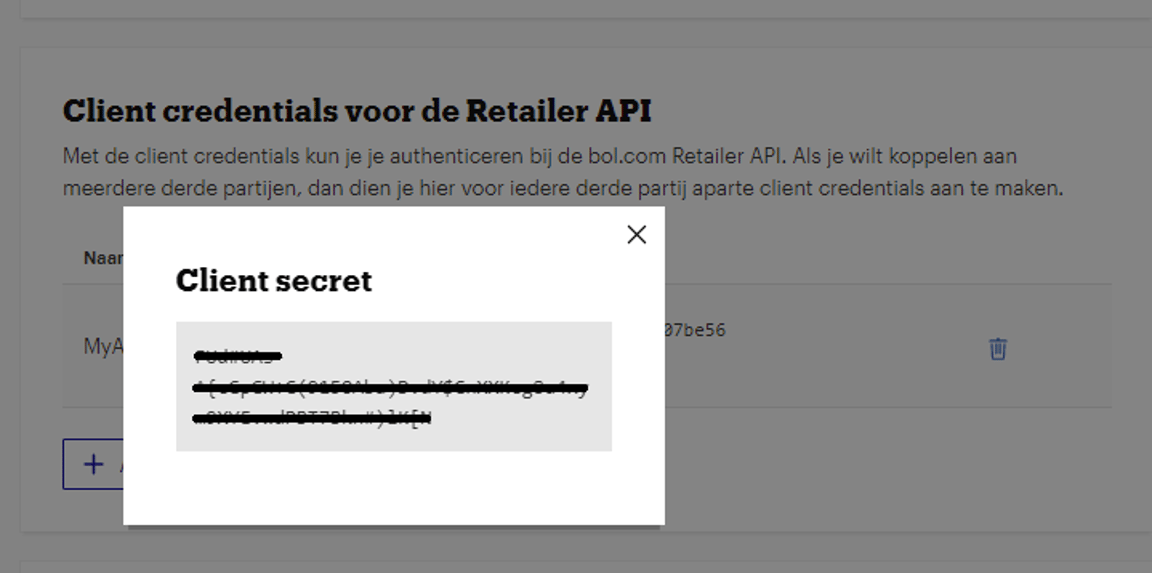
The Client ID is automatically shown on the screen. When you click 'Show secret', a pop-up will open containing the Client secret.
Are you using an integration partner? Enter your Client credentials there.
If you are using an integration partner/third party, you will enter the Client credentials in their system.
If you want to connect with multiple third parties, you must create separate Client credentials for each party. If you stop using a third party, you can easily remove their Client credentials.Are you building an API integration yourself? Find everything about authentication flows and Client credentials here.
Tip!
With our previous API, Client Credentials were called API Keys. It's possible that your integration partner still refers to 'API Keys' instead of Client credentials. This is not a problem; you can simply enter your Client credentials under API Keys.
Simplified authentication process for authorized parties
With some trusted third parties, you don't need to enter Client credentials in their application or website. You only need to give permission once a year from their application to exchange data with your bol account.
For trusted third parties, follow the steps below when setting up an integration with bol.
Go to the third party's website.
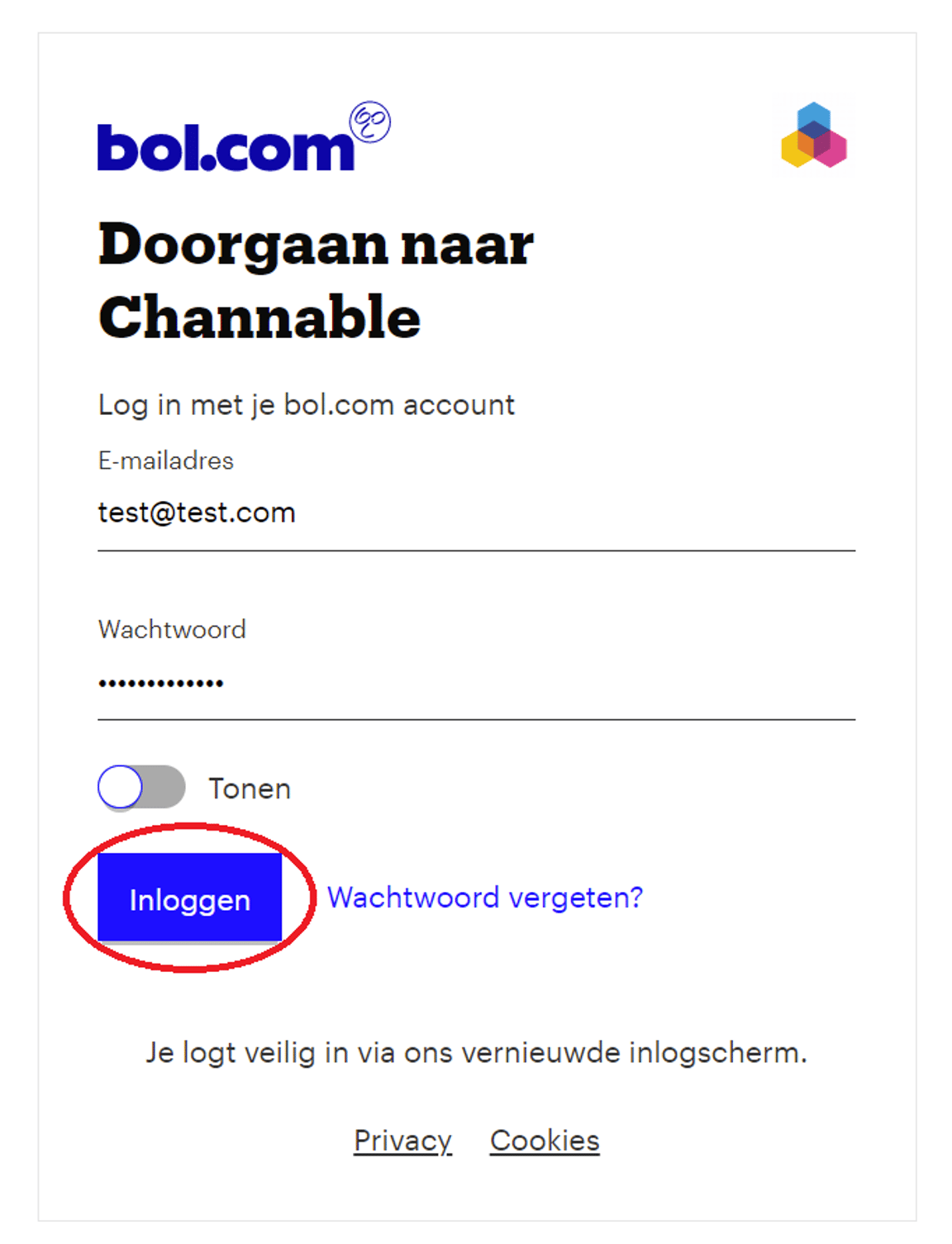
When you set up an integration with bol, you will automatically be redirected to the bol login page. Enter the login details of your bol seller account and click 'Log in'.
Grant access to third party
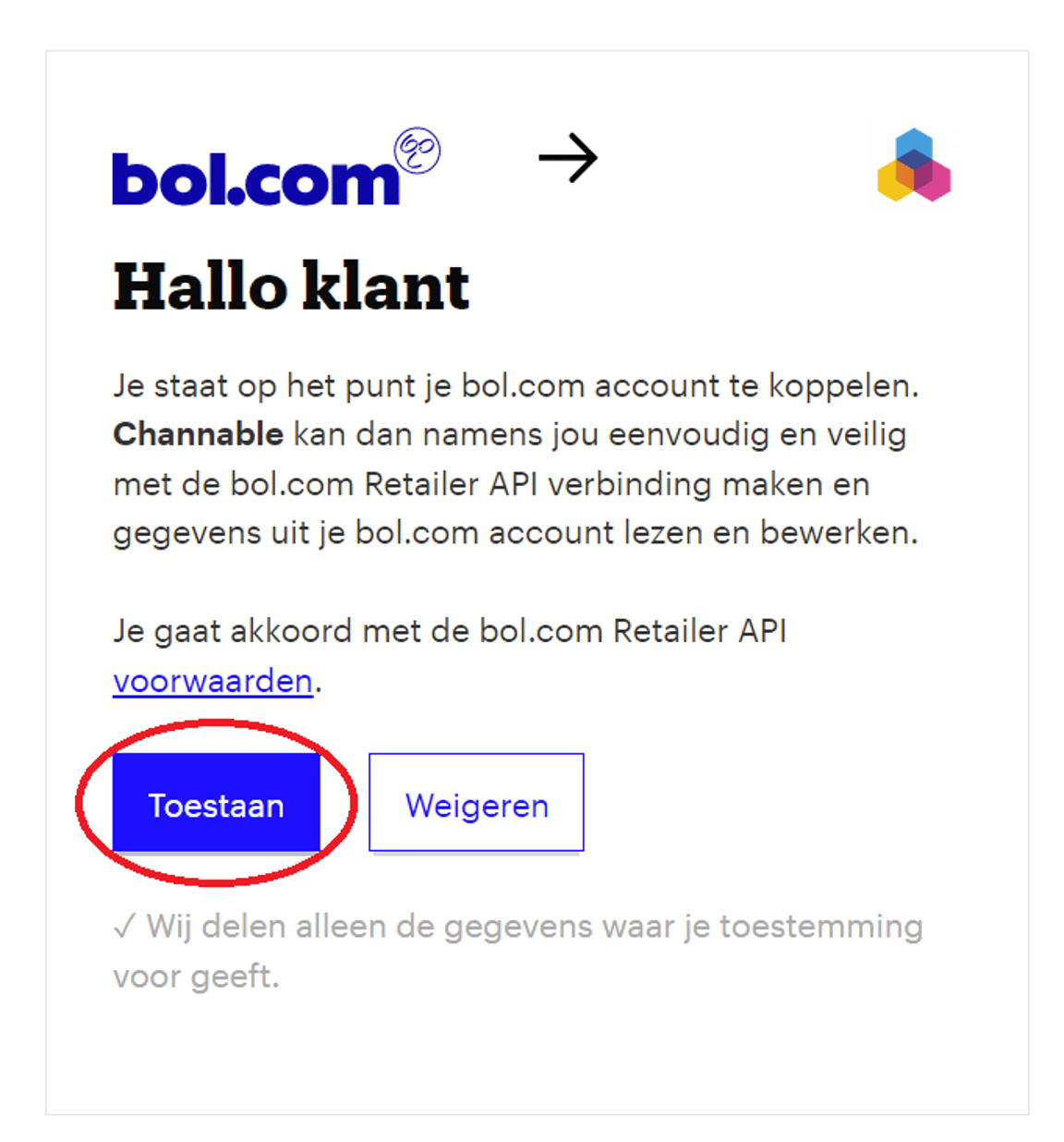
After logging in, you will see a subsequent screen where you need to give permission to the party to connect your bol account.
Click the 'Allow' button to grant access. You will then be redirected back to the third party's website.
View authorized parties
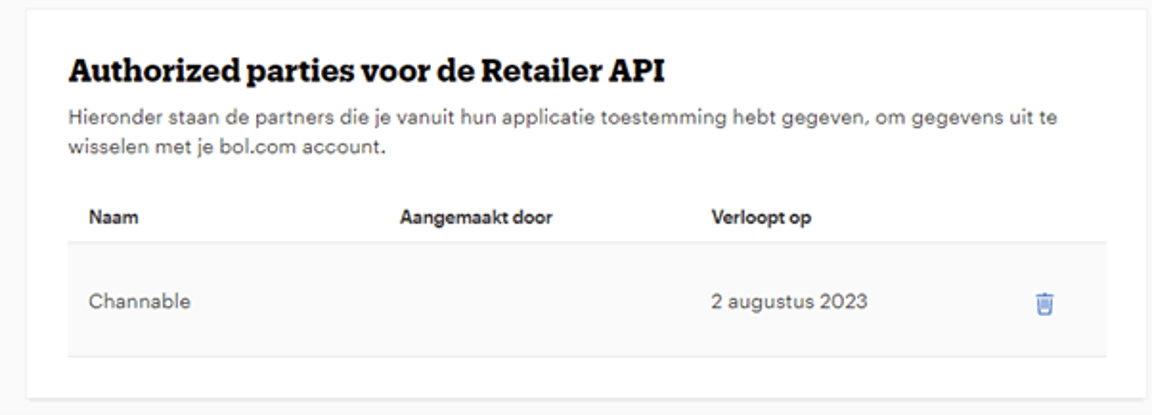
In your bol seller account, under the heading 'Authorized parties for the Retailer API', you will now find the name of the third party.
Here you can also see when the permission expires: the permission is valid for one year and must be renewed afterwards. Fortunately, most authorized parties send a notification before the expiry date to remind you.
Are you no longer using the third party at some point?
In your bol seller account, under the heading 'Authorized parties for the Retailer API', remove this party.