
Improved API authorization process: check and renew on time

Do you work with an integration partner via the bol API – such as a marketplace integrator, ERP system, or logistics software? We have improved the way you grant API access for added security. From now on, you decide for each connection which data and functionalities you share with your integration partner.
You no longer grant access to the entire API, but only choose the necessary components. This way, you maintain control over your data and ensure that access aligns better with your integration partner's services. Below, you can read what this means for you.
What is changing?
This change applies to API connections that use Single Sign-On (SSO). If you use Client Credentials? Then nothing changes yet.
Previously, you granted an integration partner access to the full API via SSO. When creating or renewing a connection, you now choose:
- The API components (resources): which parts of the API can the integration partner use?
- The rights: can the integration partner only retrieve data or also manage it?

Check if you need to take action
This change applies to:
- New API connections via SSO
- Existing SSO connections that need to be renewed
Check which connections are active in your seller account via:
Settings > Services > API settings > Authorized parties
Here you will see:
- Which integration partners have access to the API
- When an authorization expires
Renew existing connections before the expiration date via the new process to prevent interruptions. We advise doing this within two months before the expiration date. You will also receive a notification from your integration partner when it's time to renew the authorization.
When will it go live?
On September 8, the new changes will go live for the following integration partners:
- EffectConnect
- ESS
- FiveX
- GoedGepickt
- Staxxer
- ChannelEngine*
- MarktMentor*
- Productsup*
All other integration partners will go live on September 22.
*These integration partners already went live as part of a pilot on August 25.
Step-by-step plan: create or renew API connection
Step 1: Start the connection from your integration partner
Log in to your integration partner and start the process to create or renew a bol connection. The exact steps may vary per integration partner. Therefore, follow your integration partner's instructions. You will then be automatically redirected to the bol login page.
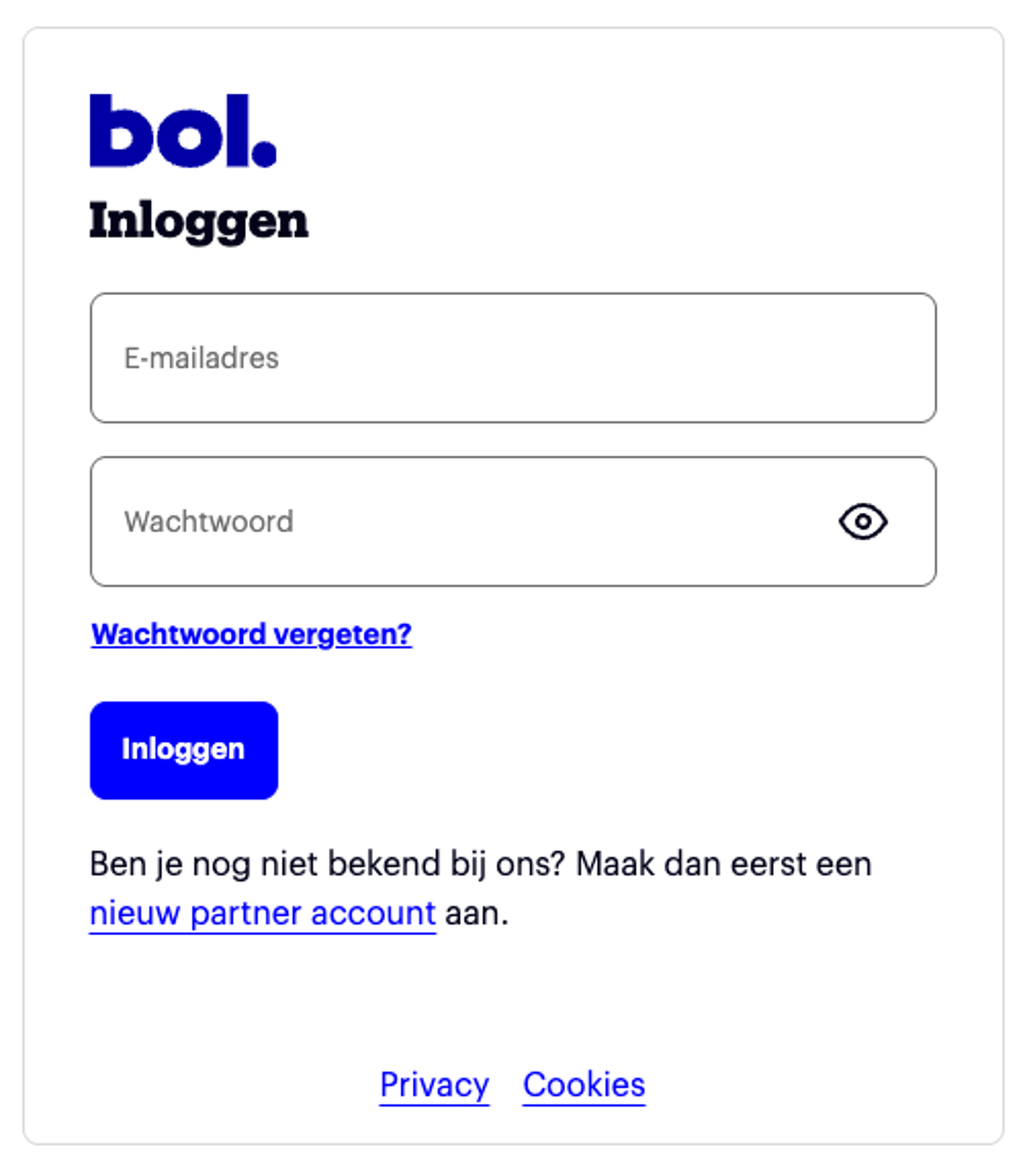
Step 2: Select your account
Choose the bol account for which you want to authorize the connection.
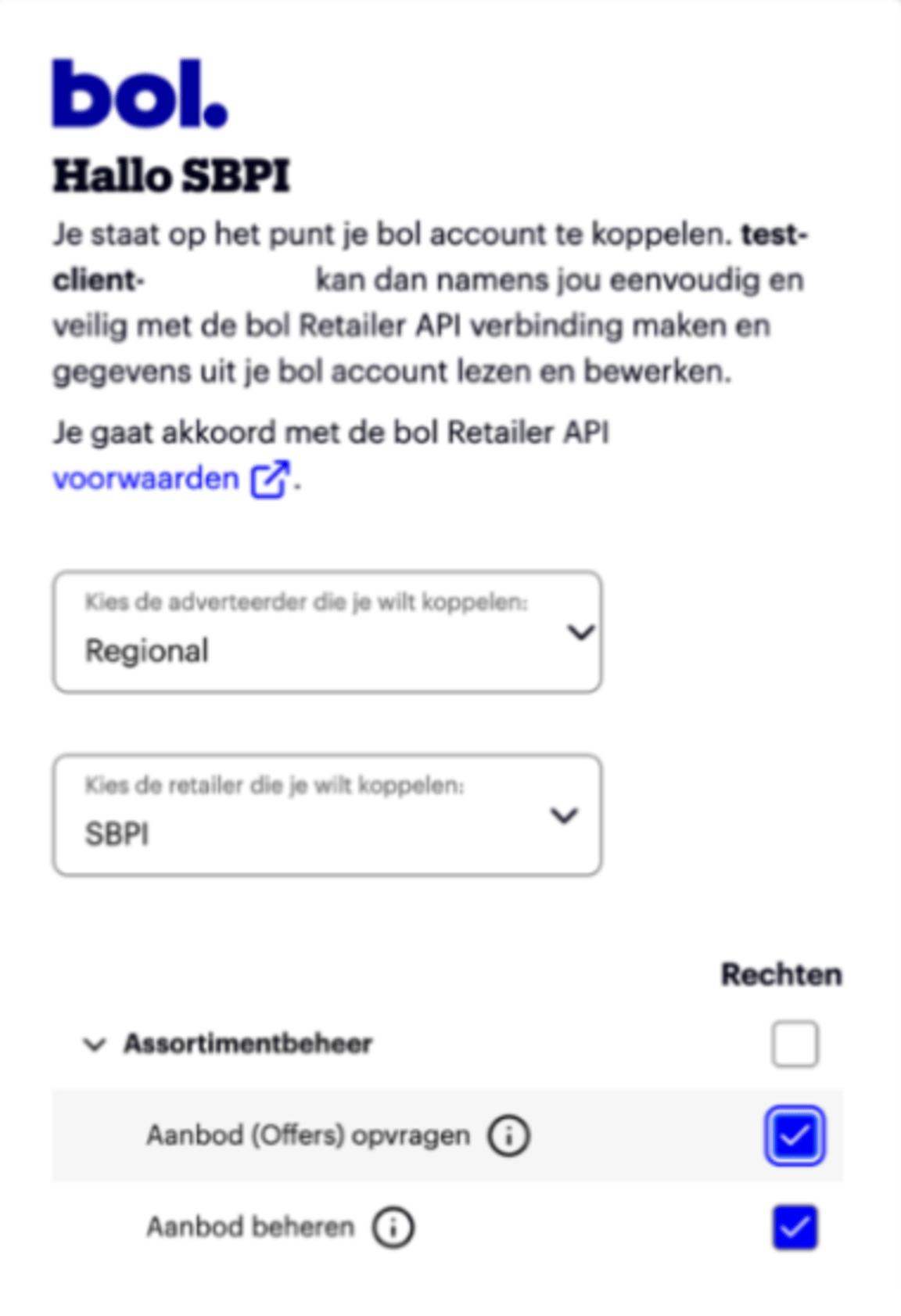
Step 3: Choose which data an integration partner gets access to
You will see an overview of the available API components, divided into five main scopes:
- Assortment management (e.g., offers and item content)
- Logistics (e.g., orders)
- Insights
- Finance
- Subscriptions
You can find an explanation for each component via the information icon ('i'). View an overview here.
You only see the API components that are used by your integration partner. These components are selected by default.
- If you would like to grant access to all preselected components, leave the selection unchanged.
- If access to certain components is not required, deselect them.
Please note: for a properly functioning connection, it is important that you select the correct components. Therefore, check the documentation of your integration partner to see which components are needed.
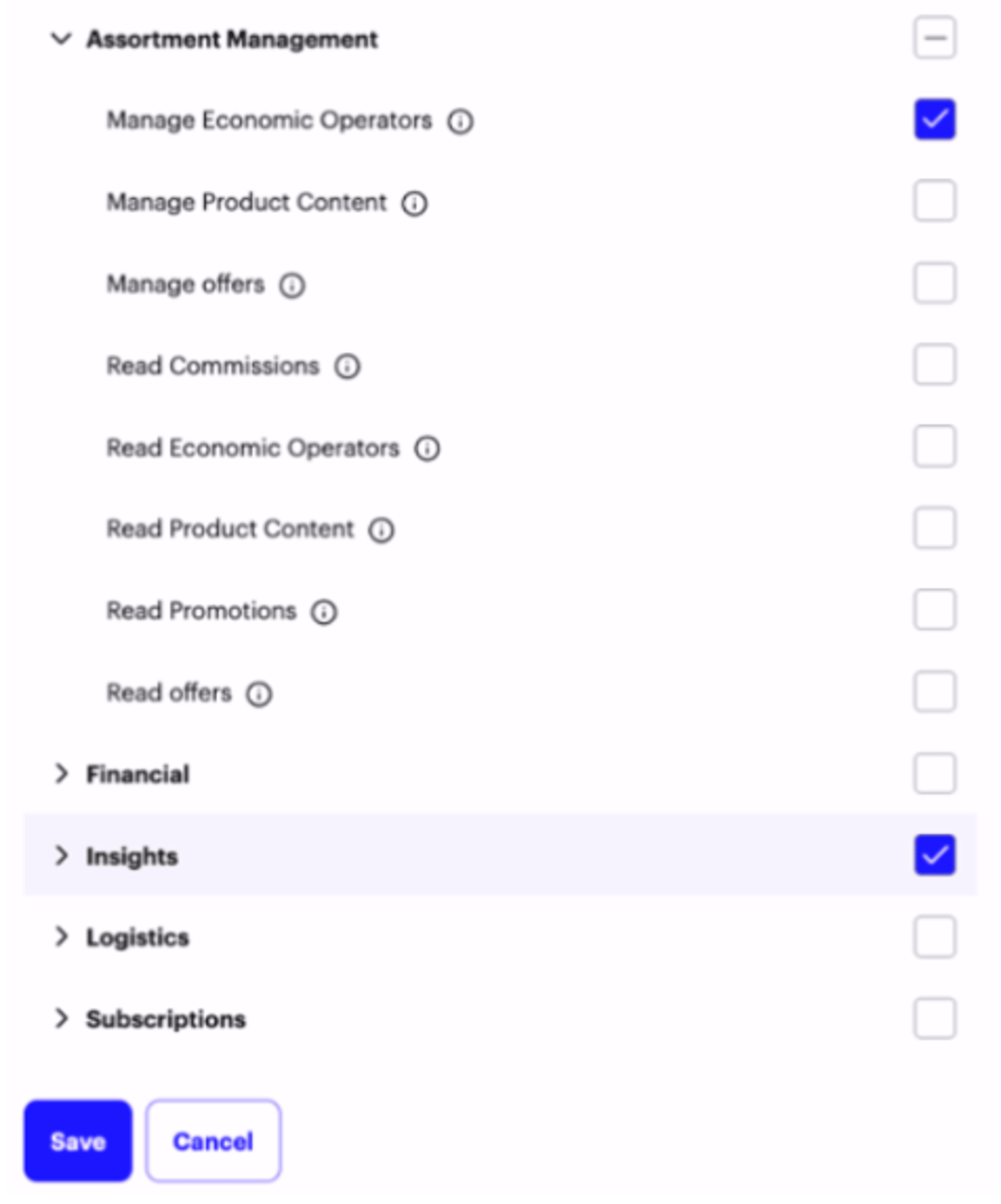
Step 4: Choose the correct rights
For each API component, you choose which actions the integration partner may perform:
- Read: only retrieve data
- Manage: retrieve, create, modify, and/or delete data
Are you unsure which components or rights are needed? Please contact your integration partner.
Step 5: Confirm the authorization
Check your selection and click Save.
The API connection is now active with the rights you have chosen.
Step 6: Check the connection
Check if the connection is working properly. Do you see no error messages? Then everything is working correctly. If you still experience problems? Then check your integration partner's documentation or contact them.
Good to know
- Integration partners only get access to the functionalities for which you explicitly give permission. It is therefore important that you grant the correct rights.
- Missing rights can cause a connection to not work properly. In that case, you must go through the authorization process completely again and grant all necessary rights.
- Existing connections via SSO will continue to work until the expiration date. After that, you must re-authorize them via the new process.
Summary: what should you do?
✔ Check in your seller account which partners have access via SSO.
✔ Renew existing connections before the expiration date via the new authorization process.
✔ Also go through the new process for new SSO connections.Do you use Client Credentials? Then you don't need to do anything yet. This change is expected to be implemented for Client Credentials integrations in Q4 2026. From that moment on, you will also determine for these connections which API components an integration partner has access to. We will keep you informed about this via the Partnerplatform.