
Resolving issues with mandatory content
Since the beginning of this year, we have been more strictly checking whether your content is complete. For example, for manufacturer data. Is mandatory information missing? Then your item cannot go online, or it will be taken offline. We understand that this is inconvenient. That is why we explain step-by-step how to resolve this.
Supplementing a single item
Step 1
Log in to your seller account and select 'Items' and then 'My items'.
Step 2
Go to 'Edit content' for the item.
Step 3
- Select 1 of the following filters:
- Under “Reason not for sale” > “Content” - To get offline items back online
- Under “Risk category” > “Manufacturer data” - To supplement items with missing manufacturer data before they go offline on September 2.
Step 4
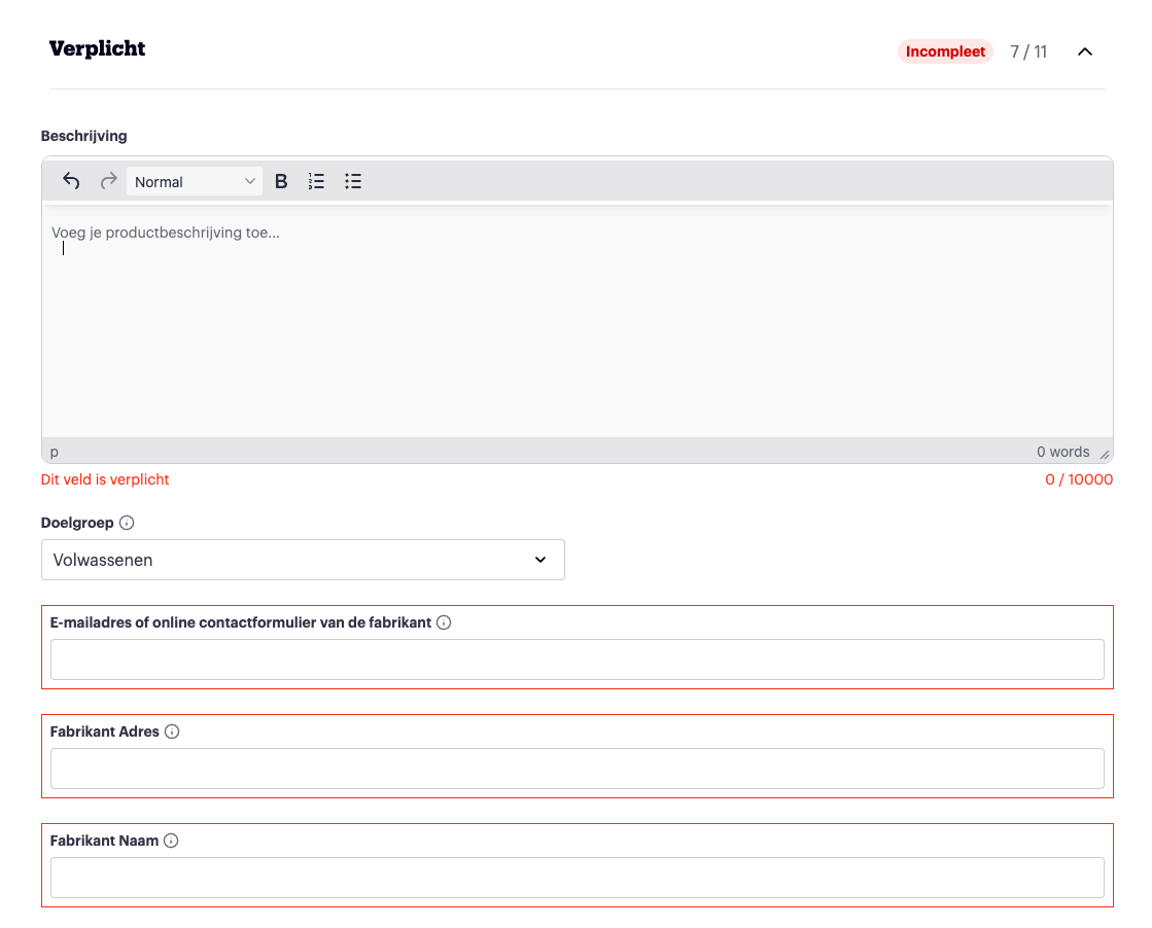
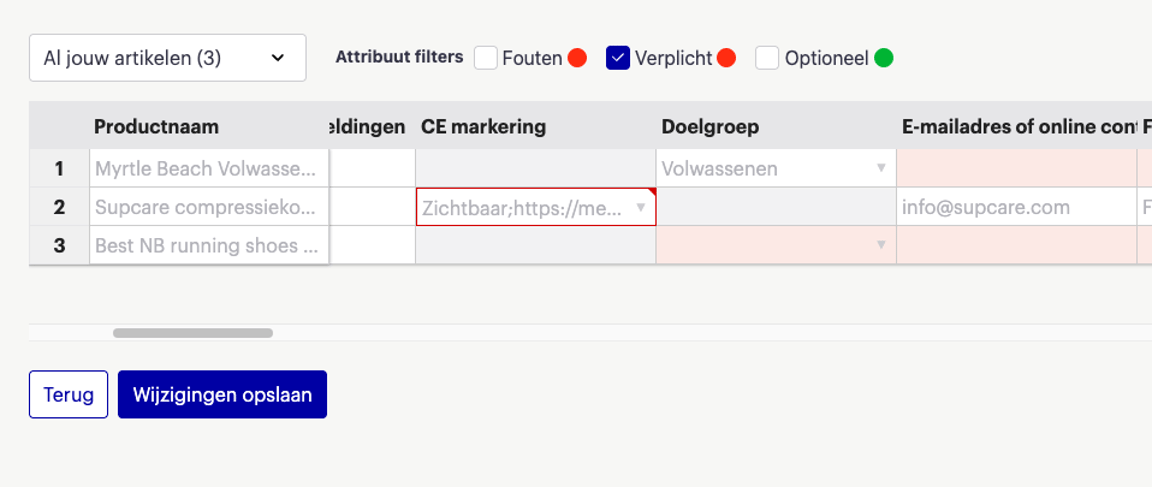
Check the 'Mandatory' tab to see which fields are still empty. These are the fields with a red border.
Step 5
Supplement the missing fields, such as description, manufacturer address, or manufacturer name.
Please note: also check this mandatory information
The problem is not always with manufacturer data. Sometimes more is missing, such as a CE marking or another characteristic. Therefore, always check all fields under 'Mandatory', not just the manufacturer data. This way, you prevent your item from going offline again after being supplemented.
Step 6
Save your changes.
Supplementing multiple items in bulk via the online editor
Step 1
Log in to your seller account and select 'Items' and then 'My items'.
Step 2
Go to 'Edit content' for the item.
Step 3
- Select 1 of the following filters:
- Under “Reason not for sale” > “Content” - To get offline items back online
- Under “Risk category” > “Manufacturer data” - To supplement items with missing manufacturer data before they go offline on September 2.
Step 4
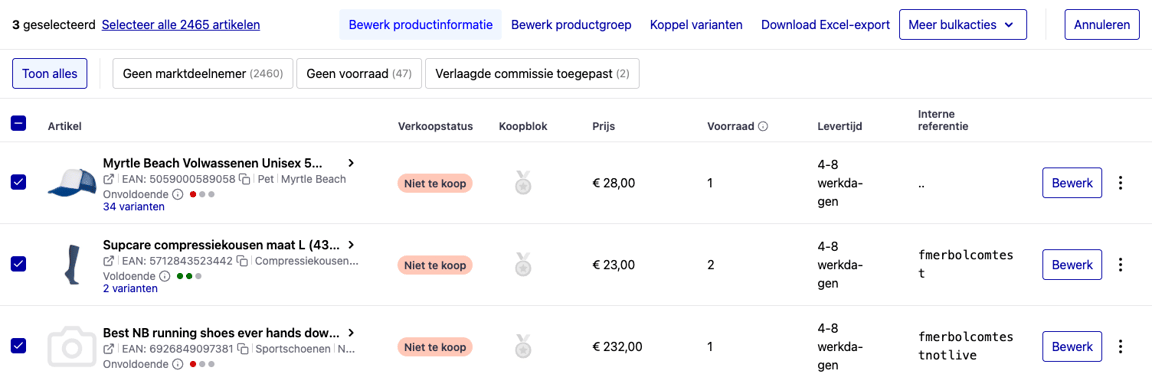
Select multiple items simultaneously.
Step 5
Select “edit content”.
Step 6
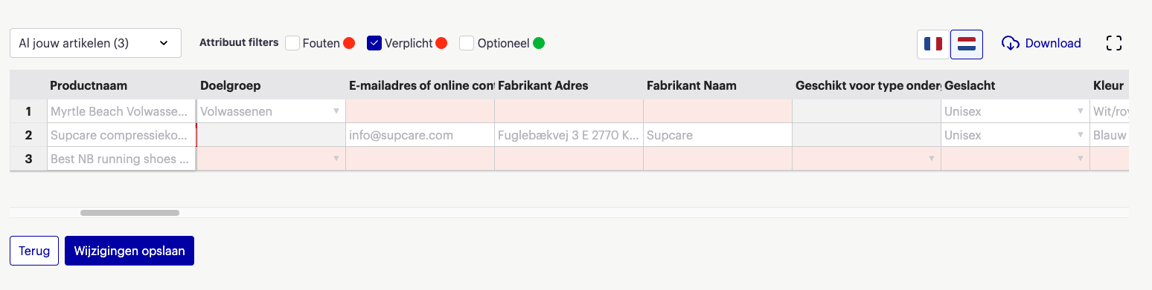
In the online editor, select “mandatory” so that you only see the mandatory data.
Please note: also check this mandatory information
The problem is not always with manufacturer data. Sometimes more is missing, such as a CE marking or another characteristic. Therefore, always check all fields under 'Mandatory', not just the manufacturer data. This way, you prevent your item from going offline again after being supplemented.
NEW: Quickly see which items are at risk
You can now filter your items by 'Risk category'. This allows you to see at a glance which items have missing manufacturer data, so you can specifically work on supplementing them, for example, with the online bulk editor.
In addition, you gain insight into your progress. On the homepage, you will see how many items still need additional manufacturer data or if you have supplemented all items. This way, you can easily maintain an overview and prevent items from going offline once enforcement starts on September 2, 2026.
Which items will soon go offline?
Do you want an overview of the items that will go offline in the next round? We have already prepared them for you here. On that page, you can also read up on which laws we enforce and why we do so.