
Adjust Pre-notification
Do you want to replenish your Logistics via bol stock in our fulfilment center? Then it's important to pre-notify this shipment. This way, we can ensure that enough operators are ready to process the shipment. You can always adjust this pre-notification. On this page, you can read how.
Adjusting a Pre-notified Shipment
- When pre-notifying, you specify which and how many pallets, packages, and items will be delivered. You can have your shipment delivered to our fulfilment center in 2 ways.
- Delivery via your own carrier. You can adjust the delivery details up to the moment of delivery.
- bol's pick-up and delivery service. Adjustments to the pick-up appointment are possible up to the same moment that a pick-up appointment can still be cancelled. You can find more information here.
Different options apply to both delivery methods. You can see them listed below.
Possible Pre-notification Adjustments
You can easily adjust your pre-notification via your seller account. This applies to both the items and the delivery details (type of load carrier, number of packages, number of pallets, delivery days, and pick-up appointments).
How to Adjust Your Items
Go to the 'Items' menu
You can find the 'Items' tab in your seller account.
Choose 'My Lvb Shipments'
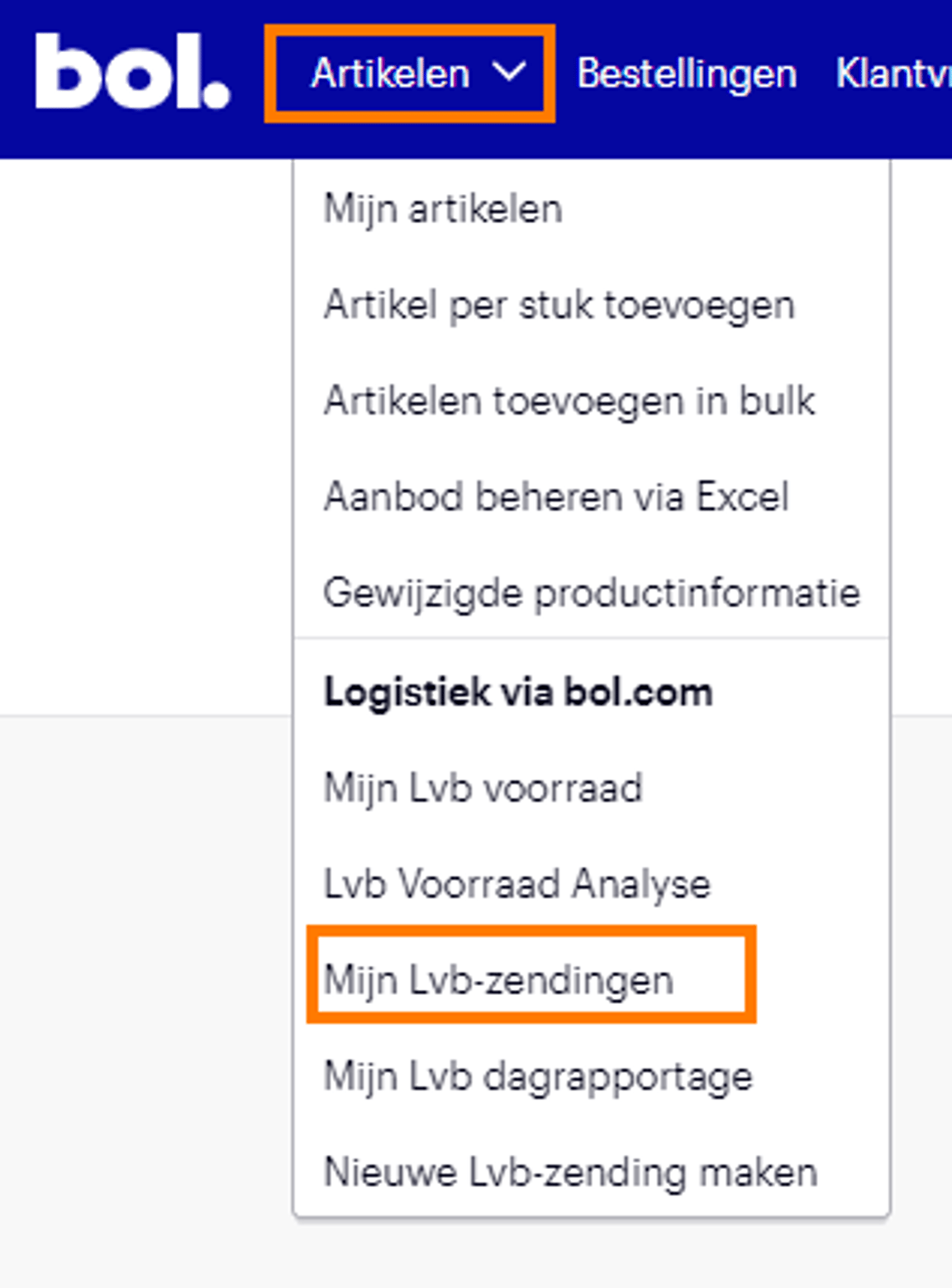
Click the ‘Adjust items’ button for the pre-notified shipment

Adjust the details
a) Do you want to adjust the number of items? Click on the relevant item and adjust the quantity. You can remove the item by clicking the trash can icon

b) Do you want to add new items to an existing shipment? In the search bar under ‘Add an item’, enter the relevant item name or EAN. New items can also be added in bulk by clicking on ‘Add bulk items’. Please note, only items allocated to the same destination as the shipment can be added.

Click 'Save'
And your shipment has been adjusted!
How to Adjust Delivery Details
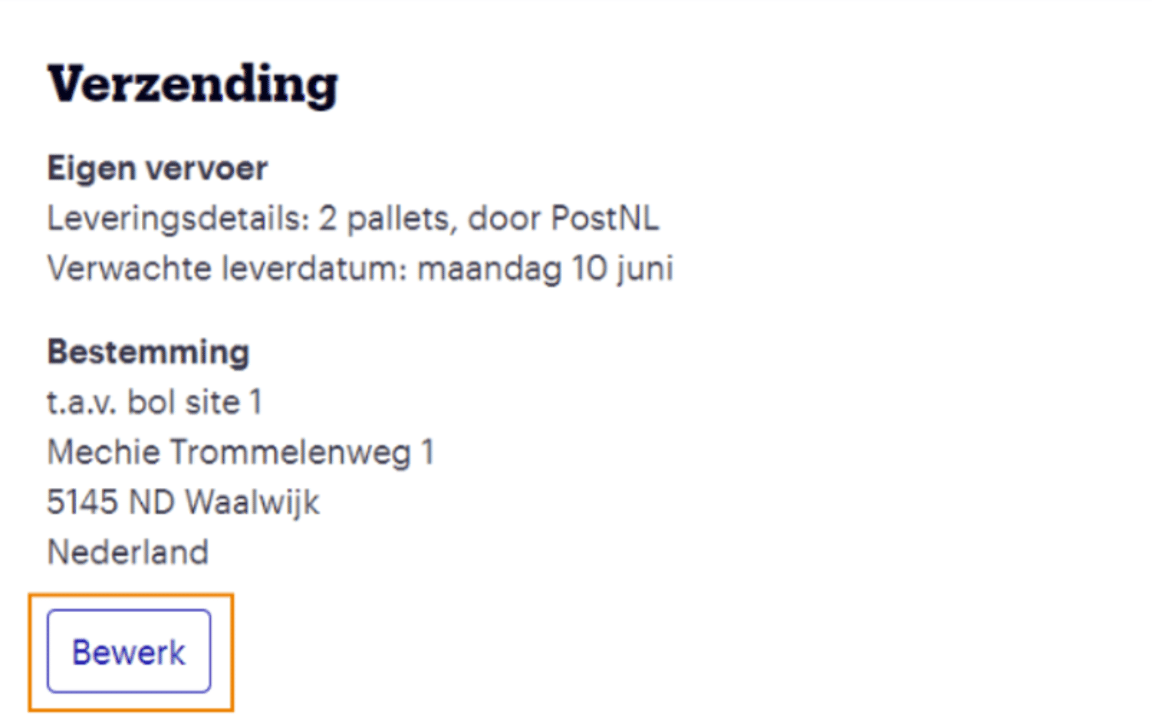
By clicking on “edit”, you can adjust the delivery details. Here you can adjust the type of load carrier, number of pallets/packages, and the delivery date! Then click “save changes”.
Frequently Asked Questions
about adjusting your pre-notification.