
Creating a shipment and pre-registering items
Do you want to send stock to Logistics via bol? First create a shipment and pre-register your items. This way we know which products to expect and we can process your stock faster.
Before you start
Before creating a shipment, please check whether:
- your items have been switched to Logistics via bol
- your content is complete
- there is sufficient space available within your stock ceiling
- your items meet the packaging and barcode requirements
Important when delivering your shipment
After pre-registering, prepare the shipment physically. Please keep the following conditions in mind to ensure fast processing.
Barcodes and labels
- The items and barcodes must match the pre-registration exactly.
- Only 1 scannable barcode may be visible on each item.
- Cover all other barcodes (even under transparent foil).
- Make sure the correct Logistics via bol label is on the correct item.
An incorrect barcode can cause your item to end up in the wrong stock.
Packaging and delivering
- Pack items that look alike (e.g. colour or size) in separate boxes.
- A box may weigh a maximum of 15 kg.
- Heavier? Deliver on a pallet or in multiple boxes.
- Deliver your shipment on the date you specified during pre-registration.
By correctly pre-registering your items and delivering them according to the delivery conditions, we can put them into stock quickly and make them available to customers.
Step-by-step plan: creating a new shipment
Create new Lvb shipment
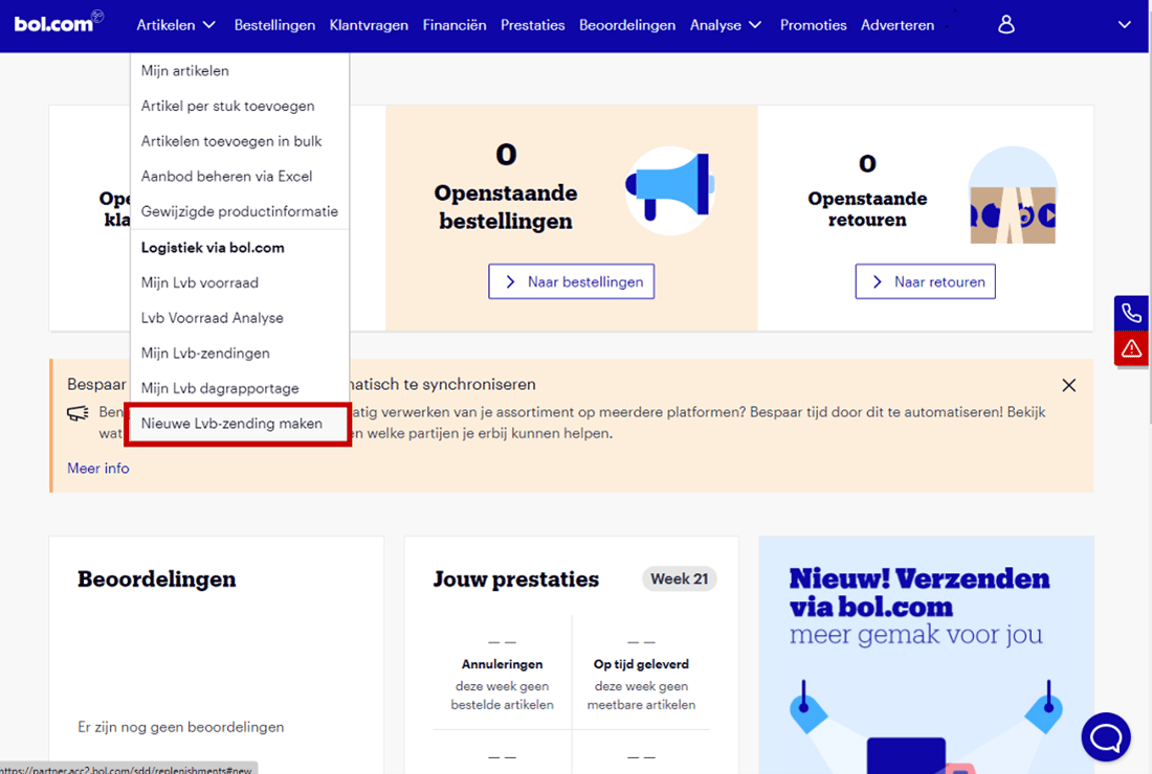
In your seller account, click on the 'Items' menu and choose 'Create new Lvb shipment'.
Pre-registered items before?
If you have pre-registered the items before, you can copy them from a previous shipment. To do this, click on the menu 'My Lvb shipments'. Next, click on an existing shipment from which you want to copy the items and choose the 'Copy' button in the top right corner. The 'Create new Lvb shipment' screen opens, and the items from the copied shipment will already be listed here.
Please note: it can happen that a previously pre-registered item is no longer available for Lvb. In that case, you will see a notification on the screen telling you which items are involved.
Select the items
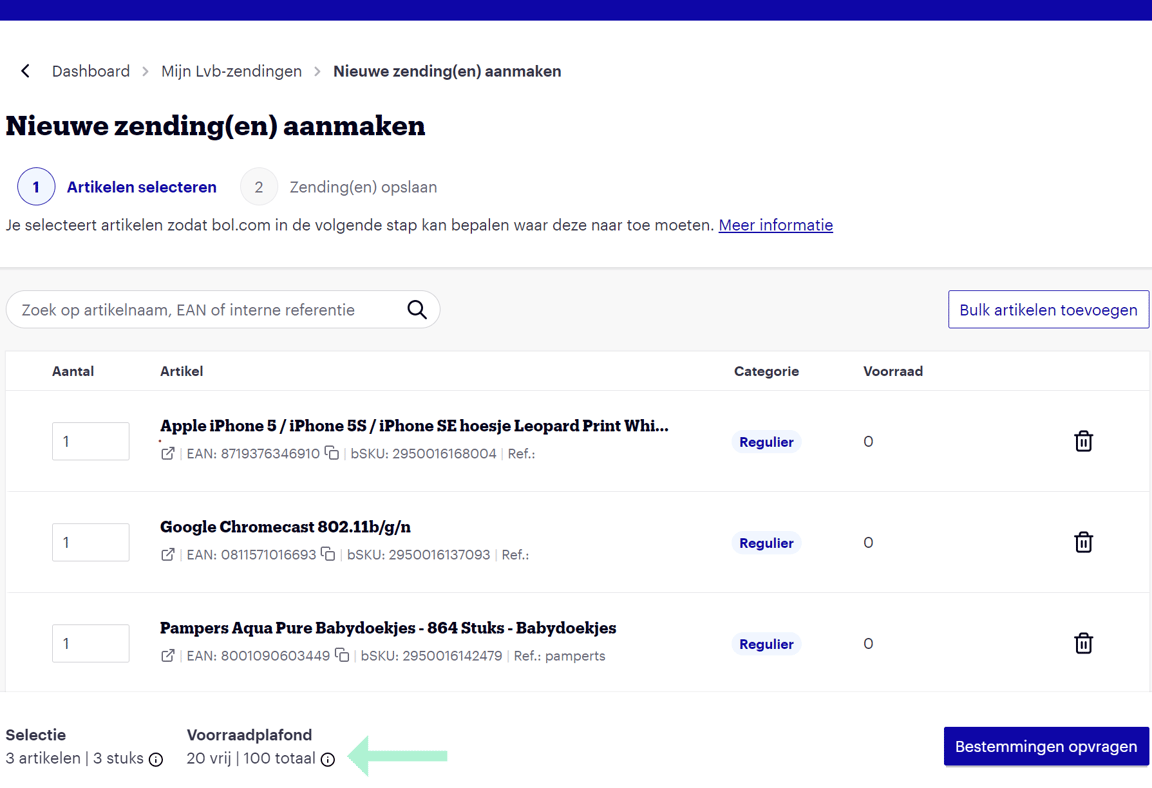
Indicate here which items and how many items you want to send. This can also be done in bulk using the 'Add bulk items' button. It is important that this quantity matches the number you send to our fulfilment center. Make sure to only pre-register the EANs that are physically printed on the item. All of this ensures the smallest possible chance of incorrect processing in the fulfilment center.
When the items are selected in the pre-registration screen, the 'Category' column will indicate which stock ceiling this item falls under. More information about stock ceilings can be found here.
Please note!
Make sure the selected quantities do not exceed the relevant stock ceiling. It is not possible to pre-register and/or place more items into stock than the stock ceiling allows.
For more information about the selection or about the stock ceiling, hover your mouse over the (i) icon.
Item not found
If you cannot find the item you converted in the list, it is important to check whether all content for the item has been filled in correctly and/or whether the item is suitable for Lvb. If our server is busy, it may also take a moment before the item is converted.
Request destination and save shipments
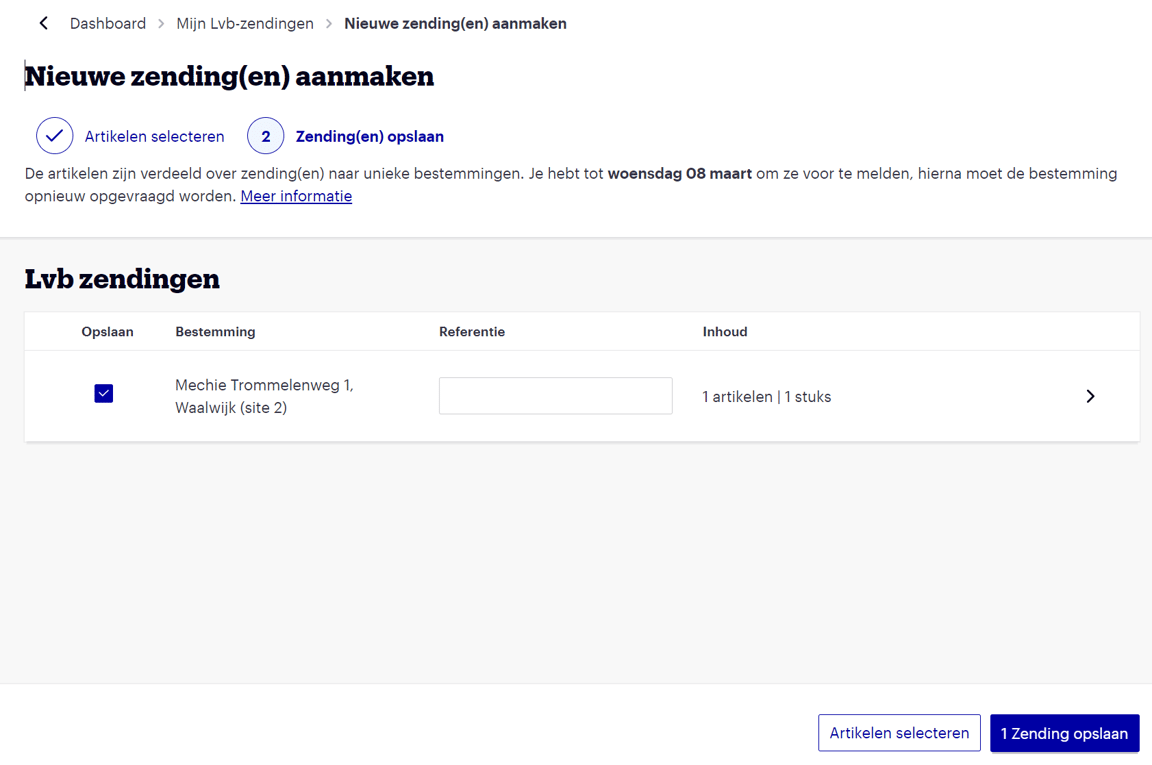
After the items have been selected, they are assigned to a shipment with a corresponding fulfilment center (the destination). On this page, specify which of these shipments you want to save. Please note: a shipment's destination is only valid for a limited time. Once that time has passed, the destination of a shipment will need to be requested again.
In addition, it is important to enter the reference. By keeping this as unique as possible, the chance of another partner entering the same reference remains as small as possible. This helps prevent process disruptions.
Pre-register shipment: Select shipment
In your seller account on the 'My Lvb shipments' page, open the draft shipment that needs to be pre-registered. Next, click on the 'finalise pre-registration' button to fill in the shipment details.
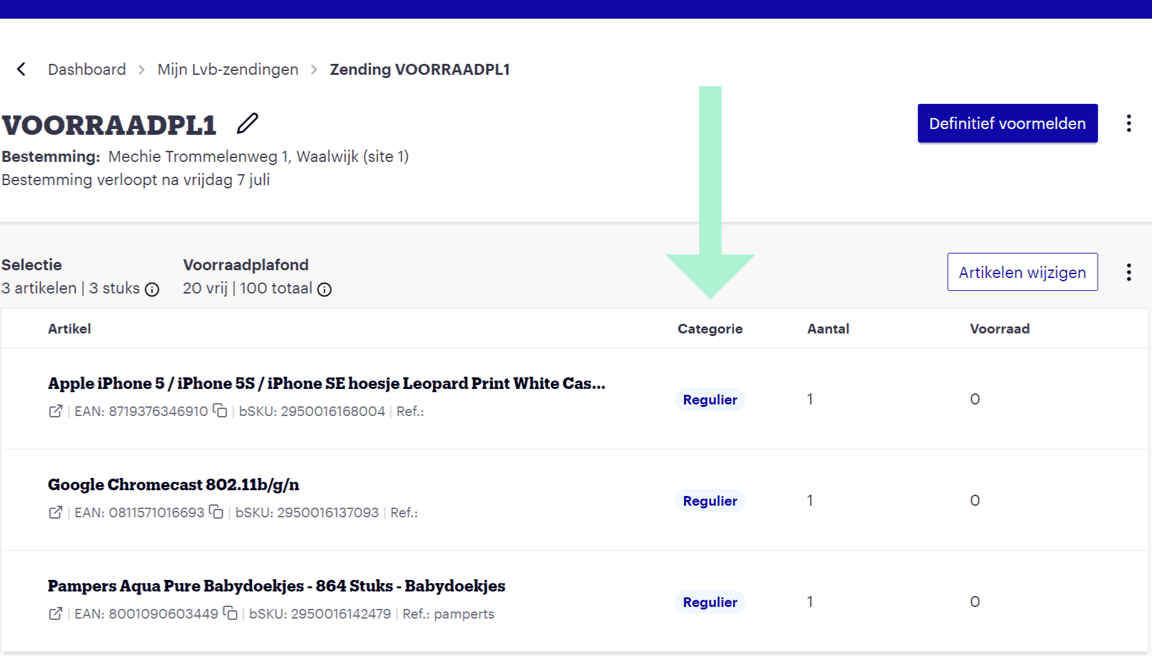
Please note! If the destination of the draft shipment has expired, it will first need to be requested again.

Make a delivery appointment
It is important that you fill in all information (quantities, specific products, and the date) correctly and completely. Our planning is based on the delivery appointments made, and to prevent delays, it is important that these appointments are met. Read in section 6.2 of the delivery conditions which vehicles are suitable for this.
When choosing a delivery date, not all dates may be available. Sometimes it is not possible to select your desired date. This is because we only make dates available on which we actually have the capacity to process your shipment.
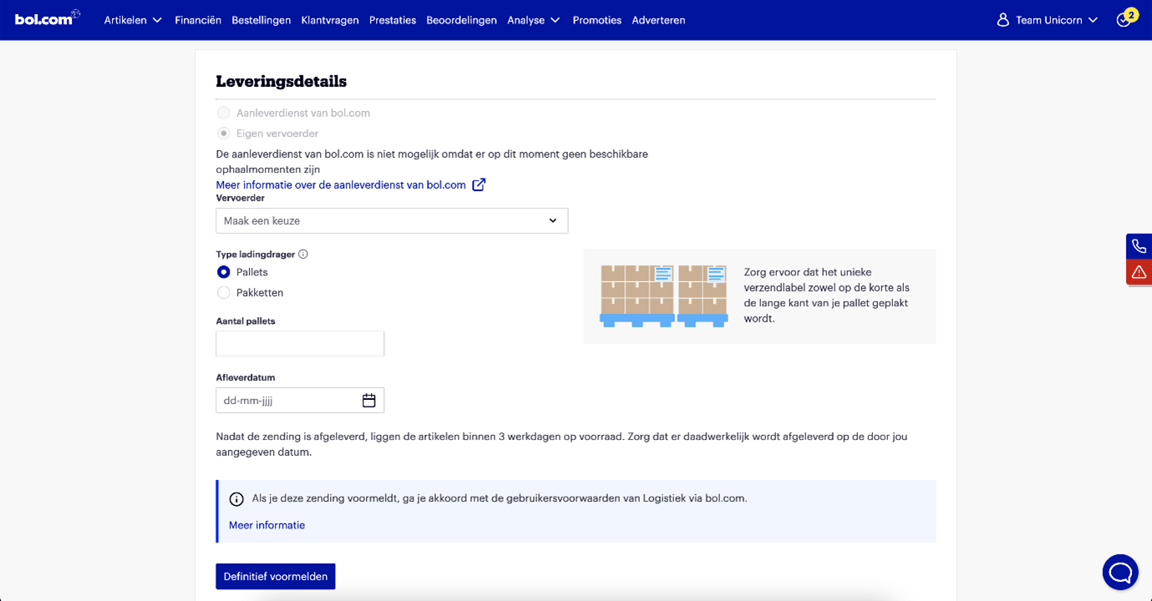
Finalise pre-registration of shipment
After entering the details for the delivery appointment, click the 'finalise pre-registration' button to complete the shipment. Once a pre-registration is finalized, a message is sent to the fulfilment center of bol so we can take your shipment into account.
To ensure your items are processed properly in the warehouse, a number of delivery conditions have been set up. Want to know what these delivery conditions are, or looking for other information about services such as current rates? Follow the e-learning, which can also be found on the Partnerplatform. One of the most important delivery conditions is that you actually deliver your shipment on the day of your pre-registration, that you deliver the exact quantities and items you pre-registered, and that you respect the maximum weight of a parcel (15 kg).
Is your shipment not finalized? Then unfortunately we cannot process the shipment in the fulfilment center. If you sent the shipment anyway, it will be refused and sent back.
Shipping label
As soon as the shipment has been pre-registered, the shipping label can be added. Click on 'Download shipping label(s)' and print them. Attach the shipping label(s) to every loose parcel or loose pallet. Ensure that this unique shipping label is attached to both the short and long side of your pallet and on the top side of your loose parcels. For multiple parcels and/or pallets, you will also receive multiple shipping labels to attach; make sure the unique shipping label is attached to each pallet/parcel. It is important that each pallet or parcel has a unique shipping label (and not accidentally a packing list) and that each pallet or parcel has a unique code on the shipping label.
Ensure your shipping labels are clearly readable and attached correctly. Please note: make sure your label is printed clearly. Printer ink running low causes noise on the barcode, preventing us from processing your load carrier properly in the fulfilment center.
For smooth and timely processing of your items, please keep the following points in mind and use this checklist:
- The shipment is delivered on the delivery date indicated in the pre-registration.
- The shipment is delivered to the fulfilment center assigned in the pre-registration.
- Every loose parcel or loose pallet has the correct Logistics via bol shipping label attached.
- The content of the shipment matches the pre-registration created (product type and number of items)
- Every item in the shipment has one scannable code: one EAN.
- All checked? You can now deliver your pre-registered shipment to the fulfilment center.
- Are you shipping the items in an outer box? Then cover all barcodes on the outer box.
All checked? You can now deliver your pre-registered shipment to the fulfilment center.
Change pre-registration
Have you finalized your pre-registration, but still want to adjust something? Go to your seller account, navigate to the 'Items' menu and select 'My Lvb shipments'. Then click the 'Edit' button of the pre-registered shipment you want to adjust.
On this page, you can adjust items such as the number of pallets, parcels, and items for shipments delivered to our fulfilment center via our delivery service or by your own carrier. It is also possible to adjust the delivery date and/or your collection appointment.
Are you not coming to deliver your shipment after all? Make sure to cancel your pre-registration or adjust the delivery time. This applies to both shipments you deliver with your own carrier and shipments sent via the delivery service of bol. In the same screen where you can edit your shipment, you can also cancel your shipment.
More information about changing your pre-registration can be found on this page.
The next step: Charlotte explains how pre-registering works
In this video you will learn:
- what pre-registering items is;
- how to create a Logistics via bol shipment in your seller account;
- how to enter quantities while taking your stock ceiling into account;
- why the correct delivery date is important.

This video cannot be played. To watch YouTube videos, you must consent to the use of your click and search behaviour for personalised advertising outside bol.
Preventing common mistakes
- Do not send more than pre-registered
We only process the quantities you specified. Deviations can cause delays. - Use the correct barcode
Each item must have a correct and scannable barcode. - Keep your stock ceiling in mind
Check in advance whether there is enough space available for the stock you want to send. - Complete your pre-registration
A saved draft shipment will not be processed as an expected delivery.
Did you make a mistake or do you not want to send the shipment after all?
See how you can change or cancel an existing shipment before it is delivered to us.