
Register your items for
To ensure a smooth logistics process, it's important that you announce your items to us. How? By registering them. This allows you to specify exactly how many items you will deliver to bol and when. Please note: to register your items, you must first convert them.
Even easier
In this video, our colleague Charlotte clearly explains the steps.
Create a new shipment
Create new Lvb shipment
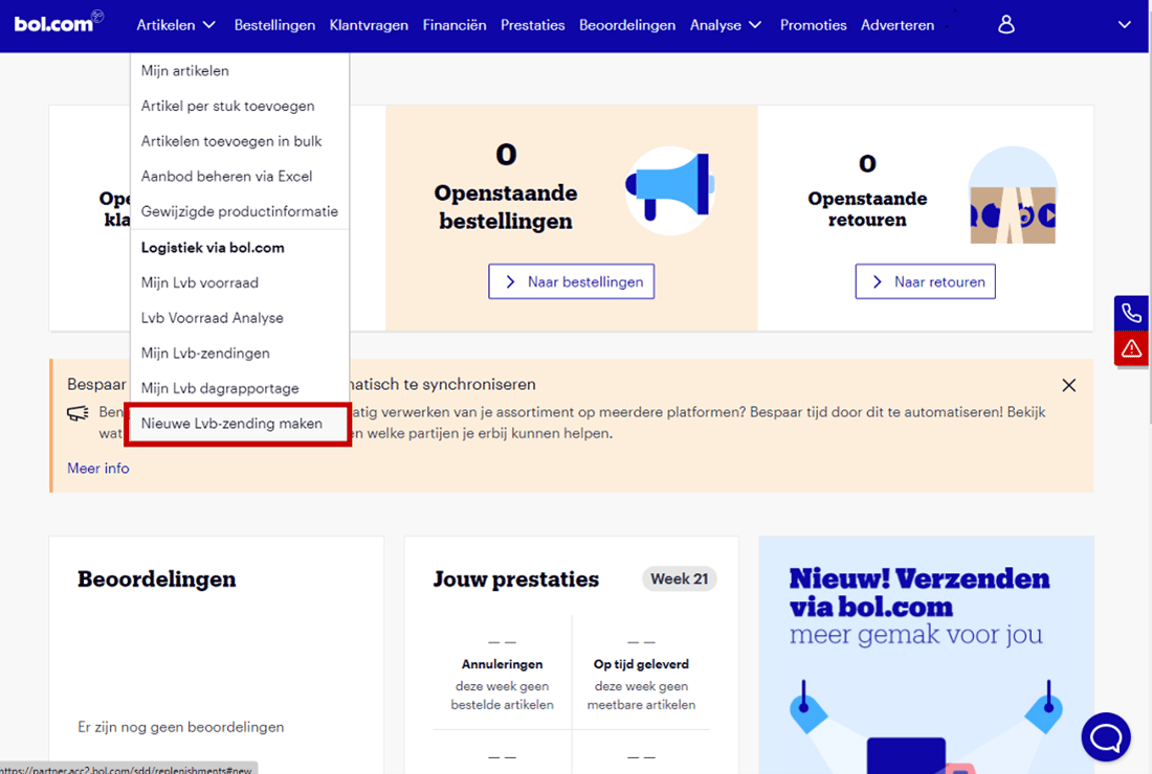
In your seller account, click on the 'Items' menu and choose 'Create new Lvb shipment'.
Items already registered?
If you have already registered the items, you can copy them from a previous shipment. To do this, click on the 'My Lvb shipments' menu. Then, click on an existing shipment from which you want to copy the items and select the 'Copy' button in the top right. The 'Create new Lvb shipment' screen will open, and the items from the copied shipment will already be listed there.
Please note: it's possible that an item previously registered might no longer be available for Lvb. In this case, you will see a message indicating which items are affected.
Select the items
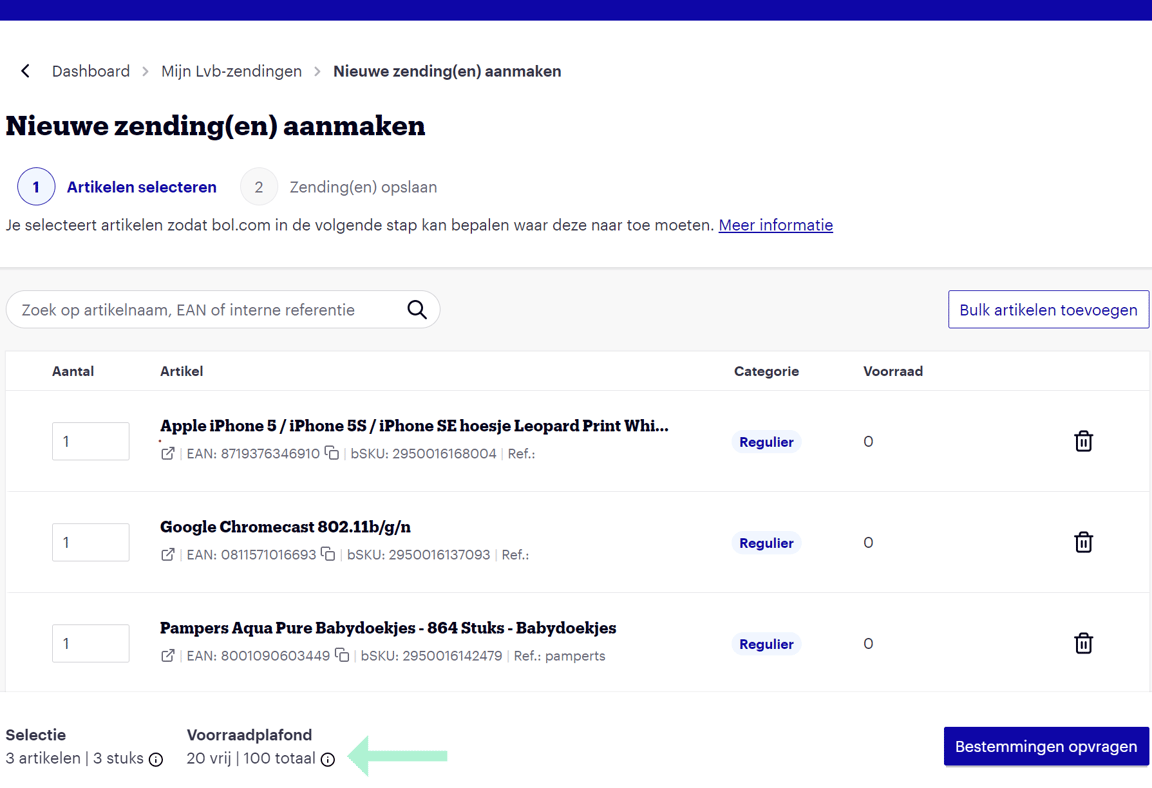
Here, specify which items and how many items you want to send. This can also be done in bulk using the 'Add bulk items' button. It is important that this quantity matches the number you send to our Fulfilment center. Please note that you only register the EANs that are physically printed on the item. All of this helps minimize the chance of incorrect processing in the Fulfilment center.
When items are selected in the registration screen, the 'Category' column will indicate which stock limit this item falls under. More information about stock limits can be found here.
Please note!
Ensure that the selected quantities do not exceed the respective stock limit. It is not possible to register more items and/or put them in stock than the stock limit allows.
For more information about the selection or the stock limit, move your mouse over the (i)-icon.
Item not found
If you cannot find the item you converted in the list, it's important to check if all content for the item has been correctly entered and/or if the item is suitable for Lvb. If our server is busy, it may also take some time for the item to be converted.
Request destination and save shipments
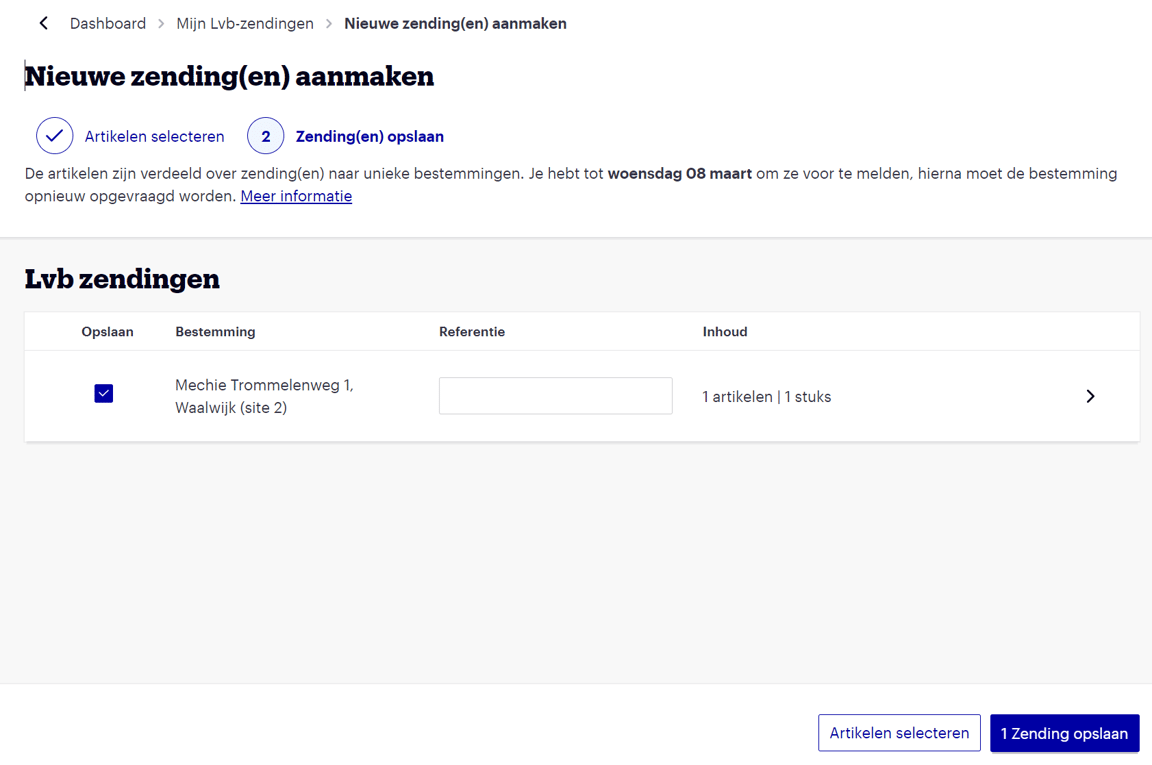
After the items have been selected, they are assigned to a shipment with a corresponding Fulfilment center (the destination). On this page, you indicate which of these shipments you want to save. Please note: the destination of a shipment is only valid for a limited time. Once that time has passed, the destination of a shipment will need to be re-requested.
Additionally, it's important to fill in the reference. Keeping this as unique as possible minimizes the chance of another partner entering the same reference, which helps prevent process disruptions.
Register shipment: Select shipment
In your seller account, on the 'My Lvb shipments' page, open the draft shipment that needs to be registered. Then click the 'finalize registration' button to fill in the shipment details.
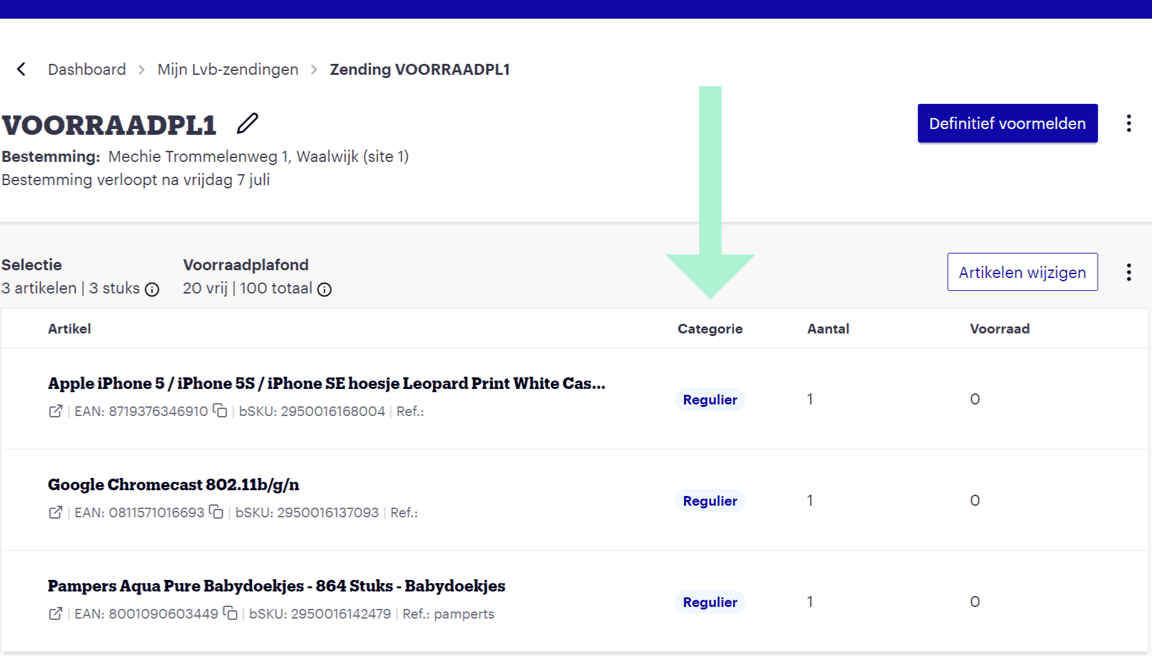
Please note! If the destination of the draft shipment has expired, it will first need to be re-requested.

Make a delivery appointment
It is important that you fill in all information (quantities, specific items, and the date) correctly and completely. Our planning is based on the agreed delivery appointments, and to avoid delays, it's important that these appointments are met. In the delivery conditions, chapter 6.2, you can read which vehicles are suitable for this.
When choosing a delivery date, not all dates may be available. Sometimes it's not possible to select your preferred date. This is because we only make days available when we actually have the capacity to process your shipment.
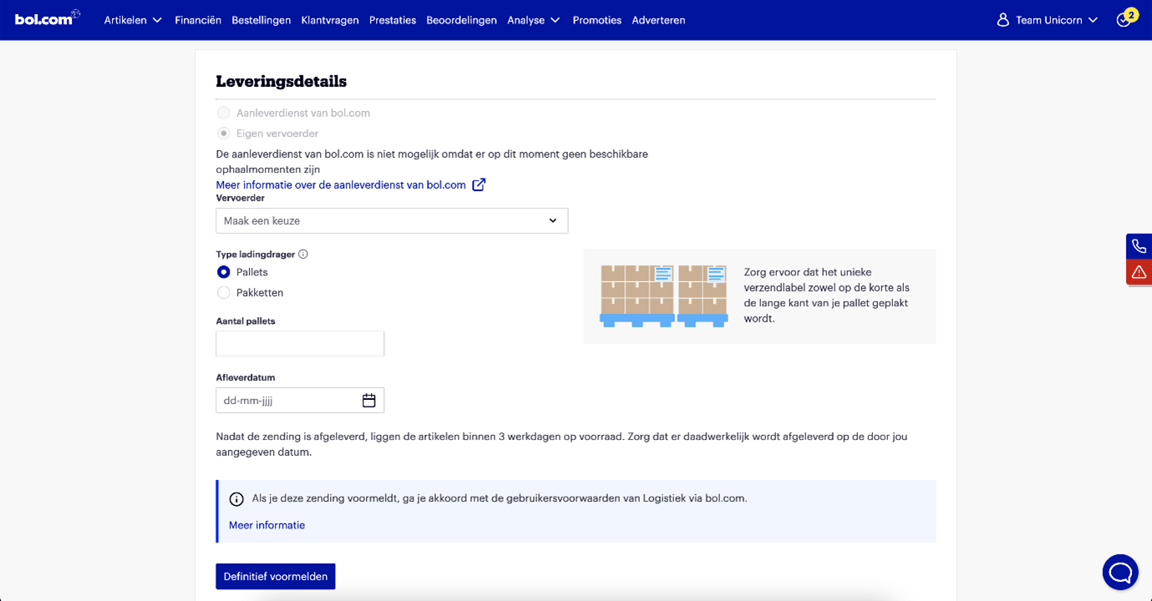
Finalize shipment registration
After filling in the details for the delivery appointment, click the 'finalize registration' button to make the shipment final. Once a registration is finalized, a message is sent to bol's Fulfilment center so we can account for your shipment.
To ensure your items are processed correctly in the warehouse, several delivery conditions have been established. Do you want to know what these delivery conditions are or are you looking for other information about the services, such as current rates? Then follow the e-learning, which can also be found on the Partnerplatform. One of the most important delivery conditions is that you actually deliver your shipment on the day of your registration, that you deliver the exact quantities and items you registered, and that you adhere to the maximum weight of a package (15KG).
If your shipment is not finalized, we unfortunately cannot process it at the Fulfilment center. If you still sent the shipment, it will be refused and returned.
Shipping label
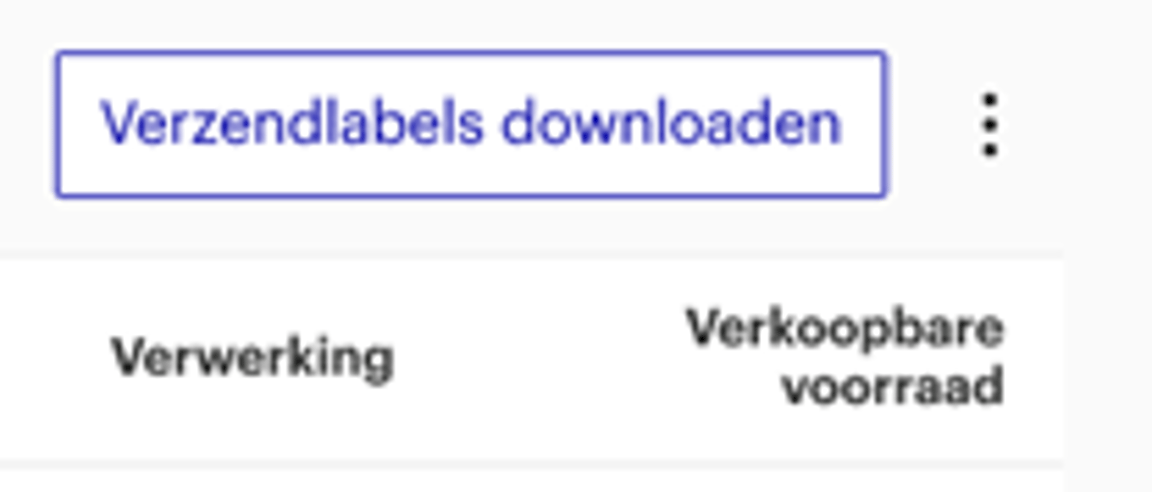
Once the shipment has been finally registered, the shipping label can be added. Click 'Download shipping label(s)' and print them. Affix the shipping label(s) to each individual package or pallet. Ensure that this unique shipping label is placed on both the short and long sides of your pallet and on the top of your individual packages. For multiple packages and/or pallets, you will receive multiple shipping labels to affix; ensure that each pallet/package has its unique shipping label attached. It is important that each pallet or package has a unique shipping label (and not accidentally a packing list) and that each pallet or package has a unique code on the shipping label.
Make sure your shipping labels are clearly legible and correctly affixed. Please note: ensure your label is clearly printed. Printer ink that is nearly empty causes noise on the barcode, and then we cannot properly process your cargo carrier in the Fulfilment center.
For smooth and timely processing of your items, please consider the following points and use this checklist:
- The shipment will be delivered on the delivery date indicated in the registration.
- The shipment will be delivered to the Fulfilment center assigned in the registration.
- Every loose package or loose pallet must have the correct Logistics via bol shipping label.
- The contents of the shipment must match the registration (item type and number of items).
- Every item in the shipment must have one scannable code: one EAN number.
- Everything checked? You can now deliver your registered shipment to the Fulfilment center.
- Are you sending the items in an outer box? Cover all barcodes on the outer box.
Everything checked? You can now deliver your registered shipment to the Fulfilment center.
Change registration
Have you finalized your shipment registration, but still want to make changes? Go to the 'Items' menu in your seller account and choose 'My Lvb shipments'. Then click the 'Edit' button for the registered shipment you want to adjust.
On this page, you can adjust, among other things, the number of pallets, packages, and items for shipments delivered to our Fulfilment center either via our delivery service or by your own carrier. It's also possible to adjust the delivery date and/or your pickup appointment.
Are you unable to deliver your shipment after all? Then make sure you cancel your registration or adjust the delivery time. This applies to shipments you deliver with your own carrier as well as shipments you send via bol's delivery service. In the same screen where you can edit your shipment, you can also cancel it.
More information about changing your registration can be found on this page.