
The customer cancels the order
After a customer places an order with you, it can be cancelled as long as the order has not yet been confirmed.
When a customer cancels, there are 2 possible scenarios:
- Cancellation before or on the promised delivery date: in this case, the customer cancels their order themselves before or on the promised delivery date. This is their own choice and does not affect your performance score.
- Cancellation after the promised delivery date: if the customer cancels their order after the promised delivery date, this will count towards the 'Cancellations' service standard because the customer did not receive the order on time. This situation causes more customer dissatisfaction. This is why it's important to always deliver orders by the promised delivery date.
Cancellation request received from the customer
If you have not yet confirmed or cancelled a shipment, the customer can submit a cancellation request to you. Both you and the customer will then automatically receive a cancellation request by email. In addition, the cancellation request will appear in your seller account, under open orders.
If you receive a cancellation request when you have already shipped the order but have not yet confirmed it in your seller account? Confirm the order anyway – the customer can then return the package. To prevent a situation like this, it is advisable to only send orders after you have processed the order in your seller account.
Please note!
Once you have confirmed an order, it is no longer possible to cancel it yourself: all parties now assume that the package is on its way. If, after confirming the order, it turns out that you cannot deliver, please contact Partnerservice.
Accepting a customer's cancellation request?
Follow the steps below to process your cancellation request.
Go to your open orders overview
You can find your open orders overview in your account under ‘Orders’ in the 'Open' section.
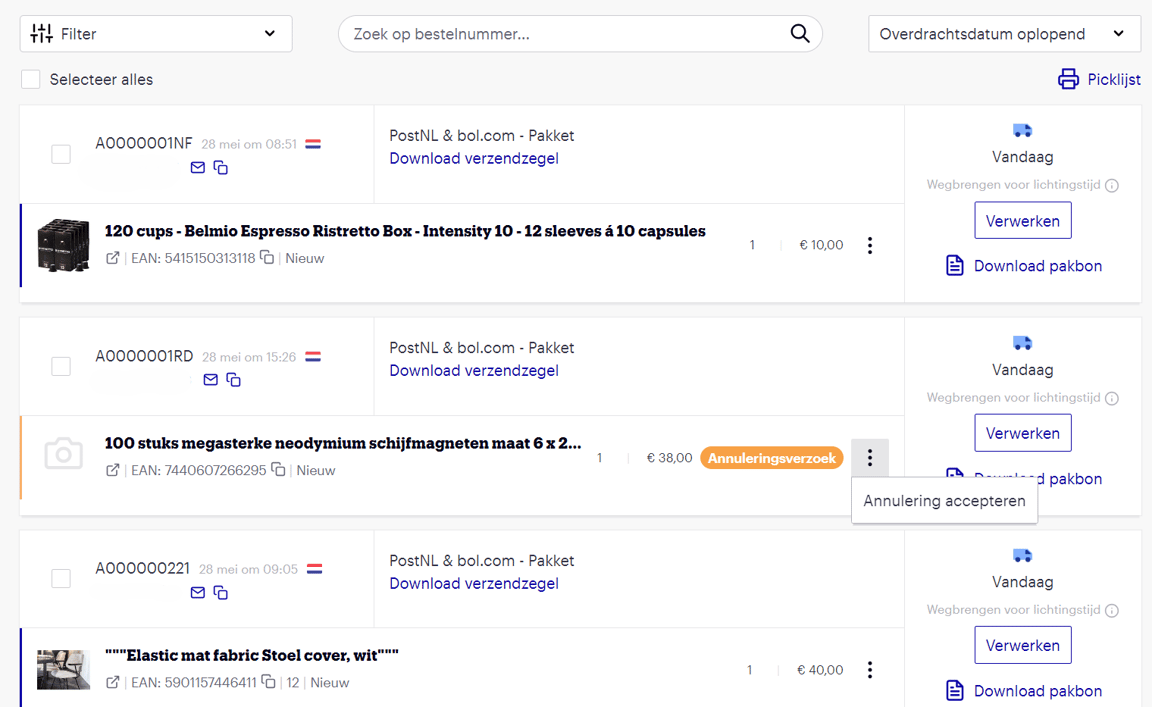
Accept the cancellation
Click on ‘Accept cancellation’ for the relevant order.
Confirm the cancellation
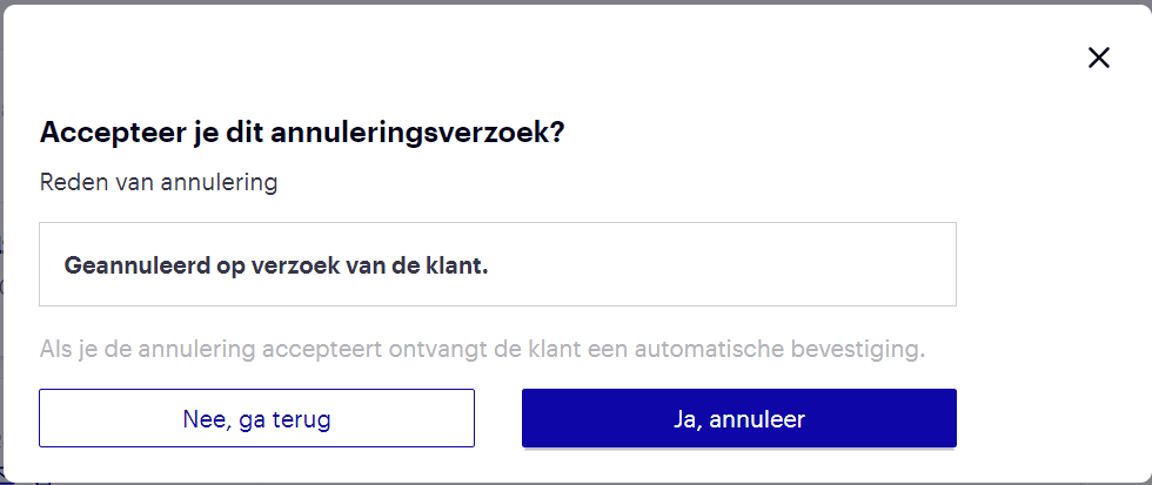
Then click on ‘Yes, cancel’. The customer will automatically receive a confirmation of the cancellation.
Undo a cancellation request
If you receive a cancellation request, but the customer later indicates they still want to receive the order? Then confirm the order anyway – this will cancel the cancellation request.
Automate cancellations
If you prefer not to process cancellation requests in your seller account, but in your own system, you can use Automate via bol. There are various ecosystem partners who can help automate your orders and cancellations, among other things. If you want to build and manage the integration yourself, you can automate your cancellation requests. Please note that this requires technical knowledge.