
Set up volume discount
With volume discount, you offer the customer a discount when purchasing multiple items in one order. This generates more sales for you, as you sell more items per order while costs are reduced. On this page, you can read more about how to set up volume discount.
Set up volume discount yourself via your seller account
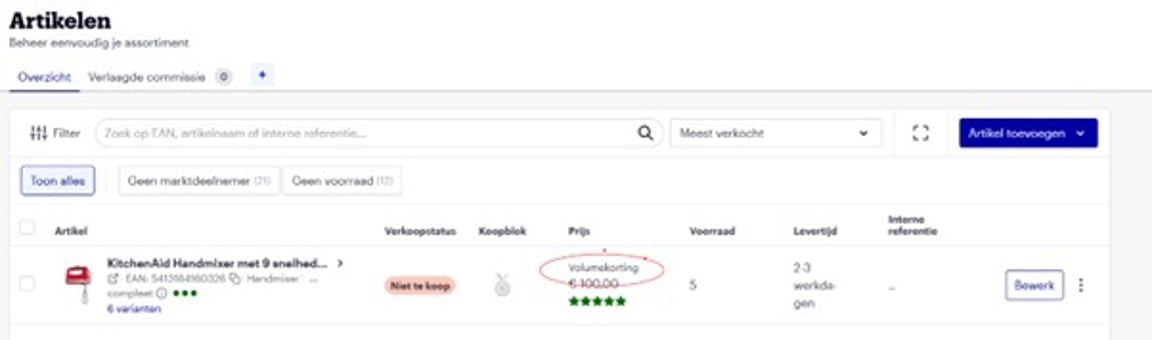
In your seller account, on the 'My items' screen, you can see for which items you have volume discount enabled. You can also turn volume discount on and off for items here yourself. Below you will find a step-by-step guide.
Set up volume discount yourself via your seller account
Go to 'My items'
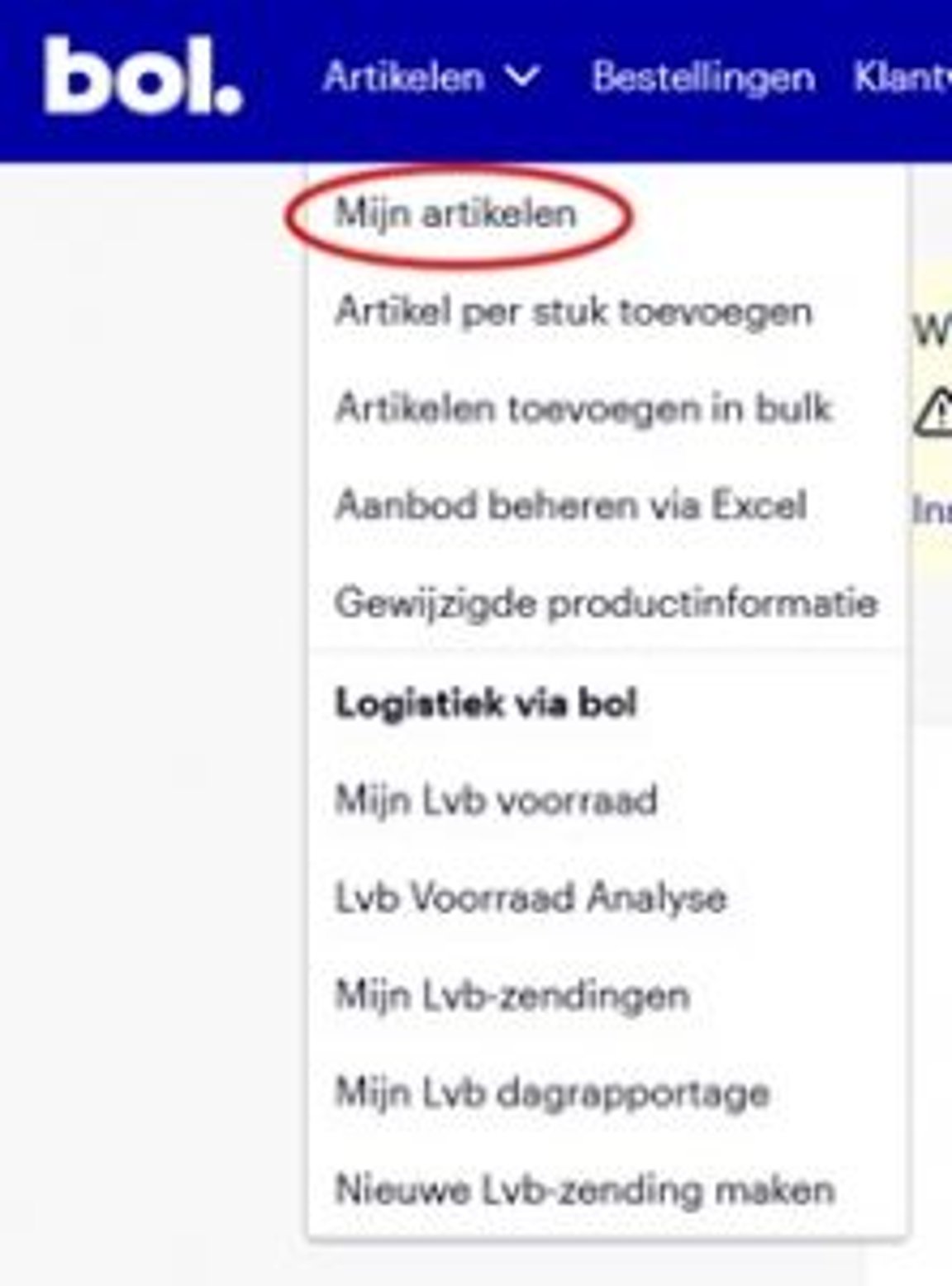
In your seller account, click 'Items' at the top, then choose 'My items'.
Click on the item
Search for or click on the item for which you want to manage volume discount.
Add volume discount
Click on the item to go to the 'item detail' page.
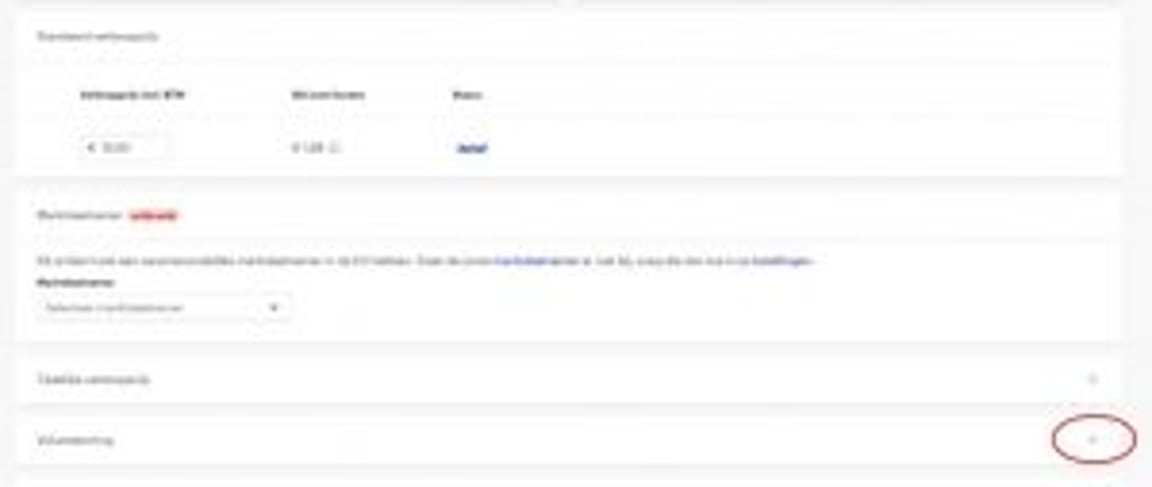
Scroll down, at the bottom of the page you will see the Volume discount option, click the plus sign to add Volume discount.
Enter bundle specifications
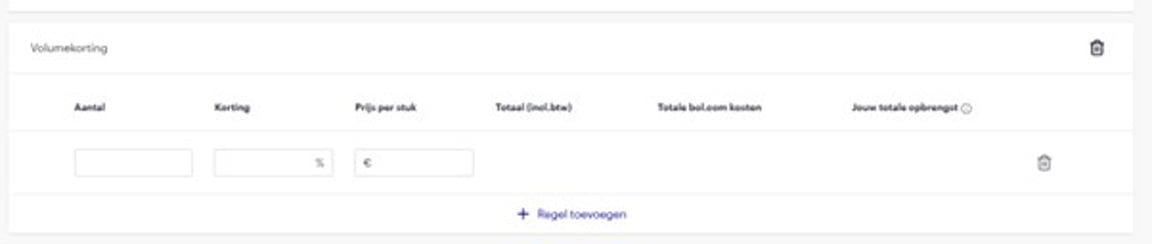
Enter the bundle specifications here. You can set:
Quantity
How many items does the customer need to buy to get a discount?
Discount
What is the discount percentage compared to the single-item price.
or
Price per item
The price per item that applies to the specified quantity.
Add a bundle
Add another bundle by clicking '+ add row'. Each row you add is 1 bundle you can set up. You can set up a maximum of 3 bundles.
Determine how many bundles you create
Determine how many bundles you create.
- You can create a maximum of 3 bundles; this is not mandatory.
- The quantity in the bundle must be ascending.
- The price per item must be descending.
- The discount percentage difference must be at least 5%.
Save changes
Click 'save changes', which is the blue button in the middle at the bottom of your screen.
Delete bundles or entire volume discount
Delete bundles or the entire volume discount.
- To delete a bundle: click the trash can icon for that bundle.
- To delete the entire volume discount: click the blue trash can icon above the bundles.
Useful tips
- When you adjust the selling price of an item that has a volume discount, always check if you need to adjust the volume discount (if the selling price becomes lower than the volume discount price, you will receive an error message when saving the new selling price).
- You can quickly see if a volume discount has been set up with the 'starting price' of your item.
- With the 'Price advantage' filter, you can filter all your items with a volume discount.
- Quickly adjust volume discount: click the pencil icon next to the price. You will see your set volume discount at a glance. Click 'Adjust volume discount' and you will be taken to the same screen as after step 3.
Set up volume discount via API
For all information on setting up volume discount via the API, please refer to this page.
What can you set up for volume discount?
- The number of bundles:
You choose which discount steps you offer – there can be a maximum of 3. - The quantities in your bundles:
Ensure logical, common quantities in your bundles. You are not bound by specific sequences, so choose a logical sequence that suits the customer. For example, if you create 3 bundles, you can choose a sequence of 3 items, 9 items, and 12 items. The maximum bundle quantity is 24 items. - Minimum requirements:
- The minimum discount difference between bundles must be 5% if you add it in your seller account. This does not apply via the API connection
- Bundle quantities must be ascending
- Unit prices must be descending
Relevance is important
Items for which it is common to buy multiple pieces at once or have them in stock are ideal for volume discount. In the list below, you will find an overview of product categories where volume discount is known to actually lead to more sales and more items per order. Volume discount on relevant items can increase your sales by up to 20%.
Purchasing multiple items is not always relevant for the customer
For customers, it is not always relevant to receive a discount when purchasing multiple items. For example, it is not common for the average consumer to buy more than 1 dining table at a time. And when a volume discount is offered on such an item, conversion can decrease. Offering a volume discount in such cases does not encourage buying more, and customers sometimes even decide not to buy the item at all. Use the 'Sales Analysis' dashboard in your seller account to see which volume discount items are often viewed but rarely sold.
Furthermore, adding irrelevant volume discounts can lead to returns and dissatisfied customers. Therefore, only use volume discount when it is positive for the customer – and thus positive for you. This way, together we ensure the most relevant product range possible for the customer!