
Processing and shipping an order via your own shipping method
Do you ship your orders with your own carrier or shipping contract? Then we say you are using 'own shipping method'. You choose which carrier you ship with and then process the shipment in your seller account.
Processing an order via your own shipping method
Don't want to use Shipping via bol or shipping label via bol? With 'own shipping method', you don't buy your shipping labels through bol, but arrange the shipping yourself elsewhere.
Important to know
- Only ship items from your own stock
It is not allowed to ship items directly to customers from an address outside the European Union. Therefore, always check whether your stock meets the applicable guidelines. - Always add a track & trace
When processing an order, you add a track & trace code. This allows customers to track their package and automatically receive the correct shipping information. - Check your details carefully
Have you confirmed an order with an incorrect track & trace number? You cannot change this afterwards via the seller account. In that case, contact the customer yourself.
Processing an order via own shipping method in the seller account
Follow the step-by-step plan below to set up your own shipping method in the seller account.
Order receipt
The customer and you will both receive an order confirmation by email.
Check order
Before the order is shown in your seller account, we check the order. Is everything in order? Then the order will appear in your seller account.
Go to 'orders' in the seller account
In your seller account, go to Orders and open the order you want to process.
Please note!
When you haven't confirmed the order by the 3rd day after the latest delivery date, the order expires and will be automatically cancelled. After cancelling the order, it will no longer be visible in your account and you can no longer be paid for it, even if you delivered the order. It is not possible to provide you with customer details and it is not possible for bol to contact the customer about this. The cancellation is final.
Choose 'Own shipping method'
Want to process multiple orders at once? There are 2 options for this:
- To process all open orders on the page, click the 'Select all' box. A maximum of 25 orders can be processed at a time.
- To process a selection of orders on the page, tick the orders individually.
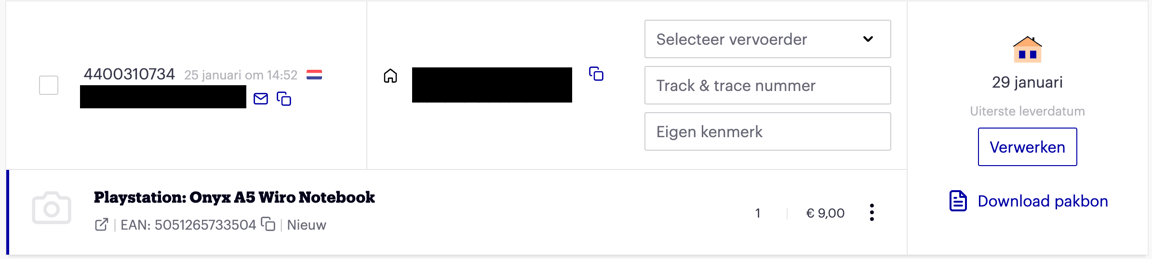
Select a delivery service and enter the track & trace number
- Select your carrier. Is your carrier not in the list? Choose 'Other'.
- Enter the track & trace number.
- Enter your own reference for your own administration (optional).
- Click 'Process'
After confirmation, bol sends the customer an email with the stated delivery date, delivery service, and the track & trace number. When the order is confirmed with the wrong tracking details, it is no longer possible to change it. It is then best to contact the customer yourself and send the correct tracking details.
Item too large, too heavy, or too valuable for regular post?
In this case, the item will need to be delivered to the customer by means of a delivery appointment. In that case, select 'Dynalogic', 'Extra@Home', or 'Delivery appointment' under carrier. You are personally responsible for making a delivery appointment with the customer. To make this appointment, bol asks customers to provide a phone number. For any return request, a collection appointment must also be made. Are you using the bol return label? Then it is unfortunately not possible to purchase labels via bol and you need to arrange the return yourself.
Download the packing slip (optional)
The packing slip for each order can be downloaded as a PDF in the seller account. This can be done in 3 ways:
- After confirming the order via the 'Download packing slips' button.
- Under 'Orders', under the 'Own shipping method' tab – here you can download them individually or all at once via the 'Download all packing slips' button
- Under 'Orders', under the 'Shipped' tab – here you can download them per order.
A packing slip is not a warranty certificate or invoice and is intended to provide information about the order, such as:
- the buyer's delivery address;
- the ordered item;
- the selling price;
- return instructions;
- a review request;
- contact details for questions.
When the order number is stated on the shipping label, sending the packing slip along is not mandatory. A paper packing slip has no value for customers. Customers find all information about the order in their bol account and the bol emails. As a partner, you can use the pick list (see 'Orders' screen) to collect and pack your items. By not printing the packing slip, you save a lot of ink and paper. Still want to print a packing slip? Click here for an example packing slip.
Add your own shipping label to the shipment
Print the shipping label for each order. We recommend adding the paper packing slip only when the order number is not on the shipping label.
Attach the shipping label to the package. Make sure the barcode on the shipping label is clearly scannable. Ensure no tape or foil is stuck over it.
Hand in your package on time at a drop-off point of the delivery service. Ensure that the delivery service has enough time to deliver the package to the customer on time. Choose quality packaging in which the item cannot slide and is protected against damage, so the customer receives their order in good condition.
Done! What now?
As soon as the order is confirmed, the customer automatically receives an email with the track & trace number and the expected delivery date.
You can find your payout on your next sales invoice.
Automate orders
If you don't want to process your bol orders in your seller account, but in your own system, you can use Automate via bol. There are various certified partners who can help automate your orders/shipments, among other things.
If you want to build and manage the connection yourself, you can automate your orders and shipments. Please note that technical knowledge is required for this.