
Process and ship orders via your 'own shipping method'
With your 'own shipping method', you don't buy your shipping labels via bol, but arrange shipping yourself elsewhere. In the step-by-step plan below, you can read how it works if you choose a different shipping method.
Processing orders using your own shipping method
Don't want to use Shipping via bol or shipping label via bol? With your 'own shipping method', you don't buy your shipping labels via bol, but arrange shipping yourself elsewhere.
Processing orders using 'your own shipping method' in the seller account
Follow the step-by-step plan below to set up your own shipping method in the seller account.
Order reception
Both you and the customer will receive an order confirmation by email.
Check order
Before the order is shown in your seller account, we check it. Is everything in order? Then the order will appear in your seller account.
Go to 'orders' in the seller account
You can find these by clicking on 'orders', or go directly to your orders by clicking here.
Please note!
If you have not confirmed the order by the 3rd day after the latest delivery date, the order will expire and be automatically cancelled. After cancellation, the order will no longer be visible in your account, and you will not be paid for it, even if you have delivered the order. It is not possible to provide you with customer data, and bol cannot contact the customer about this. The cancellation is final.
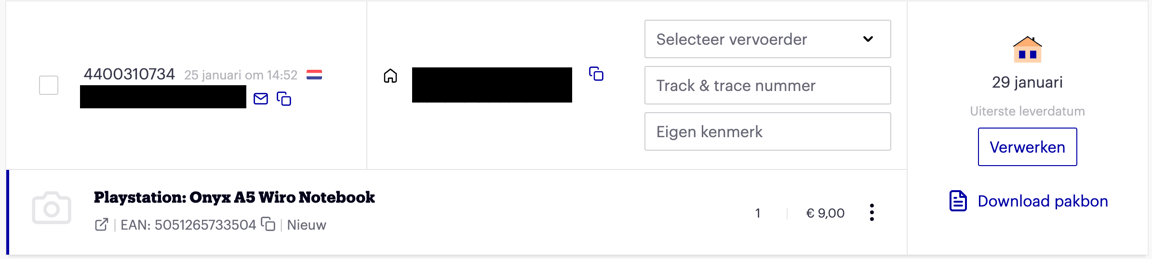
Select the order and click 'Own shipping method'
Want to process multiple orders at once? There are 2 options:
- To process all open orders on the page, check the 'Select all' box. A maximum of 25 orders can be processed at a time.
- To process a selection of orders on the page, check the orders individually.
Select a delivery service and enter the track & trace number
- Select your carrier. Is your carrier not on the list? Then choose 'Other'.
- Enter the track & trace number.
- Enter your own reference for your administration (optional).
- Click 'Process'
After confirmation, bol sends the customer an email with the specified delivery date, delivery service, and track & trace number. If the order has been confirmed with incorrect tracking data, it is no longer possible to adjust it. In that case, it is best to contact the customer yourself and send them the correct tracking data.
If an item is too large, too heavy, or too valuable for regular parcel or letter post,
In this case, the item must be delivered to the customer by means of a delivery appointment. In that case, select 'Dynalogic', 'Extra@Home', or 'Delivery appointment' as the carrier. In this case, as a partner, you are responsible for making a delivery appointment with the customer. To make this appointment, bol asks customers to provide a phone number for items where this is necessary. For any return request, a collection appointment must also be made. If you use the return service via bol, it is unfortunately not possible to purchase labels via bol, and you must arrange the return yourself.
Download the packing slip (optional)
The packing slip for each order can be downloaded as a PDF in the seller account. This can be done in 3 ways:
- After confirming the order via the 'Download packing slips' button.
- Under 'Orders', in the 'Own shipping method' tab – here you can download them individually or all at once via the 'Download all packing slips' button.
- Under 'Orders', in the 'Shipped' tab – here you can download them per order.
A packing slip is not a guarantee or an invoice and is intended to provide information about the order, such as:
- the buyer's delivery address;
- the item ordered;
- the selling price;
- return instructions;
- a review request;
- contact details for questions.
If the order number is stated on the shipping label, including the packing slip is not mandatory. A paper packing slip has no value for customers. Customers can find all information about the order in their bol account and bol emails. As a partner, you can use the pick list (see 'Orders' screen) to collect and pack your items. By not printing the packing slip, you save a lot of ink and paper. Still want to print the packing slip? Click here for an example packing slip.
Add your own shipping label to the shipment
- Print the shipping label for each order. We recommend only adding the paper packing slip if the order number is not shown on the shipping label.
- Attach the shipping label to the parcel. Make sure the barcode is clearly scannable. The barcode must be fully printed and visible. Do not cover it with tape or plastic.
- Deliver your parcel on time to a drop-off point of the carrier. Ensure the carrier has enough time to meet the delivery promise to the customer. Use sturdy packaging that prevents movement and protects the item from damage, so the customer receives the order in good condition.
Done! What's next?
As soon as the order is confirmed, the customer automatically receives an email containing the track & trace number and the expected delivery date.
You can find your payout on your next sales invoice.
Automate orders
If you prefer to process your bol orders in your own system rather than your seller account, you can use Automate via bol. Various certified partners can help you automate your orders and shipments, among other things.
If you want to build and manage the integration yourself, you can automate your orders and shipments. Please note that this requires technical knowledge.