
Shipping label via bol
With shipping label via bol, you can quickly and easily buy shipping labels. This way, you can manage your shipments efficiently and affordably.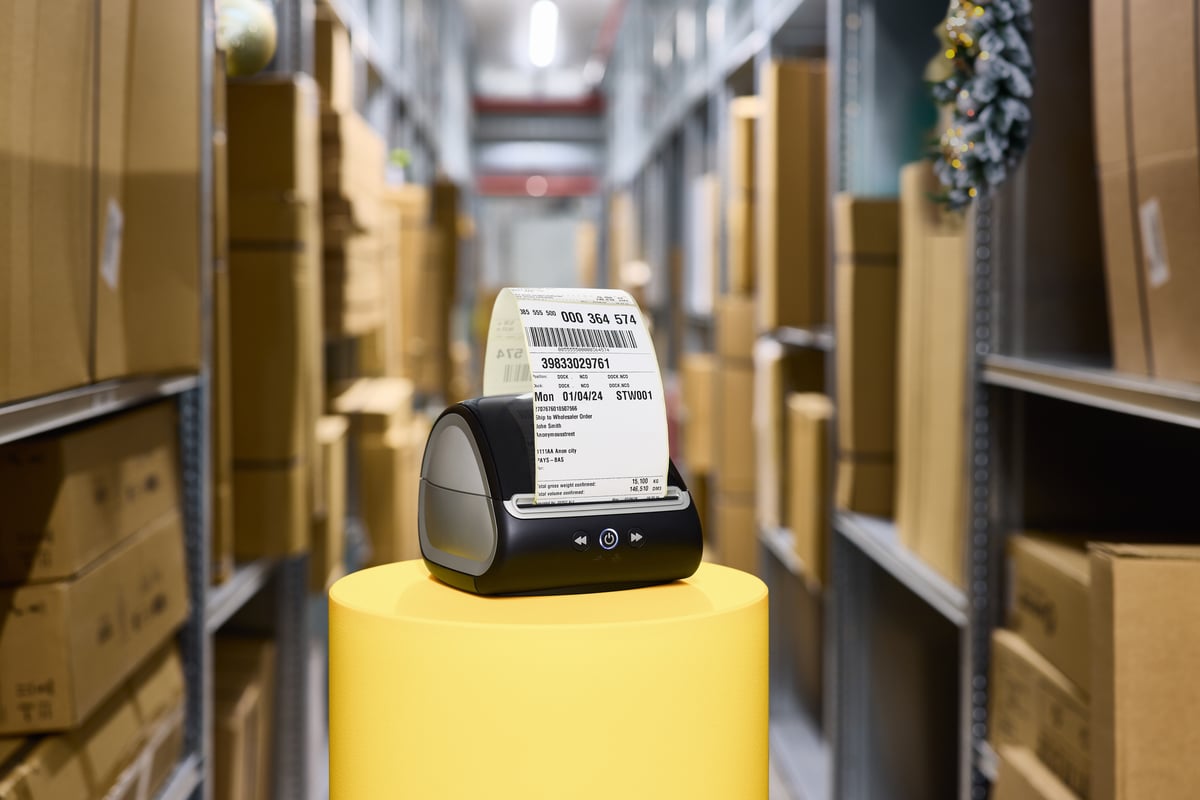
Delivery services
For shipments with Shipping label via bol, we work with 2 reliable delivery services in the Netherlands and Belgium.
- Bpost (within Belgium and from Belgium to the Netherlands)
- PostNL (from the Netherlands to Belgium)
Please note: insured shipping is not possible via Shipping label via bol. Do you want to insure a shipment? Please check the carrier's website for alternative shipping options.
Shipping label via bol rates
What do shipping labels via bol cost? You'll find the rates below. These are exclusive of VAT.
Dimensions and conditions
Bpost uses girth measurements for parcels. This means they calculate the circumference of your parcel. The calculation is: 2 times the height + 2 times the width + 1 time the length (longest side). Your parcel may have a maximum girth of 300 cm. The longest side may not be longer than 150 cm. Click here for all Bpost conditions.
PostNL applies fixed maximum dimensions for each parcel shipment.
Delivery promise
For shipments within Belgium, the following applies:
- 24-hour delivery: if submitted before 4 PM? Then it will be delivered to the customer's home the next working day. This may vary during busy periods.
- Parcels with these labels are not delivered on Saturdays and Sundays.
- Parcels with these labels are offered to the customer once. After that, the parcel is delivered to a nearby parcel shop, where the customer can pick it up.
- Customer questions about delivery are answered by you as a partner. Currently, items that are damaged or lost on the way via this shipping method are often reimbursed by bol as a gesture of goodwill.
For shipments to the Netherlands, the following applies:
- Delivery time 1 to 2 days. This may vary during busy periods.
- Parcels with these labels are not delivered on Sundays and Mondays.
- Parcels with these labels are transferred from Bpost to DHL for delivery in the Netherlands and offered to the customer once. After that, the parcel is delivered to a nearby DHL parcel shop, where the customer can pick it up.
- Customer questions about delivery are answered by you as a partner. Currently, items that are damaged or lost on the way via this shipping method are often reimbursed by bol as a gesture of goodwill.
For shipments from the Netherlands to Belgium, the following applies:
- We aim for delivery on the next delivery day. This may vary during busy periods.
- Parcels with these labels are not delivered on Sundays.
- Parcels with these labels are offered to the customer once. After that, the parcel is delivered to a nearby parcel shop, where the customer can pick it up.
- Customer questions about delivery are answered by you as a partner. An investigation into a lost parcel is initiated via bol. For questions about the investigation, please contact Partnerservice.
Getting started with shipping label via bol: step-by-step plan
Want to get started with shipping label via bol right away? Read step-by-step how to start with shipping label via bol.
Receiving an order
The customer and you will both receive an order confirmation by email.
Check order
Before the order is shown in your seller account, we check the order. Is everything in order? Then the order will appear in your seller account.
Go to 'Open' under the 'Orders' heading in the seller account
You can find these by clicking on 'orders', or go directly to your open orders by clicking here.
Please note!
If you have not confirmed the order by the third day after the ultimate delivery date, the order will expire and be automatically cancelled. After cancelling the order, it will no longer be visible in your account and you will no longer be able to receive payment for it – even if you have already delivered the order. It is not possible to provide you with customer or order data, and it is not possible for bol to contact the customer about this. The cancellation is final.
Select the order and click on 'Shipping label via bol'
Handle multiple orders at once? There are 2 options for this:
- To handle all open orders on the page, check the box 'select items from the list..'. You can handle a maximum of 25 orders at a time.
- To handle a selection of orders on the page, check the orders individually.
Tip!
First, check if multiple items are from the same order, because you can send these in 1 box with 1 shipping label – this saves costs. In that case, follow the rest of this step-by-step plan for one of the items and choose 'Other shipping method' for the other items from the same order. You can then enter the same track & trace number here to confirm the other items.
Select a delivery service
- Select the delivery service and label type you want to use to send the order. Which delivery services and label types you see here depends on the country from and to which you are sending the order.
- Enter your own reference for your own administration (not mandatory).
- Click on 'Go to summary' at the bottom left of the page.
- Click on 'Confirm shipment' at the bottom.
Only do this if you are actually going to send the item to the customer. Once the order has been confirmed and the shipping label has been created, you cannot undo this and the costs for this will be settled on the all-in-one invoice. As soon as you confirm, the customer automatically receives an email containing the track & trace, delivery service and expected delivery date.
If you have confirmed the order with incorrect tracking data, it is no longer possible to adjust. In that case, it is best to contact the customer yourself and send the correct tracking data.
Download the packing slip (optional) and shipping labels
The packing slip for each order can be downloaded as a PDF in the seller account. This can be done in 3 ways:
- After confirming the order via the 'Download packing slips' button.
- Under 'Orders', under the ' Own shipping method' tab – here you can download them individually or all at once via the 'Download all packing slips' button
- Under 'Orders', under the ' Shipped' tab – here you can download them per order.
A packing slip is not a guarantee certificate or invoice and is intended to provide information about the order, such as:
- the buyer's delivery address;
- the item ordered;
- the selling price;
- return instructions;
- a review request;
- contact details for questions.
If the order number is stated on the shipping label, sending the packing slip is not mandatory. Click here for an example packing slip.
Print the shipping labels and packing slips
- Print the shipping label for each order. Is the order number not on the shipping label? Then also print the packing slip.
- If you have printed the packing slip, put it in the package.
- Stick the shipping label on the package. Make sure the barcode on the shipping label is clearly scannable. The barcode must be fully printed and visible; make sure no tape or film is stuck over it.
- Deliver your package on time to a drop-off point of the delivery service. Choose quality packaging in which the item cannot shift and is protected against damage, so that the customer receives their order in good condition.
Done! What now?
As soon as the order is confirmed, the customer automatically receives an email containing this track & trace number and the expected delivery date. You can consult the track & trace number by clicking on it under the 'Shipped' tab.
You can find your payment on your next sales invoice.
Automate
If you do not want to handle your orders in your seller account with shipping labels via bol, but in your own system, you can use Automate via bol. There are various third parties that can help automate your orders/shipments, among other things.
If you want to build and manage the connection yourself, you can automate your orders and shipments. Please note that this requires technical knowledge.
Frequently asked questions
about Shipping label via bol