
Add multiple images at once
On this page, you'll find everything about how to add multiple images at once.
Add images via the bulk editor
Images can be added via the bulk editor. You can upload images directly from your folders or add image URLs. You can add images per line.
Please note if you use image URLs: All images must first be stored on a hosting location. A free hosting location is not accepted. An image URL is then created from this. This link (without spaces) can be used in the uploads in the seller account.
Go to your offer
In your seller account, click on 'Items' at the top, then on 'My items'.
Select the items
On this page, select the items to which you want to add images.
Click on 'Edit content'
Then choose 'Based on selection'
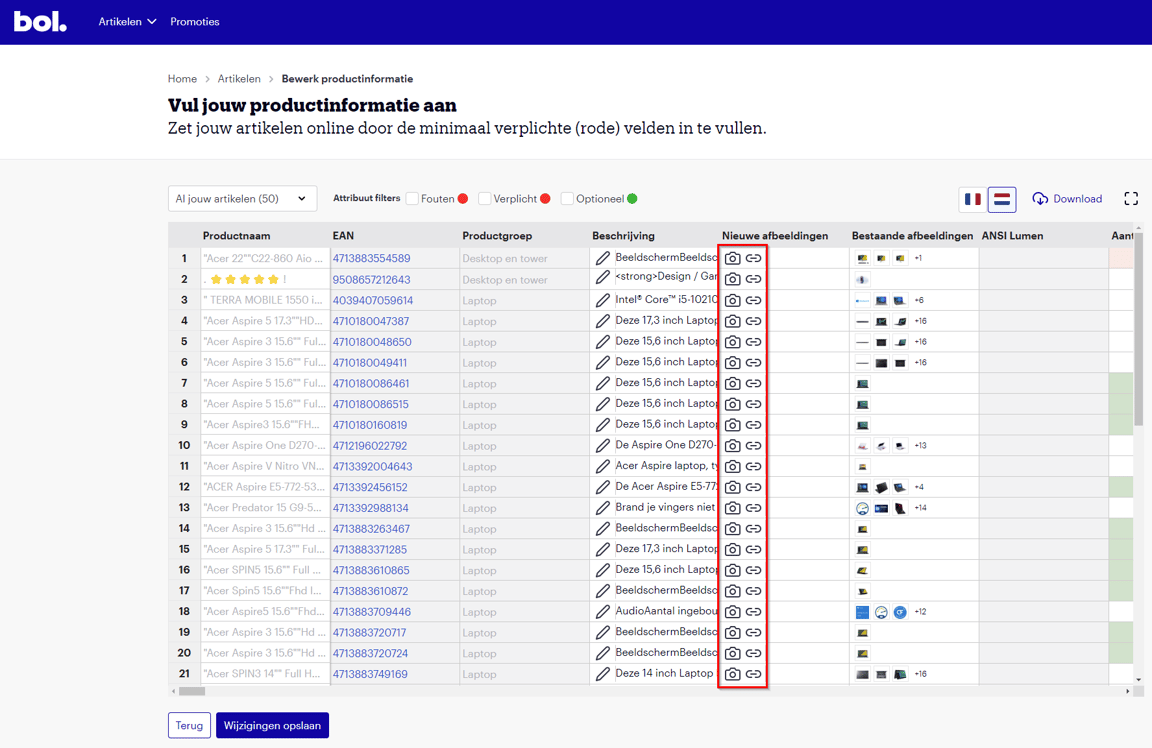
The data editor appears. Using the icons in the 'new images' column, you can add new images. Click on the camera icon to select photos from your folders. Click on the other icon if you want to add image URLs.
Add views and/or remove images
When you add images, they appear as thumbnails in the 'New images' column. You can click on these small images. When you do, a pop-up window will appear, displaying the images larger. In this pop-up window, you can select the view for each image and/or remove an image. You can also easily drag the images down if the category of the relevant items matches.
Edit existing images
In the data editor, you can also edit existing images. If you want to add several views and/or remove an image, you can do this by clicking on the small images in the 'Existing images' column. A pop-up will appear showing the images larger. Here you can select views and/or remove an image by clicking on the trash can icon.
Guidelines for images
Images greatly help customers get a good idea of the item. Therefore, add as many images as possible showing the item from different perspectives. Additionally, to remain visible on bol and Google, it is important that images comply with the guidelines. More information about image guidelines can be found here.
And now... just wait!
The additions or changes will be processed within 8 hours and will then be visible via bol.