
Phone, email and Direct Messaging (DM) contact with customers
On this page, you can read how phone and email contact with customers works and find tips for excellent handling of a customer query.
Phone contact
Customers can contact you by phone via bol. The customer will then see an encrypted phone number. When the customer calls this encrypted phone number, they will be connected to you as a partner. Customers have this option if they want to contact you within your opening hours .
Always adjust your response to the customer's tone and mood. When possible, use the customer's name for a personal touch. When you have spoken to the customer by phone, a closed customer query will automatically be created in your seller account or the phone interaction will be added to an existing customer query. If you want to send the customer a message after the phone contact, you can look up this customer query.
Email contact
To answer a customer query by email, click 'email customer'. The salutation and closing of the email are automatically set for you. It is also possible to use formatting options. In addition, you can add a note, attach a file, and decide whether to keep the customer query open or close it after sending the message. Always ensure your message includes a salutation, a brief summary of the problem, the proposed solution(s), and a closing.
Did the customer send you a very short message? Respond politely and ask for more information. Then set your customer query to 'Waiting for customer response'.
Are you satisfied with your message? Then click 'Send'. You will then see a preview of your message. Does the message look good? Then press 'Yes, send'. Your message will be sent directly to the customer. More information about handling customer queries in your seller account can be found here.
Direct Messaging
A customer can also choose to send you a message, a Direct Message (DM). You can find DMs in the seller account under customer queries. You always respond to a DM with a DM message. You can receive DMs at any time and respond when it suits you. Just like with, for example, WhatsApp, there can be a tendency to respond very briefly. Short and concise fits with DM, but a too short response can be unclear for customers and lead to unnecessary repeated communication. That is why we have drawn up quality requirements for a DM conversation. You can find them directly below.
Do you have any further questions about DM? Then check the FAQ at the bottom of this page.
Response time
We ask you to respond to DMs within one working day at the latest. The response time via Direct Messaging is not yet included in the service standard response time at this stage. This will be included in the future.
Quality requirements for a DM conversation
Providing good customer service is often also a feeling. We try to provide tools for that feeling with the guidelines below. The goal is to apply all 5 points in a DM conversation. In the near future, we will also monitor this.
1. Greet the customer and use the correct customer name
Use the correct customer name (no abbreviations). Example:“Hi Erika,”
2. Respond appropriately to the customer query or situation
Give an initial response that matches what the customer has indicated. Example:“I understand that you want to know where your book has gone.”
3. Make the contact personal
Show that you understand the specific situation and/or question of the customer. Example:“It's a shame your book hasn't arrived yet.”
4. Provide a solution-oriented and complete answer
Provide a solution-oriented and complete answer: tell what you are going to do, why this is necessary, and within what timeframe the customer will receive an update.
Example:
“I will start an investigation with the delivery service. You will receive an update on this within 4 working days at the latest.”
5. Conclude customer conversations clearly and politely
Indicate what you expect from the customer, let the customer know that they can always contact you, and wish the customer something pleasant. Example: “Enjoy your new book and have a nice day!”
Another example DM conversation
"Hi partner, I was supposed to receive a lawnmower today, but it still hasn't arrived. Can you help me further? Regards Kevin."
"Hi Kevin, it's a shame your lawnmower hasn't arrived yet. I completely understand that you want to know where it is. I see that the delivery has been delayed, but that it will still be delivered to you today. You can follow the current status of the order via Track & Trace. Enjoy mowing and have a nice day!"
Personal signature
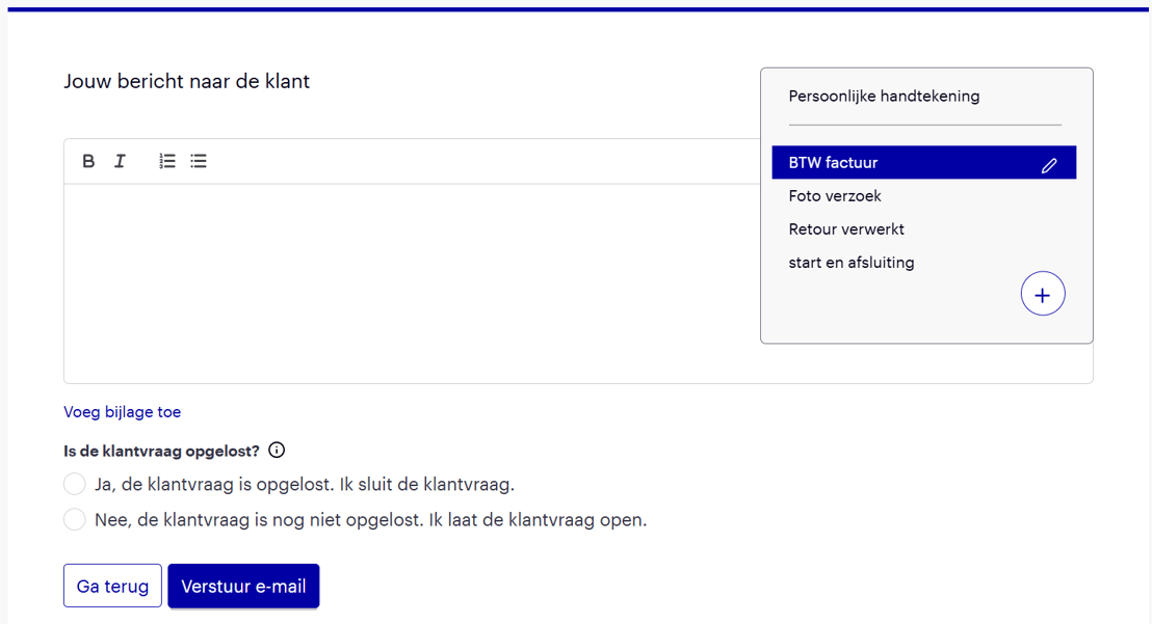
To make contact with your customers even more personal, you can choose the 'personal signature' option from the 'standard messages' drop-down menu for an open customer query. After you have set up a personal signature, it will automatically be added to new messages. Tip! Add your first name to your personal signature to make your message more personal!
Standard messages
In the seller account, for an open customer query, you can enter a standard message with which you can then efficiently communicate with customers at the touch of a button. It is especially useful to work with standard messages for frequently asked questions. You can write, save, and edit these standard messages yourself.
You start drafting a standard message by clicking the Plus (+) button in the standard messages menu while writing an email. If you want to adjust a standard message, click the pencil icon next to the specific standard message.
By investing a little time in setting up some standard messages, you will ultimately save a lot of time. A large part of your message will be ready in an instant; only adding the specific information to answer the customer query is still needed.
Need inspiration for standard messages? See the examples below.
- Mail: Order not yet received
- Mail: Return item with bol return label
- Mail: Return processed
- Mail: VAT invoice
Add attachment
When answering a customer query, you sometimes need to send an attachment to the customer. This could be a VAT invoice or a photo of the returned item. You can add an attachment to your open customer query while drafting the email to the customer via the 'Add attachment' button.
The following restrictions apply:
- Maximum attachment size: 10 MB.
- Accepted file types: .bmp, .csv, .doc, .docx, .eml, .gif, .htm, .html, .jpeg, .jpg, ods, .odt, .pdf, .png, .rtf, .tiff, .tnef, .txt, xhtml, .xls, .xlsx and .xml
- Maximum number of attachments to add: 5.
- Maximum total size of all attachments: 20 MB.
- The attachment must be considered safe by the virus scanner.
PDF file cannot be sent via customer query because it is considered unsafe?
Then follow these steps:
- Save the file as 'print to pdf'. You can do this by opening the file and then clicking 'print'.
- From the list of printers, you can then choose 'print to pdf'.
- Click 'print'. You will then be asked where you want to save the PDF file.
- Save the file.
- You now have a simplified PDF file that is suitable for sending via the customer query.
For Mac users:
- Use the 'Preview' program.
- In the 'File' menu, choose 'Export to PDF'.
- If this also doesn't work, you can also send the invoice via the customer's encrypted email address. You can find this with the order in your seller account.
Tips for excellent handling of a customer query
If something unexpectedly goes wrong with an order, excellent service leads to higher ratings, returning customers, and promoters of your shop. In addition, that extra bit of attention to your service also leads to savings, such as less repeat contact or preventing a return.
Here are some tips for excellent handling of a customer query
Solve customer queries in one go
Try to resolve a customer query in one go if possible. It's good for the customer and for yourself, as it prevents repeat contact.
Think solution-oriented
Address the customer's question and, if possible, offer various solutions. Always indicate when the problem will be resolved.
Make contact personal
Provide specific information to the customer. For example, mention the ordered item, provide a tracking code, and show empathy for the customer's question or complaint. Phone contact? Then adjust your response to the customer's tone and mood. When you can, use the customer's name for a personal touch. Email contact? Ensure your message always includes a salutation, a brief summary of the problem, the offered solution(s), and a closing.
Always conclude customer conversations politely
At the end of the conversation, always clearly state what you expect from the customer and ensure the customer feels they can always contact you.
Questions about Partner Direct Messaging?
Check out the FAQ below.