
Users and roles
Are you an administrator of a seller account and want to add someone to your account? On this page, you can find everything about adding users to a seller account.
Users and roles
Under ‘Users & roles’ in your seller account settings, you can give other users (limited) access to your seller account. Besides adding a user with the ‘admin’ role, who has access to all parts of your seller account, you can also create new user roles yourself. For example, you can give an employee access to customer questions, as well as the ability to view (or manage) the status of ongoing orders. You can give an Advertising agency access to the ‘advertising’ section in your seller account, as well as the ability to manage and improve your content!
Good to know before adding a user to your account
- A user with the ‘admin’ role has access to all parts of your seller account. An added admin cannot change business-sensitive information; only the account owner can do this. However, the admin does have access to how your shop is displayed, such as the shop status, shop name, and shop description. So, be careful who you give these rights to.
- The person who opened the seller account (‘owner’) can never be removed from the seller account. Admins can be removed at any time.
- A user with the ‘owner’ role can only be linked to one seller account. If you have multiple seller accounts where you want to give the same person access to all parts, create a new email address for this user.
- A user with the ‘admin’ role or other self-created roles can be linked to different seller accounts.
- A user can currently only have one role per shop. If the user you want to add is already linked to another role in your shop, you cannot give them another role within your shop.
- After the added user has approved the invitation, they can log in to your seller account via partner.bol.com/sdd. If they receive an error message, ask the user to clear cookies or open the link in an incognito window.
How can I add a user to my seller account?
Go to ‘Users and roles’ in your account via ‘Settings’
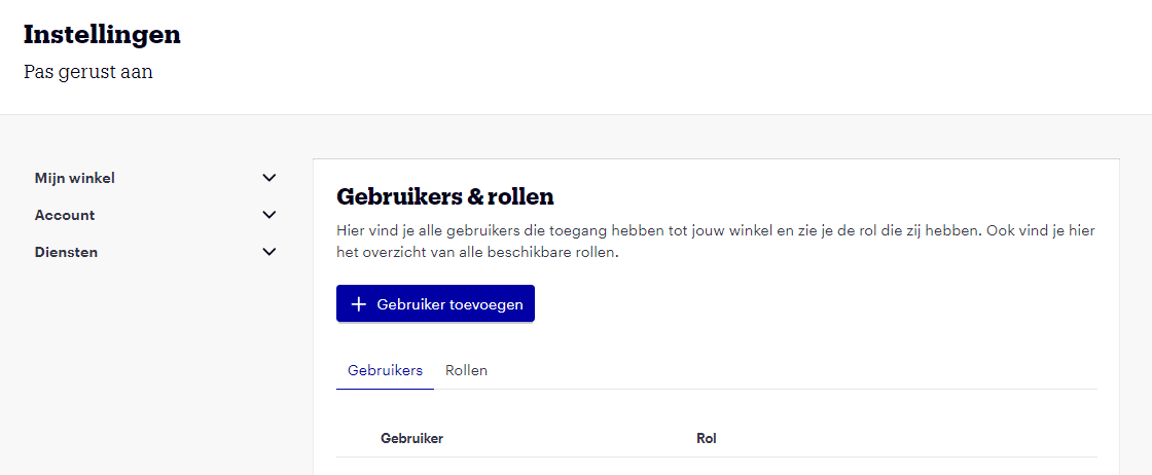
Click ‘Add user’ and enter the email address
Select the role you want to assign to the user and click 'add'
- Administrator: An administrator has all rights within your seller account. You can remove or adjust the administrator at any time.
- Other roles: You can create and customize new roles with the desired access. Newly created roles will be visible here with your chosen name and can then be assigned to a user.
An email will be sent to the provided email address
In the user overview, you will then see that this email address has been added to the list, with the message ‘not yet activated’. As soon as the added user accepts your invitation, this message will disappear, and the user will have access to a certain part (or all parts, in the case of the ‘admin’ role) of your seller account.
If you want to remove the user from your seller account, navigate back to the ‘Users & roles’ page under the ‘Account’ section in your settings. Then click on the trash can icon next to the user. The user will then receive an email stating that they have been removed as a user and no longer have access to your seller account.
Do you want access to a seller's seller account on bol?
Ask the administrator to add you to the user overview
Go to your mailbox and confirm the received invitation
If you do not yet have a personal bol account, we ask you to create one by clicking 'Confirm' in the email. Then click 'log in directly' on the screen, or go to partner.bol.com/sdd.
If you already have the ‘owner’ role for a seller account, you unfortunately cannot be added to a second shop. We will inform you of this via email. Ask the seller to add you with a different email address.
Log in with your email address and password to access the seller account
After logging in, choose which seller account you want to work on
After logging in, you will immediately see the sections you have access to. If you get a pop-up ‘Blocked for advertising’ in the ‘Advertising’ section, the administrator has not yet approved the General Terms and Conditions. Ask them to do this in their seller account (via the link partner.bol.com/sdd/avb), so you can start advertising.
Get started!
Finished with the shop you chose in step 4? Go to ‘Switch shop’ in the top right menu. Choose another shop and follow the steps again.