
Return process and conditions for a customer
It can happen that a customer contacts you when they want to return an item. It's helpful to know which steps the customer needs to follow in their purchase account for this. You can guide the customer through these steps if necessary. You can read about these steps here.
The return conditions for the customer
Want to know what can and cannot be returned? What the return period is and what costs are involved for a customer? You can find all return conditions here.
The steps the customer follows when registering a return
It can happen that a customer contacts you when they want to return an item. It's helpful to know which steps the customer needs to follow in their purchase account for this. You can guide the customer through these steps if necessary. You can read about these steps here.
Log in
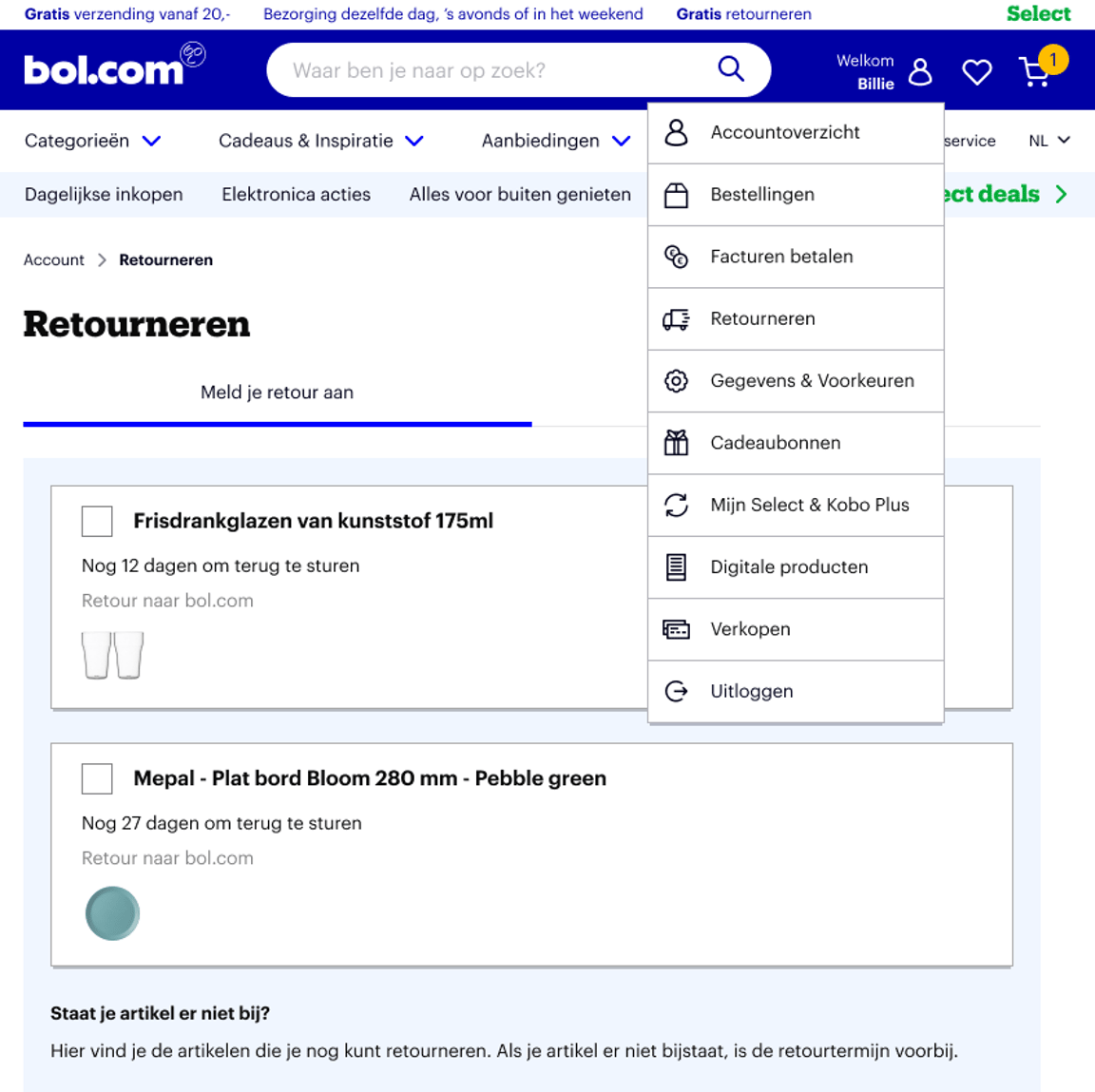
The customer goes to bol, clicks on their name in the top right corner, and then on 'Return'.
Find order
The customer now sees their return overview. Here, they click on the items they wish to return. It is not possible to register items sent to different addresses for return at the same time. If an item is not on the list, either the return period has expired or it is not possible to return it according to the return conditions.
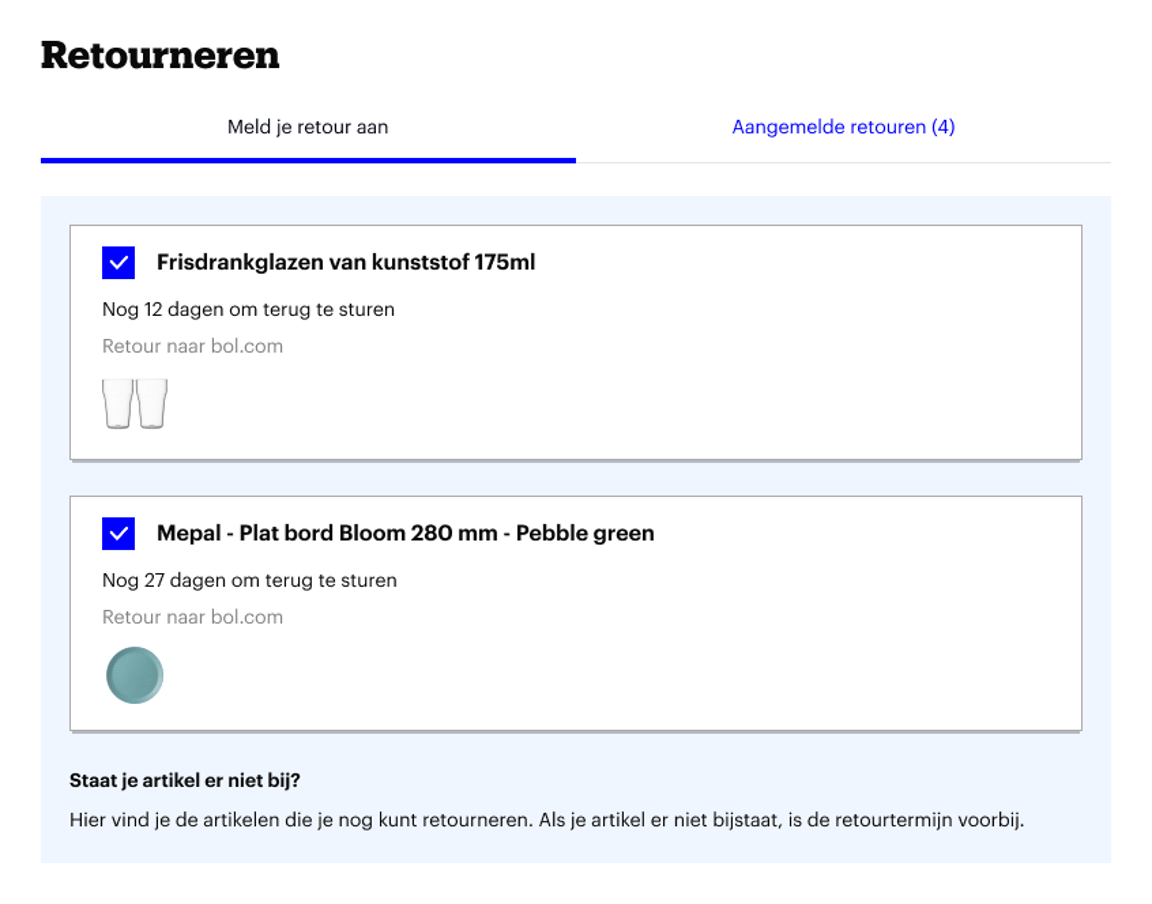
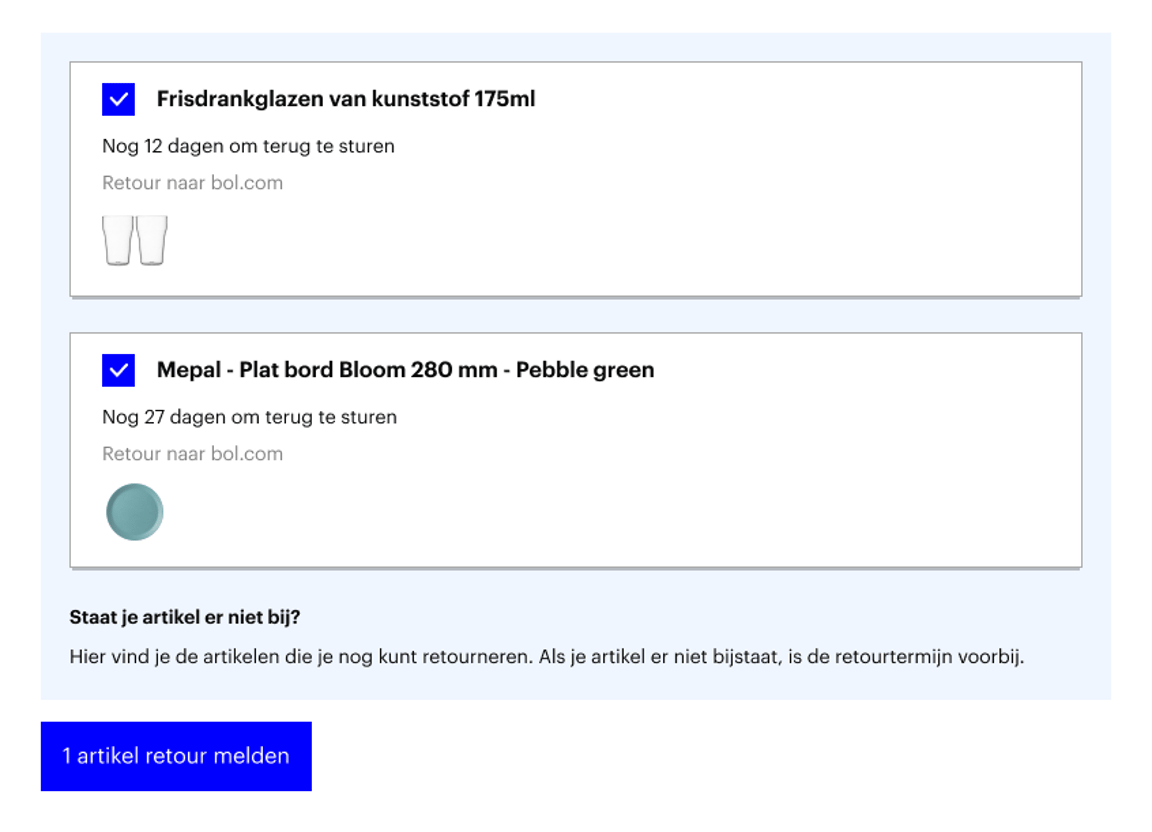
Register item for return
The customer clicks on 'Return items' below the (checked) items.
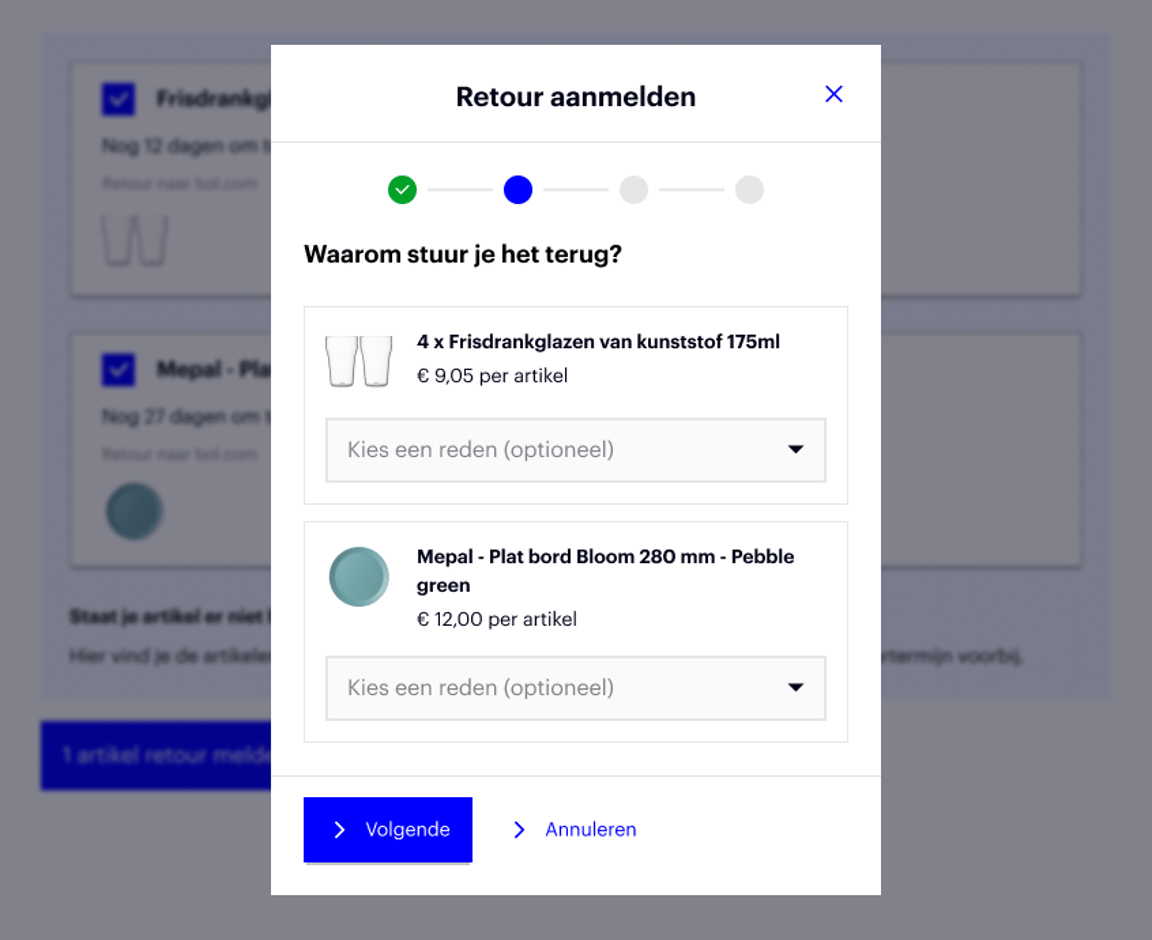
Confirm return notification
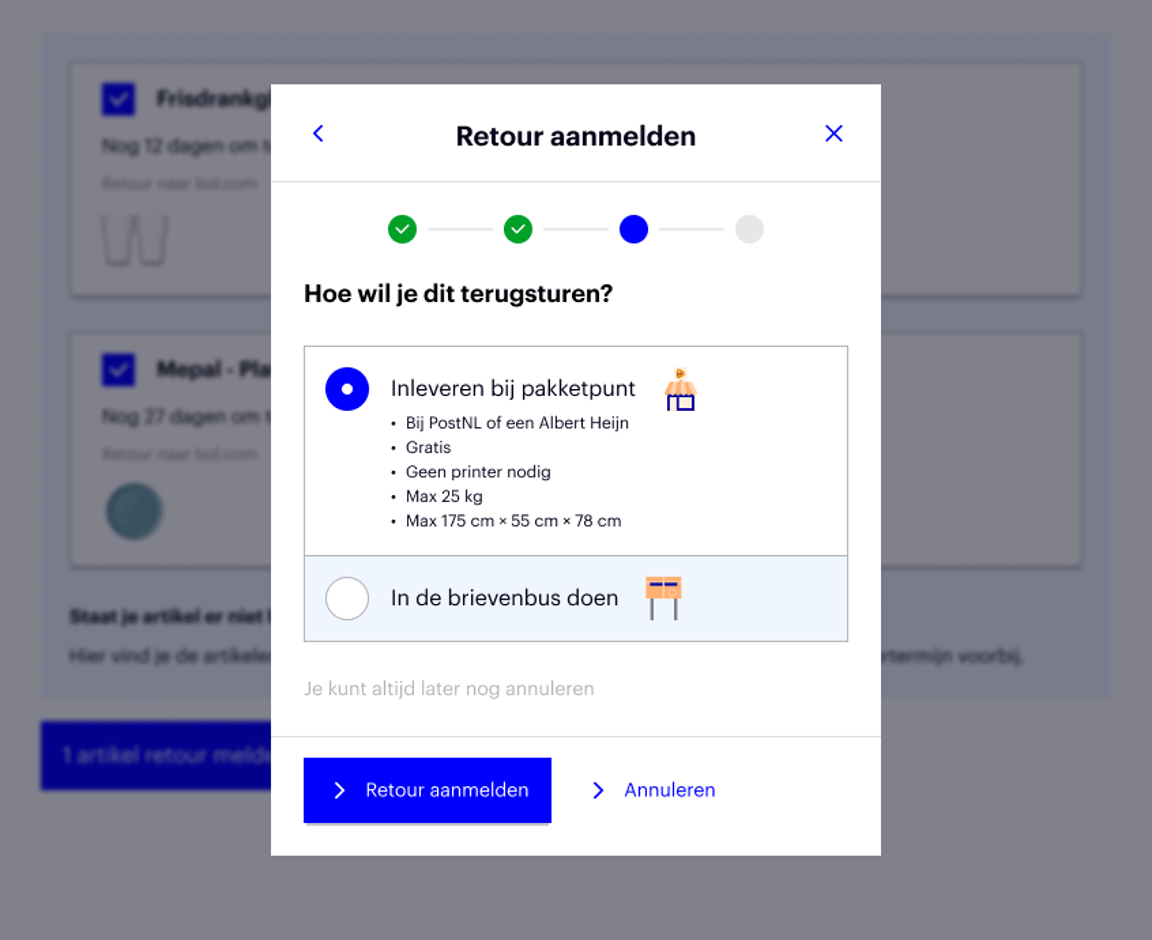
Next, the customer fills in the return reason and the number of units per item and chooses a shipping method. Depending on whether you use the return service via bol, the customer will see the option to send the package back for free via PostNL or bpost. After that, the customer clicks on 'Confirm return'.
Here too, they choose the shipping method:
Return pick-up at home
Do you use Logistics via bol or the return labels via bol? Then customers who are bol Select members can also make a pick-up appointment for their return. PostNL will pick up the package at home, attach a return label, and deliver it back to you or our fulfilment center. There are no extra costs or actions involved for you.
Download return label
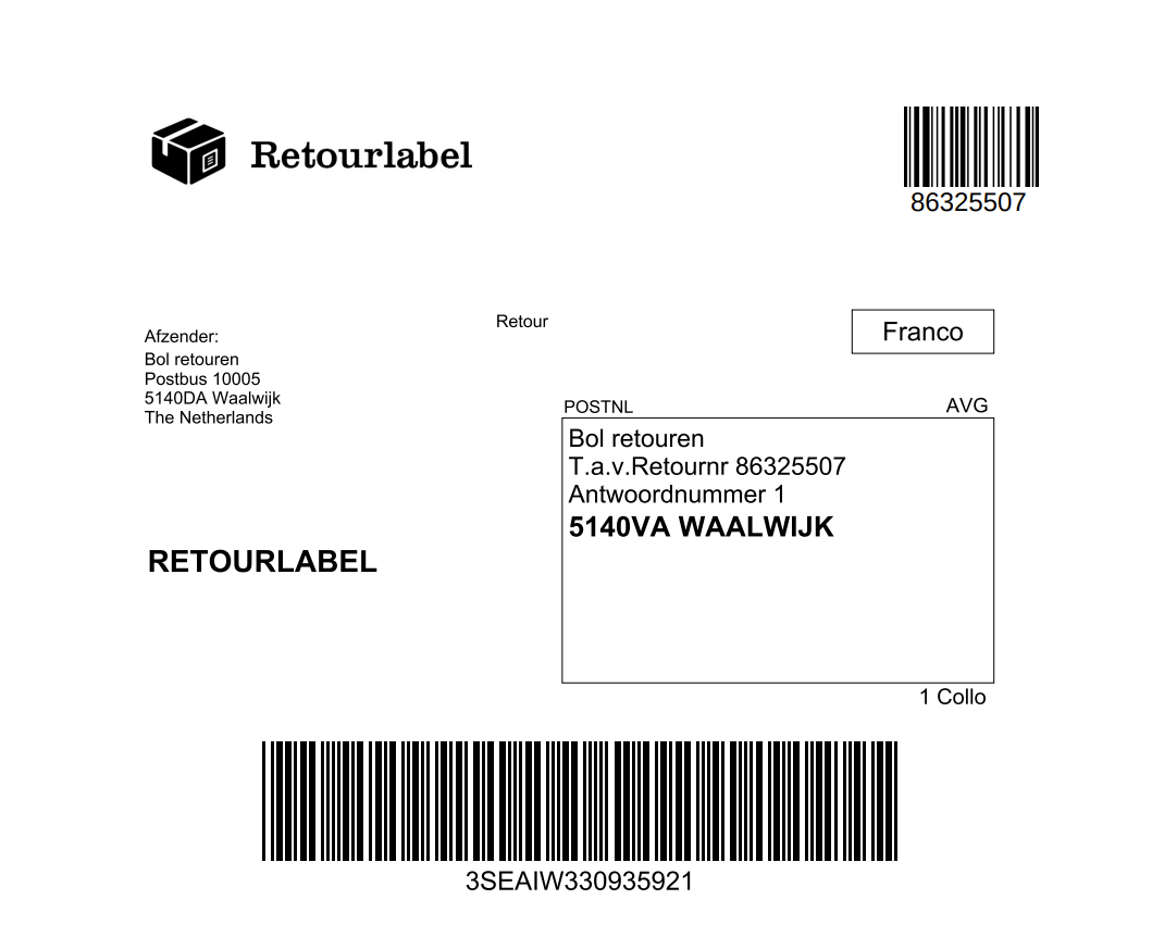
The customer clicks on 'Download the return label', prints it out, and attaches the label to the return package. If you use the return service via bol, your customers can also hand in their return shipment via PostNL and bpost at the parcel point without a printed label. So, the customer can use the barcode (printerless) or download the return label and stick it on the package.
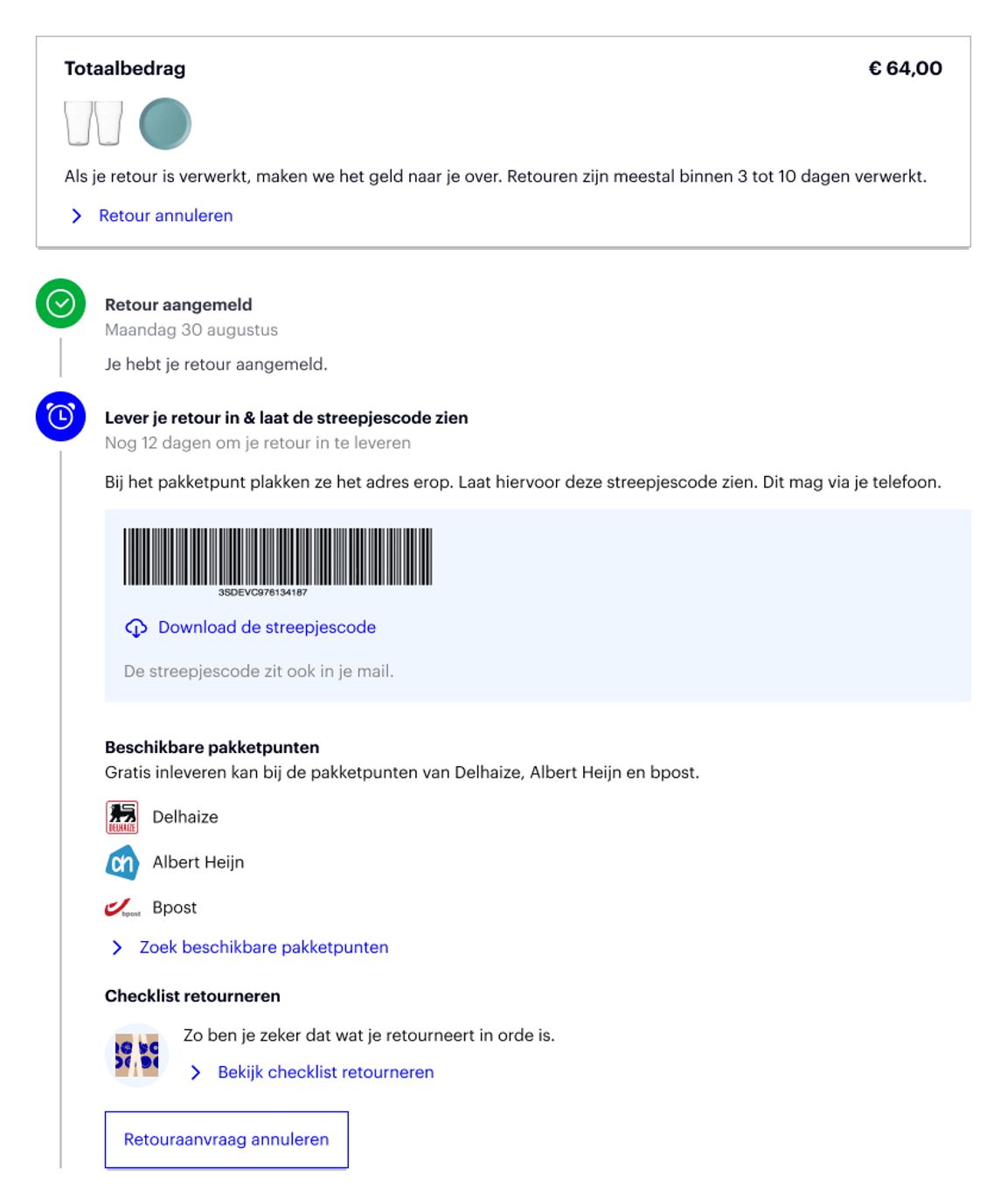
Have you prepared additional return instructions? Then the customer will also see them here.
The overall return number is also stated on the return form. The return codes per item are also listed under 'RMA' in the return overview.
Please note!
Has the customer completed the return steps and already closed the window without downloading the return label? No problem! They can find the return label by clicking on their name in the top right corner and then on 'My orders'. Here, they can select 'Download the return label' again via the relevant item.