
Entering and adjusting stock
On this page, you will find information about adjusting your stock.
Entering and adjusting stock
Any adjustment to your stock is processed within fifteen minutes and will then be visible in your seller account. If this processing time has passed for your adjustment and it's still not correct, please contact Partnerservice.
Adjusting stock per item
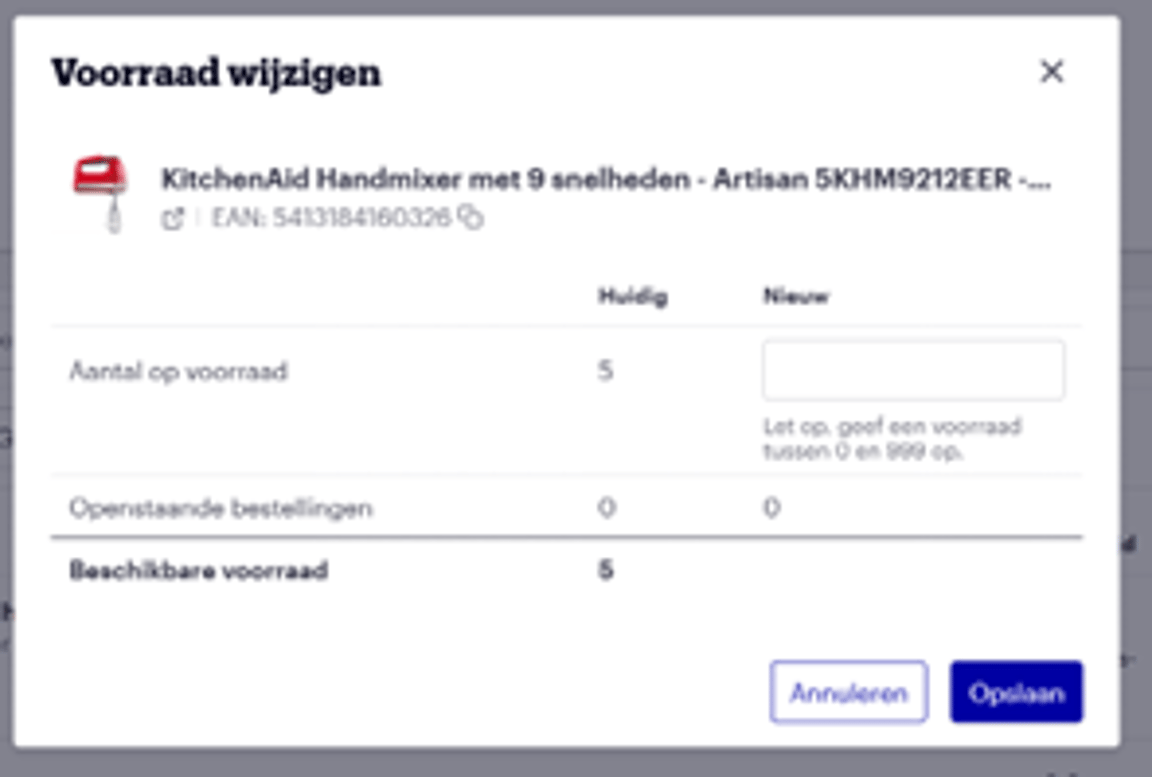
In your seller account, navigate to the item overview. Hover your mouse over the stock and click the pencil icon to change it.
.png?width=1152)
A pop-up screen will then appear where you can enter and save your new stock.
Adjusting stock for multiple items
Changing stock via the API
Do you use an API connection? Then you can adjust the stock there. An explanation can be found on this page.
Good to know
There are 2 situations in which your stock is automatically set to 0 after a cancellation:
- If you cancel an order yourself with the reason 'insufficient stock'.
- If you have not confirmed the order by the third day after the latest delivery date, the order expires and is automatically cancelled. In that case, the stock for that item is also automatically set to 0.
In both situations, it is important to check your stock and correct it yourself if necessary.