
Add content per item
On this page, you can read more about how content is structured and how to add it per item.
How is content structured?
Good content is important for successfully selling your product range via bol. This information helps the customer to form a clear picture of their potential purchase. The more information that is available about an item, the greater the chance that the customer will make a purchase. Also, your item with complete content will be more visible – both within bol and via external search engines like Google. However, not all information is equally essential, so it's good to know which levels exist:
- Basic information: essential information for a customer to understand what kind of item it is. Think of EAN, title, and at least 1 image.
- Mandatory information: the minimum information needed to put your item online.
- Optional information: additional information that helps customers get an even better picture of the item and encourages them to make a purchase more quickly.
How to add information per item?
You add content per item via the content page in your seller account. Follow the steps below:
Go to 'Items' and then choose 'My offers'
In your seller account, click on 'Items' at the top, then choose 'My offers'
Is the item you want to edit not listed here? Then first add it to your offers via 'Add offer per item', under the 'Items' menu button.
Search for the item you want to edit
Search for the item whose content you want to edit. You can also do this by typing the EAN, ISBN, or title into the search bar.
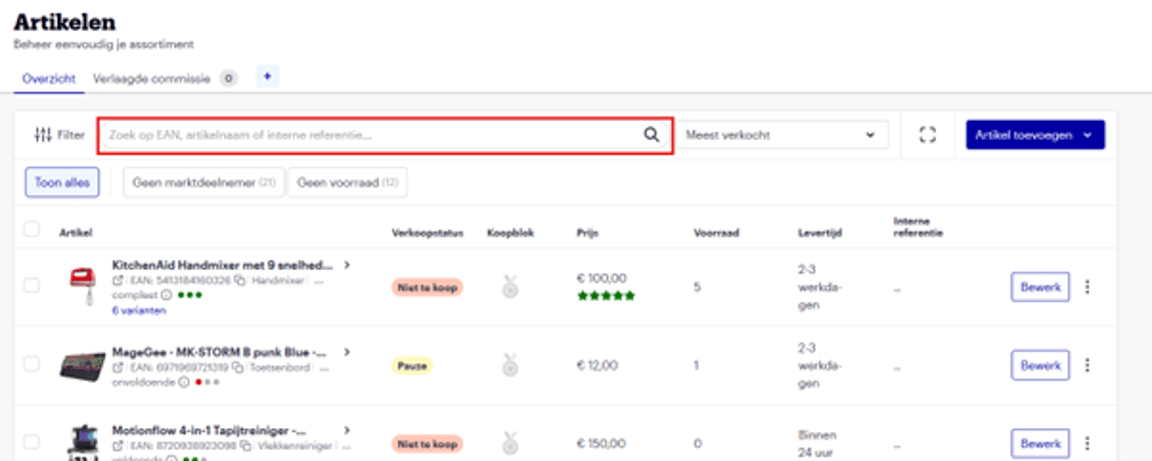
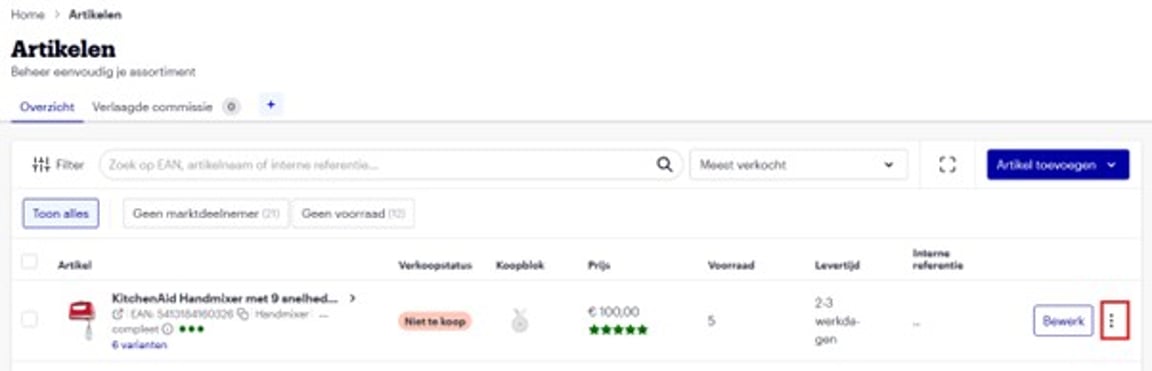
Click on the 3 dots to the right of the 'Edit' button
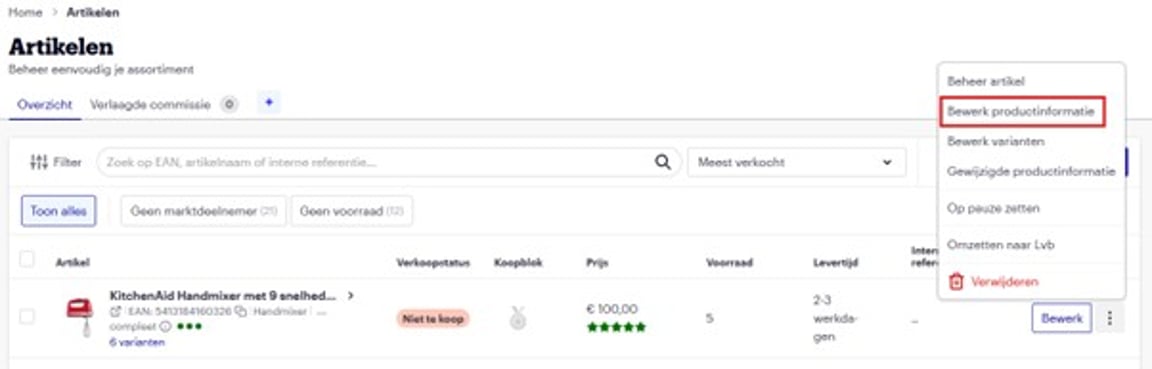
Then click on 'Edit content':
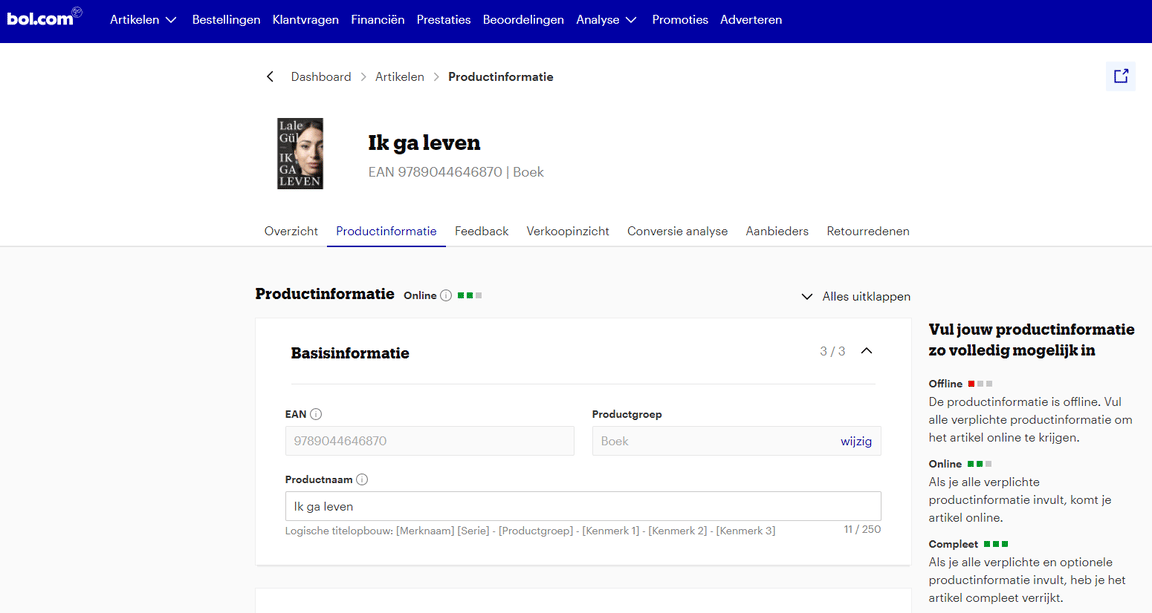
Now you'll see the basic information of your item
You are now on the content page. Here you will find the most important characteristics of the item at the top, such as the title, EAN, product category, and the quality of your content. If you click the arrow in the top right, you'll immediately see how the item appears on the website.
Add content
Under the 'Content' heading, you can edit all content per level. Here, all content is grouped by relevance for this item. Each level indicates how many fields can be filled and how many fields are already filled. Click on one of the levels to open or close this block of content. Clicking levels open and closed keeps the page organized. As soon as you've made a change, the 'Save' button will appear at the bottom of the page.
There are 3 levels of content:
- Basic information
Basic information necessary for a customer to understand what kind of item it is. Think of EAN, title, and at least 1 image. - Mandatory information
In addition to basic information, this information is needed to put your item online. When both the basic and mandatory information for an item are complete, the level becomes 'content online'. - Optional information
Additional information that helps customers get an even better picture of the item and encourages them to make a purchase more quickly. When all optional information is also complete, the level becomes 'content complete'.
And now... Just wait!
Additions or changes will be processed within 8 hours and may then be visible on bol. It's also possible that your changes are not visible after 8 hours. This could be because priority was given to existing or other new content, originating from other partners or brands. For feedback on your changes, you can always refer to the 'Feedback' section in your seller account.
Tip!
When completing content, it's important to know that different product characteristics are requested for each product category. Every item is different, and customers want different information accordingly. On this page, you'll find tips and tricks per product category, and you can also see the best title structure for your item.