
Add content for multiple items
On this page, you can read more about how content is structured and how you can add it for multiple items.
How is content structured?
Good content is important for successfully selling your product range via bol. This information helps the customer form a clear picture of their potential purchase. The more information known about an item, the greater the chance that the customer will make a purchase. Also, your item with complete content will be more discoverable – both within bol and via external search engines like Google. However, not all information is equally essential, so it's good to know what levels there are:
- Basic information: essential information for a customer to see what kind of item it is. Think of EAN, title, and at least 1 image.
- Required information: minimum information needed to put your item online.
- Optional information: additional information that helps customers get an even better picture of the item and encourages them to make a purchase sooner.
How do you add information for multiple items via the seller account?
In your seller account, you can add or change the content for multiple items at once. You do this by following these steps:
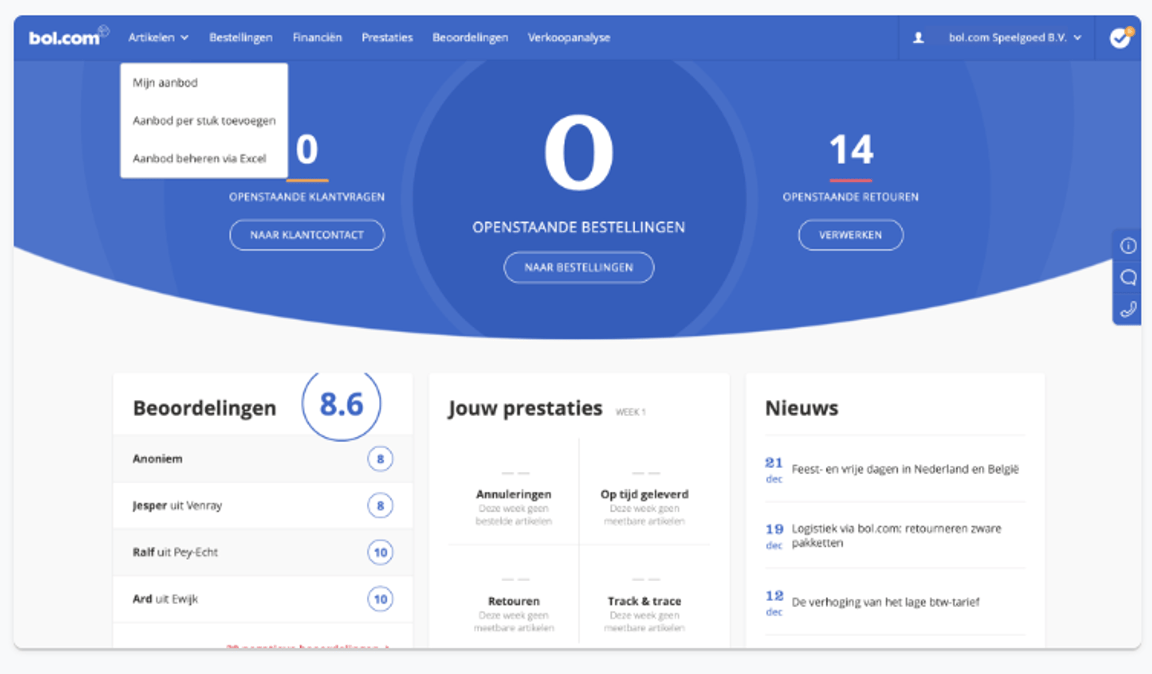
Go to your offer
In your seller account, click 'Items' at the top, then choose 'My Offer'.
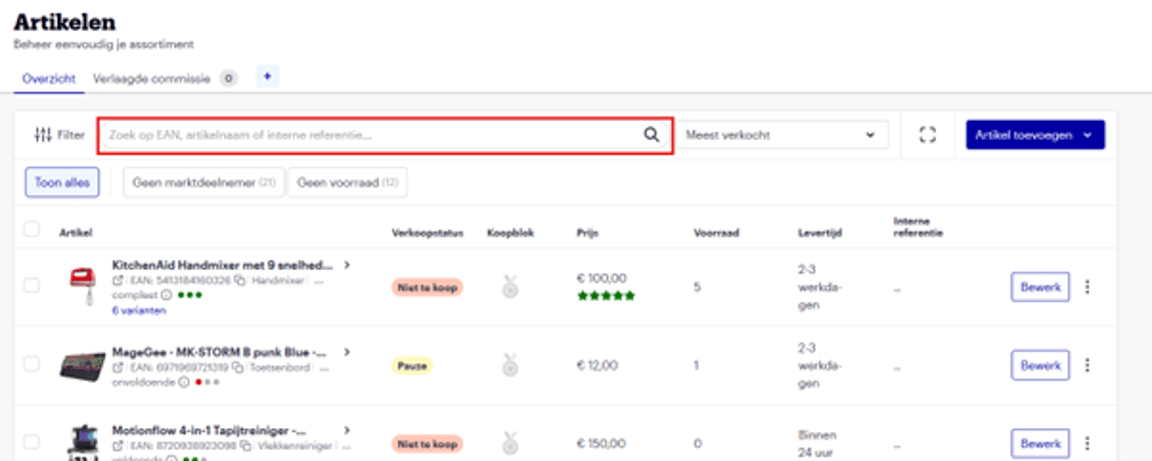
Search for the items you want to edit
Search for the items whose content you want to edit. You can do this by typing the EAN, ISBN, or title in the search bar.
Select the items you want to edit
.png?width=1152)
Choose 'Based on selection'
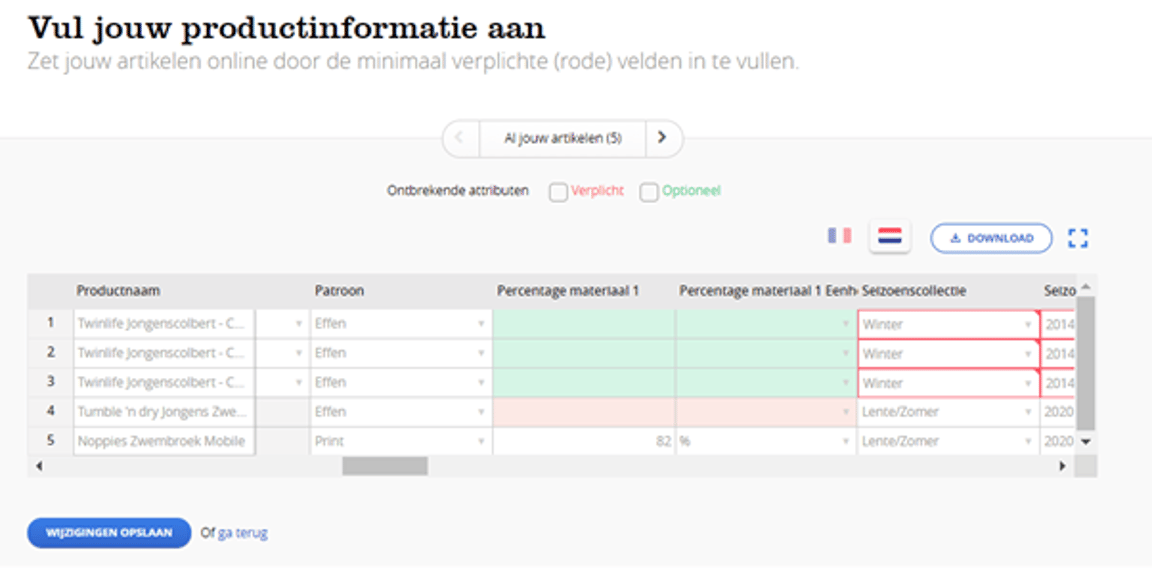
You will then see the screen below, where you can directly improve your content.
And now... Just wait!
Additions or changes will be processed within 8 hours and may then be visible on bol. It is also possible that your changes are not visible after 8 hours. This may be because priority was given to existing or other new content from other partners or brands. For feedback on your changes, you can always check the 'Feedback' section in your seller account.
Tips for editing content in bulk:
- Use the filters.
- You will automatically get a complete overview of all your items. You can make this overview more compact by choosing between the different product categories at the top.
- Required (red).
Use the 'Required' filter to only see items for which the information is mandatory to fill in, to get the item online. These mandatory fields are recognizable by their red color. - Finally, fill in the optional content in the green boxes to improve the discoverability of your item.
By filling in this content, your items will be found even better, and you will help customers in the purchasing process.