
Creating product families for multiple items
Do you want to add multiple items to a product family at once? Watch the video below or follow the step-by-step guide.
Creating product families: a quick guide

This video cannot be played. To watch YouTube videos, you must consent to the use of your click and search behaviour for personalised advertising outside bol.
Adding multiple items to a product family at once
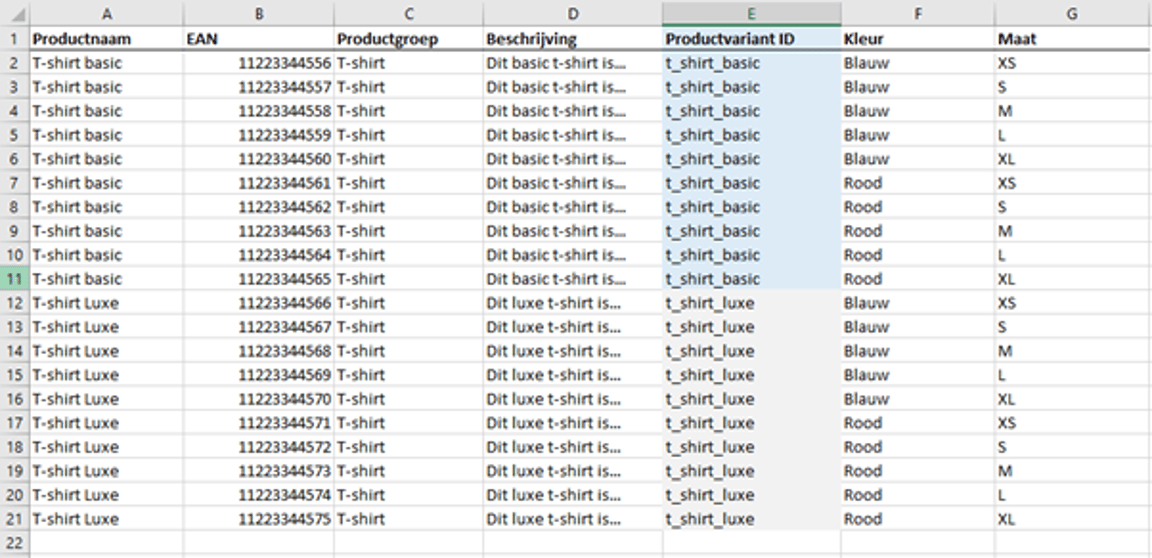
Group all item variants in your own document
In the example below, 2 different product families are created, both consisting of 10 items. The items are linked based on the value in column E. When this value is the same, those items will be linked to a new – or existing – product family.
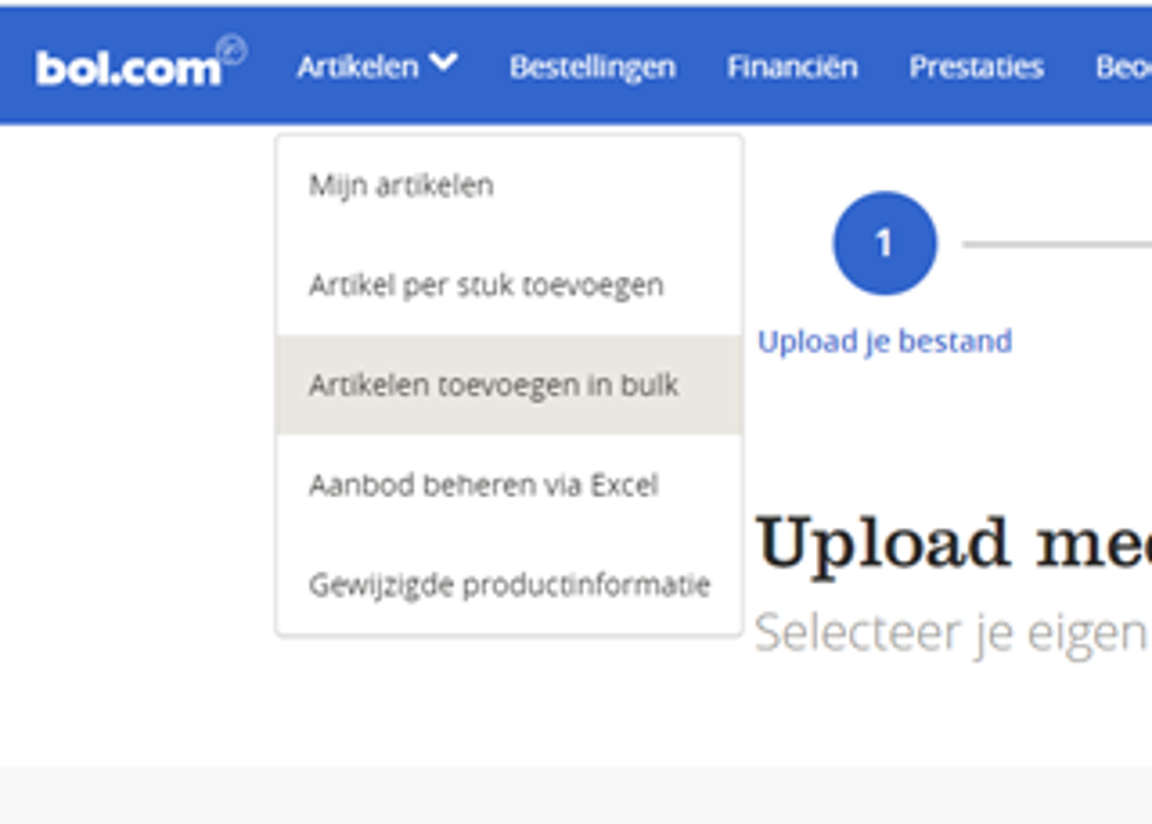
In the seller account menu, click 'Add items in bulk'
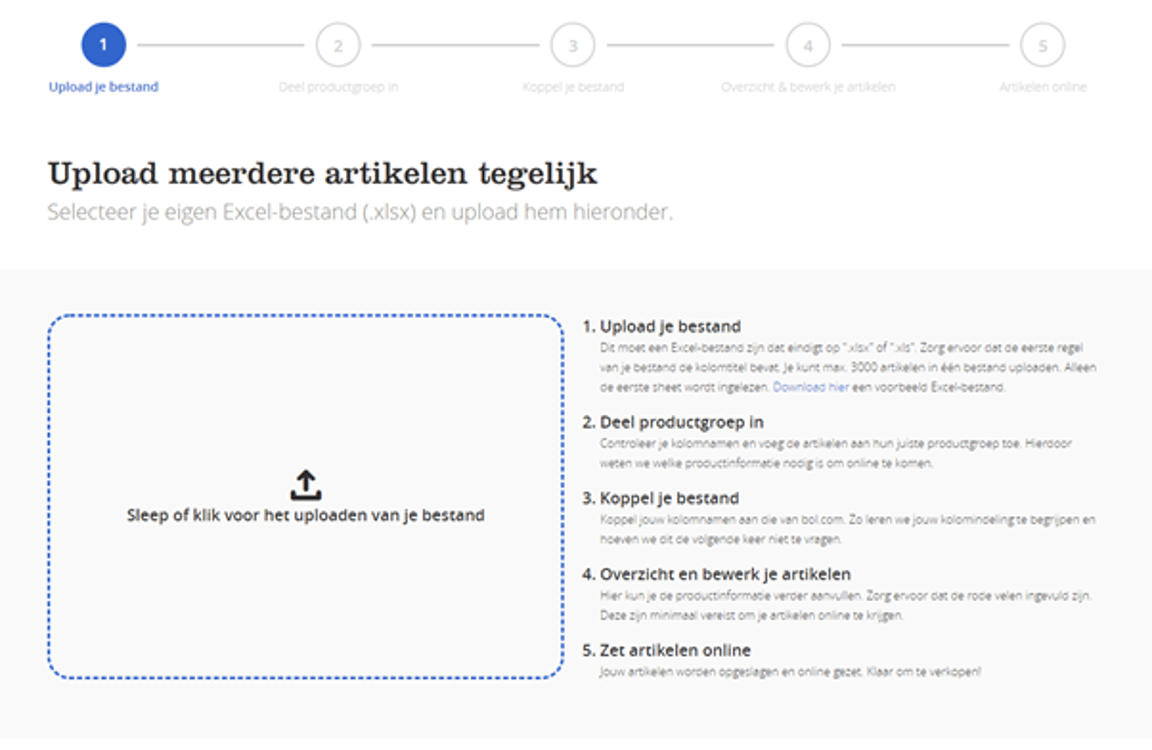
Upload your Excel file in the designated field
Link your columns with ours in step 2
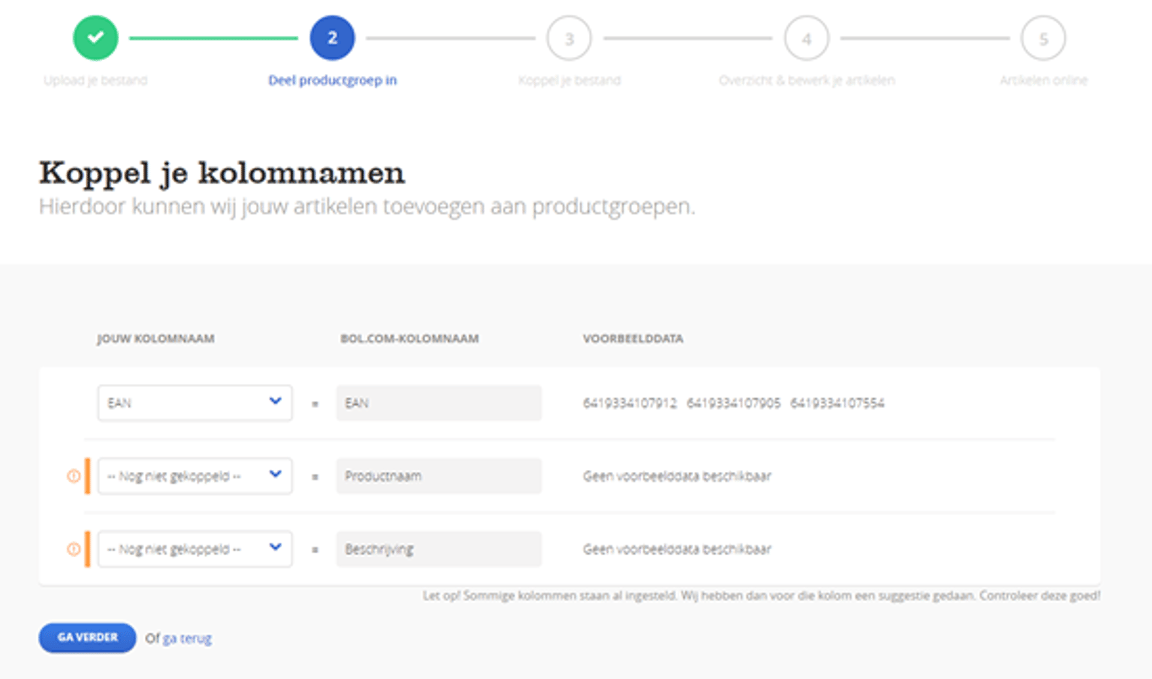
In the step below, you can link your own column as 'Product variant ID'
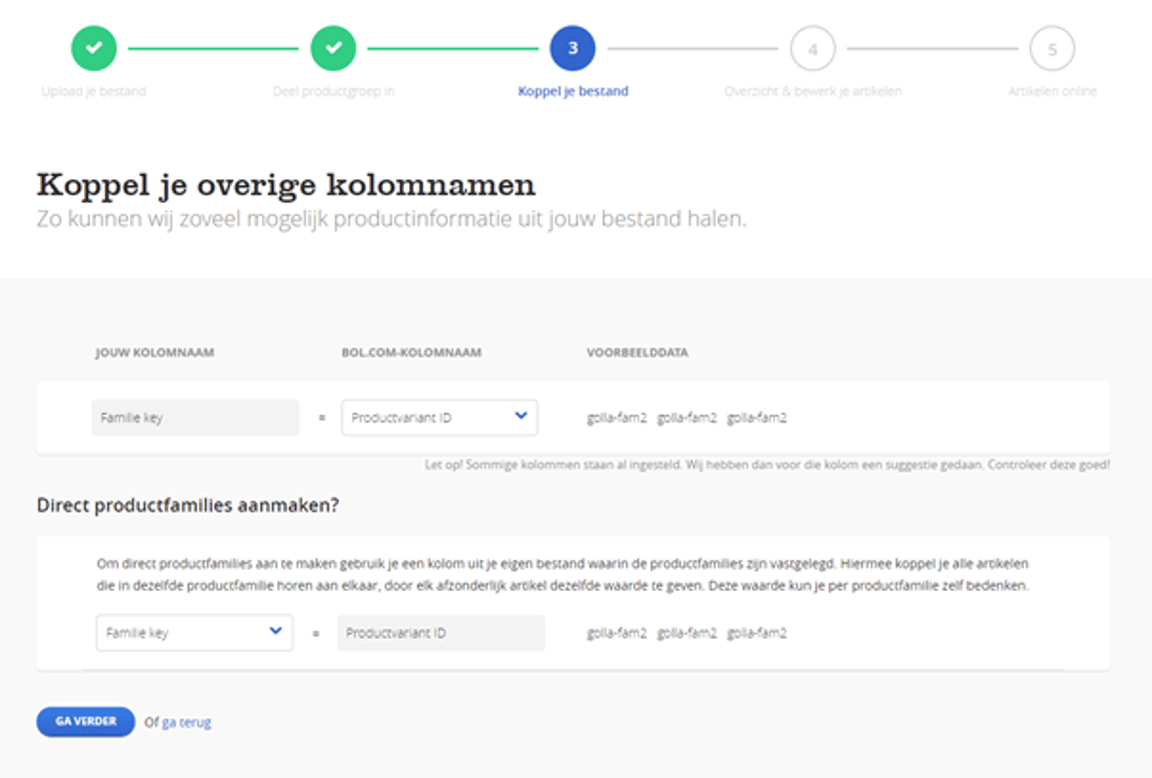
Ensure all items have the same value in the 'Product variant ID' column.
Ensure all items belonging to a product family have the same value in the 'Product variant ID' column. After saving, product families will be automatically created from these items.
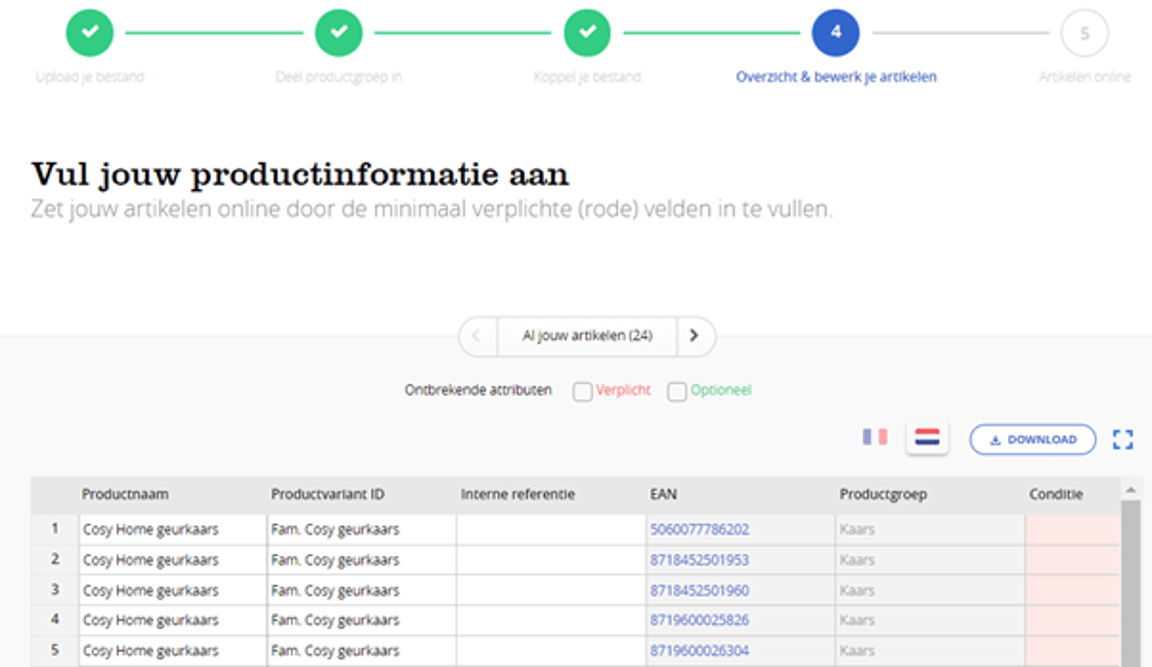
Check your data and then click 'Save changes'
Selected items are then checked against the 4 conditions for a product family. If these conditions are met, we can create the product families. Please note that, unlike the ‘single flow’ for families, the user does not receive feedback on whether families have been successfully created or not. If a family cannot be created, it is due to the 4 conditions that a family must meet.