
Create product family per item
Do you want to place items into a product family one by one? Watch the video below or follow the step-by-step plan.
Creating product families in brief
This video cannot be played. To watch YouTube videos, you need to provide your consent for the use of your click and search behavior for personalized ads outside bol.
Place items in a product family individually
Find the item variants in your offer that you want to put in a family
Items within a product family must meet 3 conditions:
- The items are in the same product category.
- The items are from the same brand, or the same author or artist.
- Each item has a distinguishing feature.
Select the item variants
Select the items you want to include in the family. You can paste all EANs directly into the search bar. Then click 'Edit content' and 'Link variants'.
Selected items are checked against 3 conditions
The selection of items may be rejected because no distinguishing feature has been set for the items; the feature by which the item variants differ, such as color or size. You will receive a notification of this. In that case, adjust the selection as indicated.
What might happen:
- The items belong in a product family, but one or more are incorrectly placed in another product category. In that case, adjust the product category under 'Edit content' in the seller account.
- The items ostensibly have the same brand, or the same author or artist, but are still rejected with the message that the brand, author, or artist is not the same. In that case, contact Partnerservice; they can resolve this for you.
- A distinguishing feature is set for the entire product category. Are there no distinguishing features for the product family? Then you will receive the message: 'Unfortunately. We cannot link the items in this product category yet'. In this case, contact Partnerservice, so they can check if the distinguishing features can be created for you.
Check if all distinguishing features are filled in
An item missing a distinguishing feature will not be shown as a variant on the product detail page. Therefore, check if all distinguishing features are filled in and complete them where necessary.
Check if the group feature is written correctly and consistently everywhere
It is important that all features are spelled the same. Open text fields are case-sensitive. A football shoe 'blue' and a football shoe 'Blue' will not be shown in the same family.
Check that there are no 'duplicate' items in your product family
Of two or more items with exactly the same color and size, only one will be shown on the product detail page. If there is one light grey and one dark grey, adjust them so that both are correctly displayed as different variants of an item.
Check if there are multiple variants of the distinguishing feature
When items are linked based on 2 distinguishing attributes, there must be multiple variants of the 'attribute' to be shown as an attribute.
For example:
- Item 1: Red - 140x100cm
- Item 2: Black - 140x100cm
- Item 3: Blue - 140x100cm
- Item 4: Red - 100x100cm
- Item 5: Black - 100x100cm
- Item 6: Blue - 100x100cm
In this family, there are 3 'Color' variants and 2 'Size' distributed among the different items. For each color, you will see 2 different sizes, and for each size, 3 different colors will be shown.
There are 3 colors and 2 sizes neatly distributed and equal to each other. So for each color, you will see the 2 different sizes, and for each size, you will see the 3 different colors on the product page. If these items had 6 different colors and 6 different sizes, these variants could never have been shown together on the product pages because they could not have been linked anywhere.
Link the variants in a product family
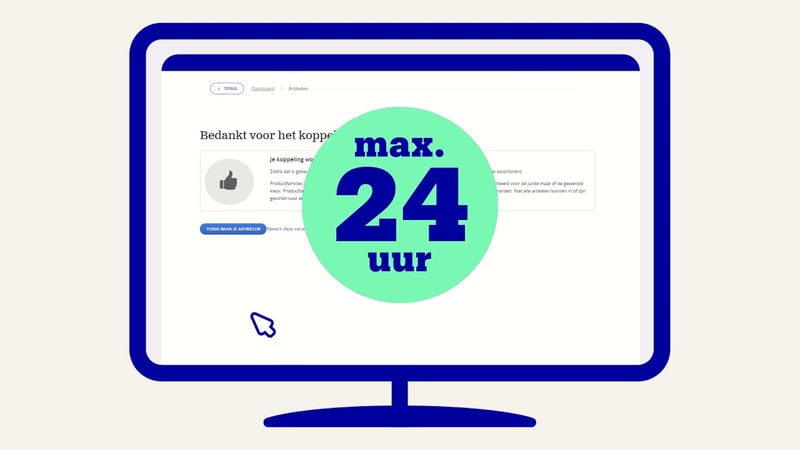
It may take some time for the product family to be visible on the product detail page. Visibility on list pages and search results takes a little longer. In total, it can take up to 24 hours for the changes to be visible.
Note: incorrect use can lead to policy point deduction
Misleading item and content information is one of the policy violation categories we actively monitor. For example, it is not allowed to deliberately adjust attributes such as the number of items in a package or color in a way that disadvantages other partners or customers.